
Document Review
Compare Legal Documents with AI in 5 Steps
Stop re-reading contracts side-by-side. Use AI to extract key terms, spot differences, and flag risks across multiple documents in minutes.

You've got the signed MSA, the counterparty's redline, two exhibits, an amendment that arrived by email, and a partner asking what changed before the 3 p.m. call. The fastest safe workflow is simple: put every related document in one workspace, extract the clauses you care about, compare them in a table, then generate a memo with citations back to the source pages.
AI helps because legal comparison is rarely about visible markup. It’s about meaning: “best efforts” becoming “commercially reasonable efforts,” a liability cap swallowing an indemnity, or a termination right moving from unconditional to breach-only.
The trap is treating AI like a magical redline reader. Don’t. Treat it like a very fast associate whose work must cite the record.
Why Manual Document Comparison Wastes Hours You Don't Have
Manual comparison breaks down because contracts hide risk in small verbs and buried carve-outs. A tired reviewer catches deleted paragraphs. The harder misses are semantic: “may terminate” changed to “shall terminate,” “including” became “limited to,” or “gross negligence” quietly picked up a fraud carve-out.
That’s why the usual workaround gets ugly fast. One PDF in Acrobat, another in Word, a spreadsheet of issues, a separate email thread for comments. Fine for a five-page NDA. Painful for a 47-page SaaS agreement with four order forms.
Online AI chatter doesn’t help much here because most of it is entertainment-coded. A thread like Reddit’s “I asked ChatGPT to imagine itself in retirement” tells you something about the public mood around AI, but nothing about whether a model can compare indemnity clauses under deadline pressure. Legal work needs a narrower test.
The useful question is: can the tool retrieve the right clause, compare it against the right counterpart, and show where it found both?
If it can’t cite the document, you’re back to hunting. If it can, the review changes shape. You spend less time scanning page 31 for a phrase you half-remember and more time deciding whether the change should survive negotiation.
This is adjacent to broader AI legal document review, but comparison has its own failure modes. It punishes missing context. It also punishes overconfident summaries that make a clause sound neutral when the redline shifted the risk.
A practical AI comparison workflow should do five things:
Keep all related documents together.
Let you query individual versions without losing the whole matter.
Extract clauses by legal concept, not only exact words.
Produce side-by-side tables.
Preserve citations so every claim can be checked.
That last one earns its keep. Without citations, the AI answer is a lead, not a work product.
Step 1: Upload All Related Documents to a Single Workspace
Start by gathering the whole paper trail. Not only the two documents you think matter.
That means the original agreement, the latest redline, clean copies, schedules, exhibits, statements of work, amendment letters, and any side email that changes the commercial story. If the document is scanned, run OCR or use a tool that can parse images. For scanned contracts, the same hygiene applies as any workflow for extracting data from scanned documents: confirm page order, check whether signatures were captured, and don’t assume the scan read footnotes correctly.
In Otio's unified document workspace, you can upload PDFs, DOCX files, images, TXT files, and pasted links into a library rather than scattering them across browser tabs. For a transaction, create a dedicated Space and move the matter’s chats, notes, folders, and files into it. That keeps the MSA review separate from the employment agreement you looked at yesterday.
Tag files plainly. Boring names beat clever names.
Use labels like:
Original
Counterparty redline
Our markup
Exhibit A
Amendment 1
Signed copy
When the AI later compares “Original” to “Counterparty redline,” there’s no ambiguity. If you name a file “final_final_vendor_2.pdf,” you’ve already planted a rake in the grass.
For large matters, wait until parsing finishes before asking questions. A 200-page PDF that’s still processing can produce partial answers. Partial is dangerous when the missing section is a limitation of liability clause.
This is also the moment to decide scope. Comparing every word across 12 documents sounds thorough, but it often produces noise. Start with the clauses that drive risk: payment obligations, termination rights, indemnity, confidentiality, data protection, IP ownership, liability caps, governing law.
Mostly. If a deal has a weird business term, put that on the list too.
Step 2: Open Multiple Chat Windows to Compare Documents Side-by-Side
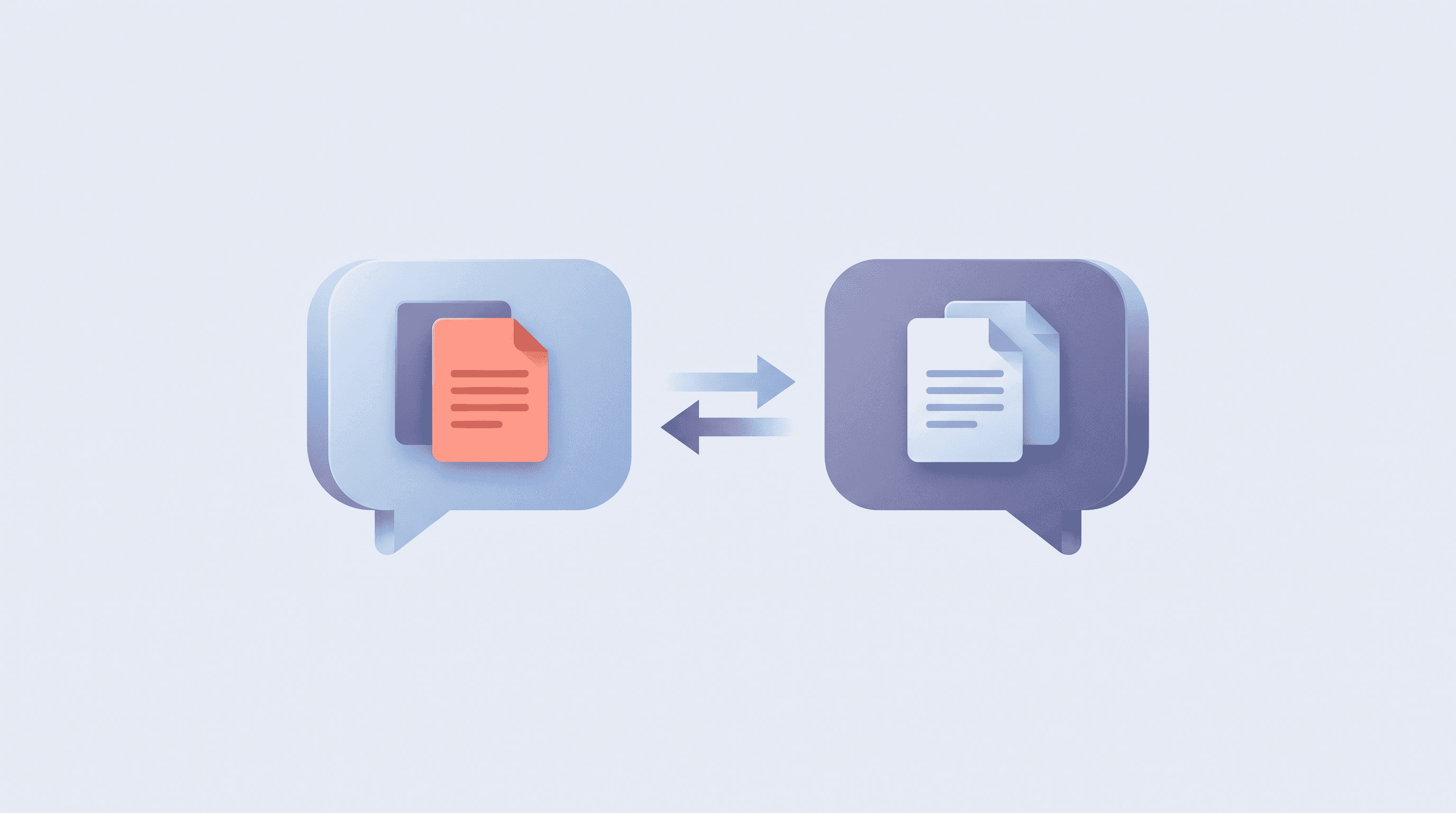
A single chat thread is fine for a simple review. It gets messy once you’re comparing several versions and need to preserve the reasoning trail.
Otio's multi-window split view lets you keep up to 10 chats open side by side, depending on plan. In one window, ask for the key payment terms in the original contract. In the next, ask for the same extraction from the counterparty redline. A third can hold the comparison table or risk memo.
This sounds small. It isn’t.
The friction in document review is often context switching: scroll, copy, paste, search, lose your place, start again. Multi-window review keeps the source-level questions separate from the synthesis question. That makes it easier to spot when the AI skipped a clause or merged two provisions that should stay separate.
Model choice matters too. Use a faster model for first-pass extraction when the task is mechanical: find clauses, list definitions, capture notice periods. Use a stronger reasoning model for legal significance: whether a new exclusion guts an indemnity, whether a cap applies to confidentiality breaches, or whether a termination right conflicts with the renewal language.
Public AI discourse tends to flatten that distinction. One day the feed is Reddit’s “The Spaghetti Benchmark”; the next it’s a complaint about model personality. In legal comparison, the benchmark is duller and better: did it find the right clause, did it compare the same legal issue, and can you trace the answer?
Use the Thinking Bar when the tool offers one. In Otio, it shows live agent steps such as source discovery, context retrieval, and analysis. If the AI is pulling from the wrong file, you can catch the mistake before it hardens into a memo.
A simple side-by-side setup works like this:
Window | Purpose | Example task |
|---|---|---|
Chat 1 | Original contract | Extract indemnity scope and exclusions |
Chat 2 | Redline version | Extract revised indemnity scope |
Chat 3 | Comparison | Build a table of material differences |
Chat 4 | Risk review | Flag changes that increase client exposure |
Don’t ask for everything at once. That’s how you get a polished answer with missing guts.
Ask narrow questions first. Then synthesize.
Step 3: Ask AI to Extract and Compare Specific Clauses
The best prompts name the clause family, the documents, and the comparison dimensions. Don’t ask, “What changed?” Ask for indemnity scope, exclusions, defense control, notice obligations, settlement consent, and caps.
For example, ask the AI to extract indemnification clauses from the original and redline versions, then compare scope, exclusions, defense rights, monetary caps, and survival language. Require a table. Require citations.
The output you want looks like legal review, not vibes:
Issue | Original | Redline | Risk |
|---|---|---|---|
IP claims | Covers third-party IP claims | Excludes claims from client modifications | Narrows vendor responsibility |
Defense control | Vendor controls defense | Client consent required for settlement | Better for client if consent is meaningful |
Cap interaction | No express cap carve-out | Subject to general liability cap | May reduce recovery |
This is where AI beats visual comparison. A redline can show that words moved. It won’t always tell you that a moved definition changes three downstream obligations.
If you need a broader extraction workflow, the mechanics overlap with extracting data from contracts. The difference is that comparison adds a second obligation: each extracted term has to be matched against the corresponding term in another document. Bad matching creates fake comfort.
The phrase “commercially reasonable efforts” is a good test. It might be acceptable in an operational covenant. It may be too weak where the client expected “best efforts” for a mission-critical migration. The AI can flag the change, but counsel still decides whether market practice or deal leverage justifies the fallback.
Use follow-up questions that force specificity:
Which changes reduce our client’s remedies?
Which edits expand our client’s obligations?
Which provisions now conflict with the order form?
Which changes look stylistic but affect liability?
Which definitions changed in a way that alters later sections?
Notice the shape. Each question asks for a legal consequence, not a summary.
I’ve watched a partner spend 40 minutes on a clause that turned out to be identical to last quarter’s version except for a cross-reference. AI is good at killing that kind of waste. It’s less good when the issue depends on unstated business context, like whether a customer can actually tolerate a 30-day cure period.
Save useful findings as notes. In Otio, per-message actions let you save a selected answer to a note, quote it back into chat, or retry the same question with a different model. That gives you a review trail without turning the memo into a scrapbook.
For high-stakes clauses, rerun the comparison from a different angle. Ask for a neutral extraction first. Then ask for plaintiff-side risk. Then ask what opposing counsel would argue if the clause were disputed. If the answers conflict, good. You found the place that needs a human decision.
Public forums often focus on whether one model is funnier, stranger, or more human-seeming, as in Reddit’s “Opus tryna be TOO human” thread. In contract comparison, personality is a distraction. You want boring consistency and source-grounded answers.
Step 4: Generate a Comparison Memo with Inline Citations
The memo should come after extraction. If you ask for a memo too early, the AI will compress uncertainty into confident prose. Looks nice. Costs you later.
Ask for a memo organized by clause type, with a short risk rating and citations to the relevant page or section. Keep the structure predictable:
Memo section | What it should contain |
|---|---|
Executive overview | The few changes that need a decision |
Clause comparisons | Side-by-side treatment by topic |
Risk analysis | Why each change matters |
Proposed response | Accept, reject, or revise |
Source references | Page or section citations |
Otio's streaming responses with inline citations are useful here because each quoted term can link back to the source document and page. That changes the review dynamic. Instead of trusting a generated memo, you click into the contract and verify the sentence.
For client-ready work, keep the prose tight. “The redline narrows the vendor’s indemnity by excluding claims arising from client modifications” beats “There are several material changes to the indemnification framework.” The first sentence tells the client what happened.
The memo should also separate legal risk from business risk. A payment acceleration clause may be legally clear and commercially unacceptable. A limitation of liability carve-out may be market-standard but painful under the client’s data exposure. Don’t let the AI blend those into one mushy “medium risk” label.
This is where legal research habits help. A good comparison memo resembles a small research record: question, source, answer, caveat. If your team already follows a formal legal research process, plug the AI output into that discipline rather than inventing a parallel one.
For a negotiation memo, ask for three layers:
Material changes: the edits that affect rights or obligations.
Drafting issues: ambiguity, inconsistent definitions, broken cross-references.
Negotiation posture: what to accept, what to counter, what needs client input.
That isn’t a replacement for legal judgment. It’s triage.
Read the cited language yourself before sending the memo. Yes, every time. AI can misread a defined term, miss a sentence split across pages, or overstate the effect of a carve-out. The citations are there so review is faster, not optional.
If you use the read-aloud feature, listen while scanning the clause text. It’s a surprisingly good way to catch mismatch between the memo’s claim and the document’s language. Your eyes stay on the contract; your ears catch the narrative.
Then export the memo as DOCX or PDF if the workflow calls for it. For internal work, a living note may be better because negotiation keeps moving.
Step 5: Flag Risks and Negotiate Redlines with Confidence
The review only matters if it changes the negotiation. A perfect issue list that doesn’t produce redlines is office archaeology.
Ask the AI to rank the top risks in the counterparty’s version for your client, but force it to tie each risk to a clause citation and a proposed response. “Push back on Section 9.2 because it subjects confidentiality breaches to the general cap” is useful. “Liability terms may be unfavorable” is landfill.
A strong risk prompt should ask for:
Clause reference.
What changed from the prior version.
Why the change matters.
Proposed counter-language in plain English.
Whether the issue needs client input.
That last field prevents fake decisiveness. Some issues are legal calls. Others are business calls wearing a legal costume.
For example, if the counterparty changes “best efforts” to “commercially reasonable efforts,” the AI can explain that the duty may be narrower. It can suggest pushing for a measurable service level, a deadline, or a specific cure process. The business team still has to decide whether the obligation is worth fighting over.
Keep a running comparison thread during negotiation. When Redline v3 arrives, ask what changed from v2 and whether the edits respond to your earlier objections. This is one of the better uses of AI because the task has memory: prior objection, new language, current position.
It also catches quiet reintroductions. Opposing counsel may accept your change in one section and add equivalent language elsewhere. Maybe by accident. Maybe not.
For teams already investing in automation in the legal industry, this is the part to standardize. Use the same issue categories across matters: indemnity, liability, confidentiality, data, IP, termination, payment. Standard categories make it easier to compare risk across clients and quarters.
Legal AI has a hype problem, and the public internet doesn’t exactly calm it down. Threads like Reddit’s “Plumbers, electricians, and HVAC techs watching AI replace everyone except them” frame AI as labor displacement theater. Contract comparison is more prosaic: the machine drafts the issue map, and the lawyer decides what the issue is worth.
Share the Space with the team when the negotiation heats up. Assign one person to commercial terms, another to liability, another to data protection if the deal warrants it. Keep comments in the same workspace as the source documents. Email threads are where nuance goes to die.
When you draft redlines, don’t accept AI language wholesale. Use it to generate options, then adapt to the deal. The best counterproposal is often shorter than the AI’s first draft.
Start Comparing Documents Today—No Legal AI Subscription Required
You don’t need to buy a dedicated legal AI platform just to test this workflow. You need a workspace that can hold the documents, query them reliably, compare them side by side, and preserve citations.
Otio’s free tier is enough to test a real comparison on a smaller contract: 2 chat windows, 100 MB of storage, one Space, and PDF page support up to the plan limit. If you’re reviewing a bigger matter, Otio Go adds 10 chat windows, 500 MB storage, 5 Spaces, connectors, text-to-speech, and access to stronger models such as Claude Opus through the Expert shortcut.
The pricing detail matters because legal review often starts as an experiment. A team wants to compare two vendor forms before committing to a larger document workflow. Flat monthly pricing is easier to test than per-document billing.
Security matters too. Otio encrypts documents in transit and at rest, and it doesn’t train on your data. You can delete documents when the matter closes.
The broader tool market is crowded; we’ve covered legal AI software for law firms and tools to extract insights from documents separately. For comparison work, don’t start with the longest vendor checklist. Start with a live contract and ask whether the tool catches the changes your team actually cares about.
A good first test takes 20 minutes:
Upload an original agreement and one redline.
Ask for indemnity, liability, and termination comparisons.
Generate a short memo with citations.
Click every citation.
Decide whether the output saved real review time.
Some AI demos feel like Reddit’s “Average day in the life of ChatGPT user”: amusing, noisy, hard to map to work. This test is harder to fake. Either the clauses line up, or they don’t.
Try Otio for your next contract comparison.
FAQ
Q: Can AI really catch differences I'd miss manually?
A: Yes, especially semantic differences such as “may” versus “shall,” narrowed exclusions, and changed cross-references. You still need to verify cited clauses before relying on the result.
Q: How long does it take to compare a 50-page contract?
A: Upload and parsing time depends on file quality, but a clean digital contract is usually ready faster than a scanned one. Clause extraction and comparison queries often take seconds to a few minutes, while a full memo takes longer because citations need checking.
Q: Is my contract data secure?
A: Otio encrypts documents in transit and at rest, doesn’t train on your data, and lets you delete documents. For firm use, match any AI tool against your client confidentiality rules and internal security policy.
Q: Can I compare more than two documents at once?
A: Yes. You can compare several versions in one query, or use multiple chat windows to keep each version and the synthesis work separate.
Q: What file formats does Otio support?
A: Otio supports PDFs, DOCX, TXT, images, web links, and several other document types. For scanned contracts, check OCR quality before relying on the comparison.