Updated November 28, 2026.
Google Docs export is the starting point, not the accessibility sign-off
An accessible PDF from Google Docs is not proven accessible just because the Google Doc looked well structured before export. The PDF is the file people will download, archive, email, and open in assistive technology, so the exported PDF needs its own post-export review.
Google’s own documentation says, as of November 28, 2026, “You can use a screen reader with .pdf files that you export from Google Docs” in its Google Docs Editors screen-reader documentation. That is useful, but it is not the same as a guarantee that the exported PDF has preserved heading structure, correct image descriptions, logical reading order, table headers, metadata, or PDF accessibility as a whole.
Google Docs formatting can help you build a cleaner source document. It is still only the source. Export is not evidence that the resulting PDF is tagged correctly, PDF/UA-conforming, WCAG-conforming, or ready to publish.
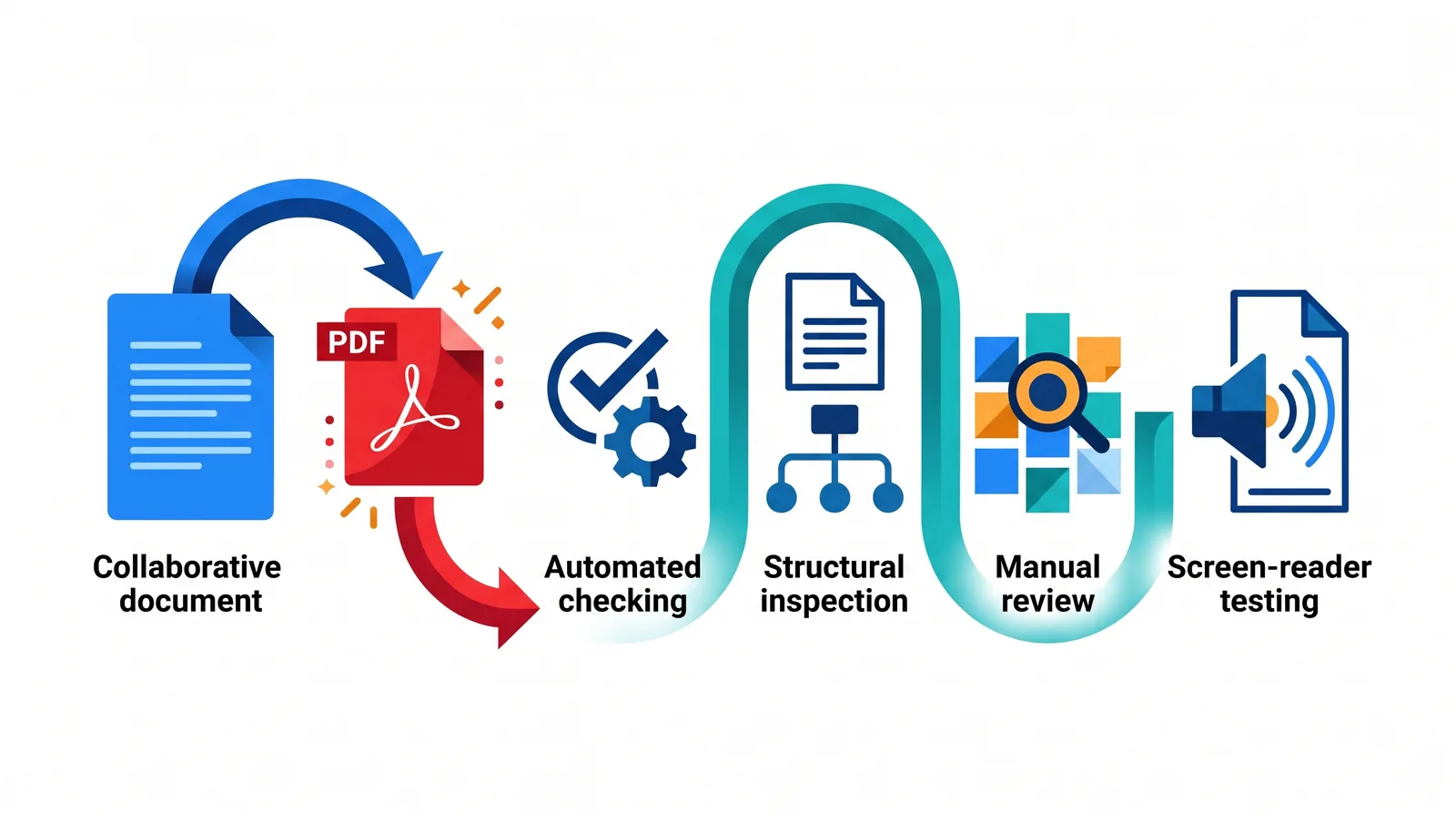
A tag is structural information inside the PDF that identifies content as a heading, paragraph, list, table, link, figure, form field, or artifact. Screen readers and other assistive technologies depend on that structure; they cannot infer every authorial choice from the visual page.
The practical boundary is simple: make the Google Doc as clean as possible, export the PDF, then review the PDF itself. A checker finding is evidence, not human approval. A repair result is a candidate for review, not a certificate.
This is the same boundary that applies to other source-to-PDF workflows. If your source file is Microsoft Word rather than Google Docs, the post-export issues are similar; see Accessible PDF from Word: What to Check After Export. If the source is InDesign or LaTeX, export adds different risks around layout, equations, and tag mapping, covered in Accessible InDesign PDF Step by Step and Accessible PDF from LaTeX.
What to review in a Google Docs PDF before publishing
Start with the PDF as a separate artifact. Open it, inspect it, check it, and test it as the file your audience will actually receive.
A university accessibility guide from Massachusetts puts the point plainly for PDFs generally: review “the tags, reading order, images, tables, links, and other content” and correct issues found, even for PDFs created from accessible source documents, according to Mass.gov’s PDF accessibility training. That is the right posture for Google Docs exports too.
Document identity and language
Check the PDF title, document language, and metadata. A good PDF should open with a meaningful document title rather than only a filename like final_v3_revised.pdf.
Language metadata matters because assistive technology may use it to choose pronunciation rules. If the document contains multiple languages, inspect whether the primary language is correct and whether language changes are handled where your tools support them.
Structure: headings, paragraphs, and tags
A PDF can look organized while its internal structure is flat or confused. Inspect whether headings are tagged as headings, body text as paragraphs, lists as lists, links as links, and figures as figures.
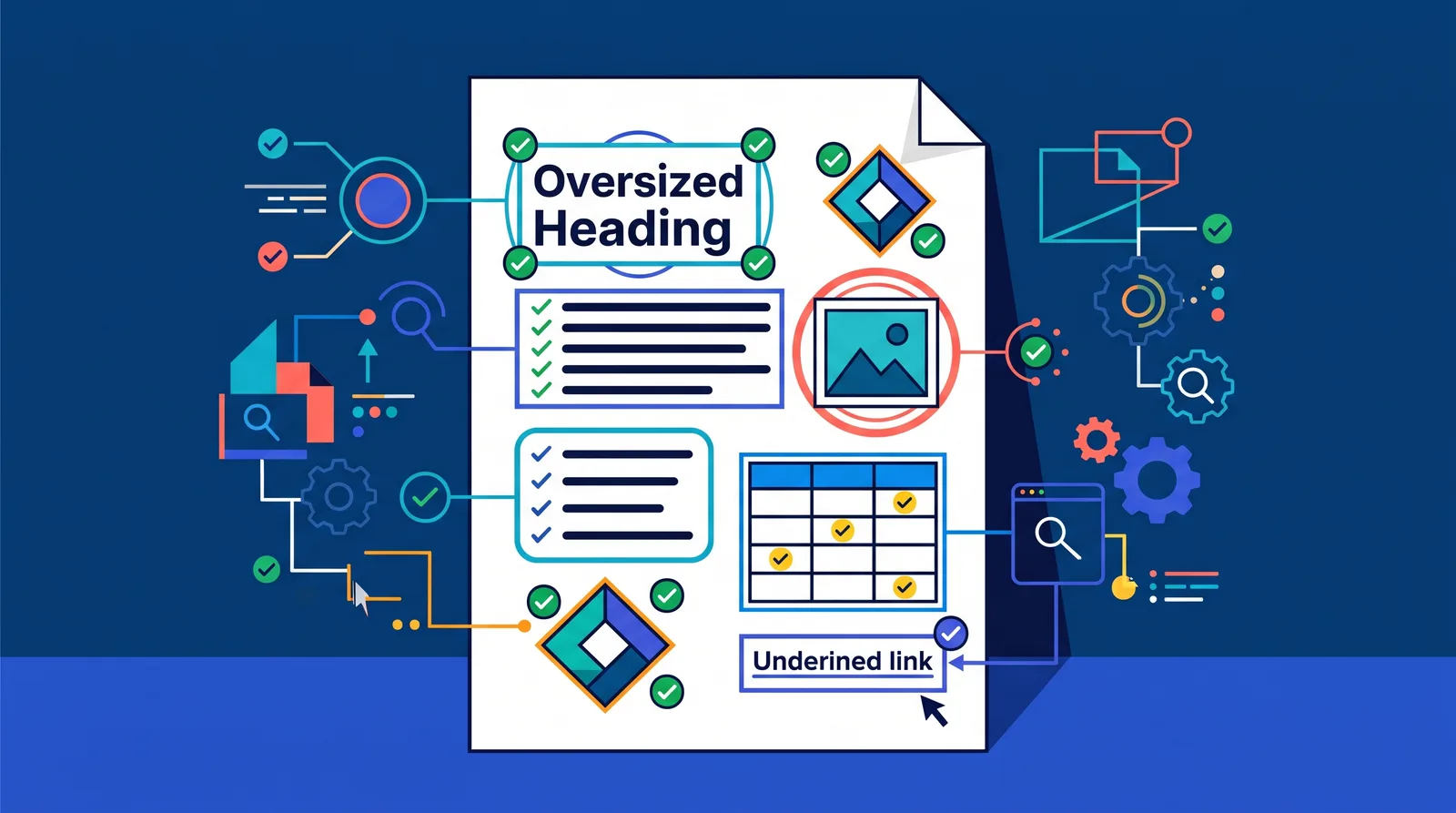
The heading hierarchy should make sense. A title followed by Heading 1, Heading 2, and Heading 3 levels is easier to navigate than a document where every bold line is just a paragraph with larger text. Screen-reader users often jump by headings, so visual styling alone is not enough.
Harvard’s digital accessibility guidance notes the broader problem: PDFs are often not structured properly, which can create barriers. Google Docs export does not remove the need to inspect that structure.
Lists and navigation
Check that bulleted and numbered lists are represented as lists, not as separate paragraphs with decorative bullets or typed numbers. A screen reader should be able to announce list structure, list length where supported, and list items in sequence.
If the document is long, inspect bookmarks or other navigation aids. Bookmarks should reflect meaningful sections, usually derived from headings, and should not point to the wrong page or omit major sections.
Images and decorative content
Alt text is a concise description of an informative image. “Informative” means the image conveys content the reader needs: a chart, process diagram, map, screenshot, signature block, logo used as an identifier, or photo that supports the argument.
Review every image in context. A chart needs the takeaway or the data available nearby, not just “bar chart.” A decorative divider, background shape, or purely ornamental icon should be marked as decorative content, often called an artifact, so it is not announced unnecessarily.
Google Docs can contain alt text and related accessibility information in the source document; Stanford’s guidance notes that Google Docs includes options for adding accessibility information. The post-export question is whether the PDF contains the right structure and descriptions after conversion.
Tables and table headers
Tables need more than visual grid lines. Check whether the table has identifiable headers and whether a reader can understand the relationship between each header and each data cell.
Simple tables may need only clear column headers. Complex tables may require row headers, repeated headers across pages, careful handling of merged cells, captions, or a different presentation. If the table only makes sense visually, it probably needs manual review.
Links, forms, and interactive content
Links should have meaningful names and correct destinations. “Download the annual report” is useful; “click here” repeated ten times is not. Inspect whether link text is announced clearly without requiring visual context.
If the Google Docs file was used to create a form-like layout, check whether the PDF contains real form fields or merely static lines and boxes. Form fields, when present, need labels, keyboard access, clear instructions, and predictable tab order.
Reading order
Reading order is the sequence in which assistive technology presents content. It is not always the same as the visual position on the page.
Reading order problems are common in documents with columns, side-by-side callouts, captions, headers, footers, tables, floating images, or page-number elements. A screen reader should not jump from the first paragraph to the footer, then to a sidebar, then back to the middle of a sentence.
A practical post-export review sequence
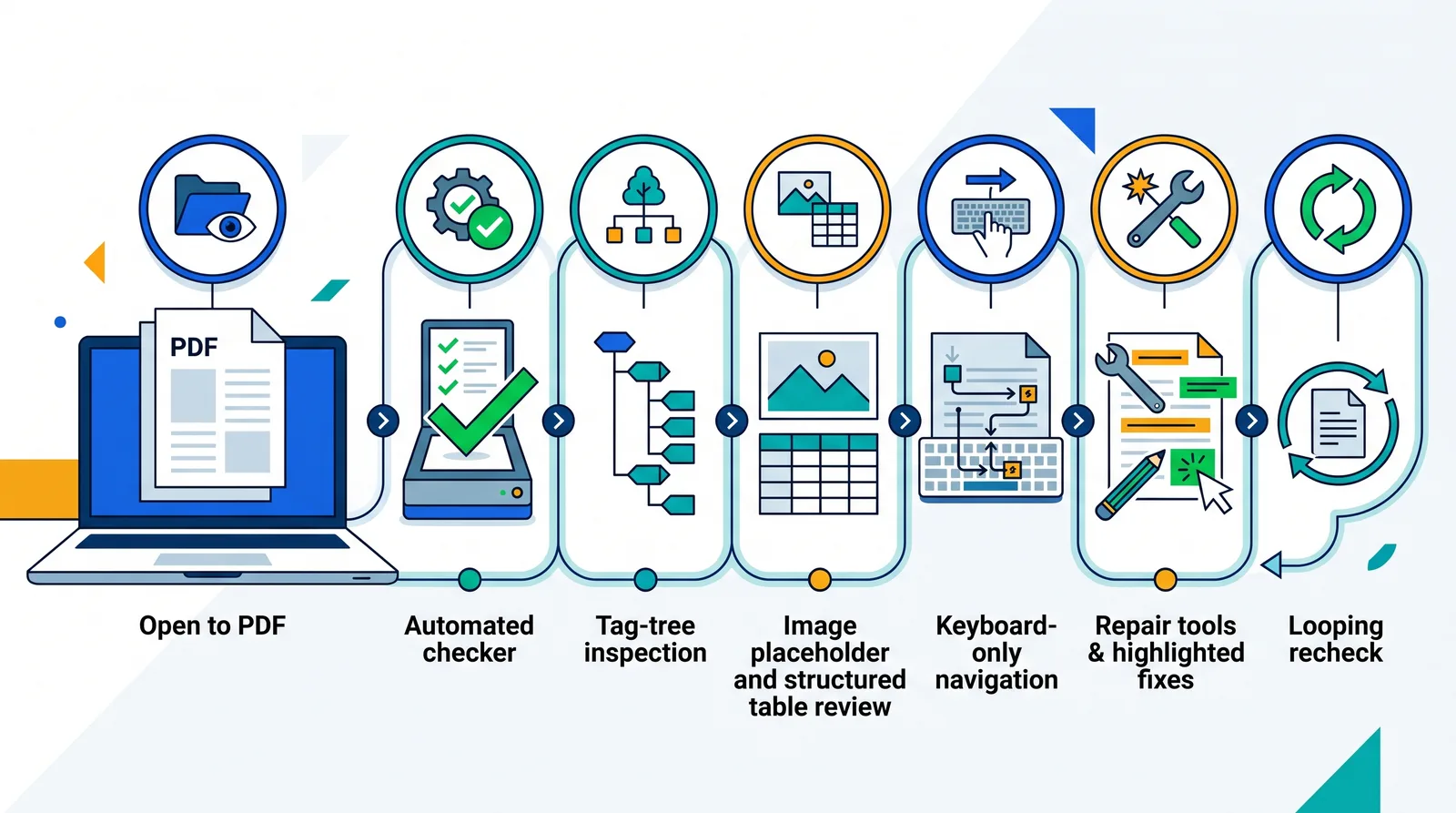
Do the review in the order below. It avoids the common mistake of fixing one visible problem, publishing the file, and only later discovering that the tag tree or reading order is unusable.
Step 1: Open the exported PDF and check the visible file
Open the PDF in a PDF viewer first. Confirm that pages, fonts, links, images, tables, bookmarks, headers, footers, and any form-like content appear as intended.
This is not yet an accessibility review. It is a release sanity check. If pages are missing, fonts changed, links broke, or a table split badly, fix the source or export settings before spending time on deeper inspection.
Step 2: Run an automated PDF accessibility check
Run an automated check to identify detectable structural, metadata, tagging, and technical issues. Record the file version and the findings.
Do not treat a clean-looking result as approval. Ohio State’s accessibility guidance describes automated PDF checkers as giving a quick overview of accessibility issues, which is the right level of trust. A quick overview is useful; it is not the same thing as a human review of meaning and behavior.
Step 3: Inspect the tag structure and reading order
Look at the PDF’s tags and reading sequence. Check for missing headings, paragraphs tagged incorrectly, broken lists, untagged content, misplaced figures, decorative content read aloud, and content announced in the wrong order.
For Google Docs exports, pay attention to documents that used manual formatting instead of real structure. Large bold text may look like a heading in the source file but fail to behave like one in the PDF. Typed numbers may look like a numbered list but fail to be tagged as list items.
Step 4: Review every informative image manually
Automated tools can often tell you whether an image has a description field. They cannot reliably decide whether the description is useful for the document.
For each image, ask:
- Does the image convey information? If yes, it needs a description or an equivalent explanation nearby.
- Is the description specific to the surrounding text? “Diagram” is rarely enough.
- Would a non-visual reader miss a decision, warning, trend, or instruction without it? If yes, add the missing meaning.
- Is the image decorative? If yes, mark it so it is skipped.
Charts and screenshots often need more than one sentence. If the image is too complex for concise alt text, put the fuller explanation in the body text, caption, appendix, or adjacent note, then keep the alt text brief.
Step 5: Review tables manually
Tables are where automated confidence often breaks down. A checker may identify tags, but a person has to decide whether the table can be understood when read cell by cell.
Review header relationships, repeated headers, merged cells, captions, and the reading sequence. If the table spans pages, check whether the headers remain clear after the page break. If the table is being used for layout rather than data, consider whether it should be reworked.
Step 6: Test keyboard navigation and screen-reader behavior
Use the keyboard to move through links and form fields if present. The focus order should match the intended reading and action order.
Where possible, test with a screen reader. Move through headings, links, lists, tables, images, and fields. Compare the spoken or braille output with what the document is supposed to communicate.
The goal is not to perform theatrical testing after the real work is done. Screen-reader behavior often reveals mistakes that the visual page hides: repeated footer clutter, skipped captions, broken list structure, vague links, and sidebars inserted mid-sentence.
Step 7: Fix the PDF, recheck, and retest
After repairs, run the automated check again and repeat the manual tests that matter for the file. Keep the original exported PDF and the final reviewed PDF clearly separated so an earlier export is not accidentally published.
Use versioned filenames or document records. For example: program-policy-export-2026-11-28.pdf for the raw export and program-policy-reviewed-2026-11-28.pdf for the file cleared for release by your team.
What automated checks can find—and what they cannot judge reliably
Automated checks are valuable because they are repeatable. They can identify many technical failures faster than a human can inspect every object in a long PDF.
They are especially useful for questions like:
- Does the PDF appear to have tags?
- Is required metadata missing?
- Are links, form fields, or figures present in the structure?
- Are some images missing descriptions?
- Are there detectable tag-tree or nesting problems?
- Are there obvious reading-order risks?
The hard part is that accessibility is not only the existence of fields and tags. It is whether the document communicates correctly through those fields and tags.
A checker may find that an image has alt text. It cannot reliably decide whether the description explains the image’s meaning for this document. “Graph showing results” may satisfy a field requirement while telling the reader almost nothing.
A checker may detect table tags. It cannot reliably decide whether a complex table’s headers, merged cells, and relationships make sense when read linearly.
A checker may flag reading-order risks. It cannot know the author’s intended sequence for columns, captions, sidebars, pull quotes, footnotes, or callouts unless a person confirms it.
Screen-reader testing adds behavioral evidence that a structural report cannot provide. It still requires a human listener or braille reader who can recognize whether the output matches the document’s purpose.
For a fuller treatment of this boundary, see Ordecto’s deeper explanation of what automated PDF accessibility checkers cannot test. The short version for Google Docs is this: use automation to find what machines can detect, then reserve human review for meaning, sequence, and judgment.
Where Ordecto fits after Google Docs export
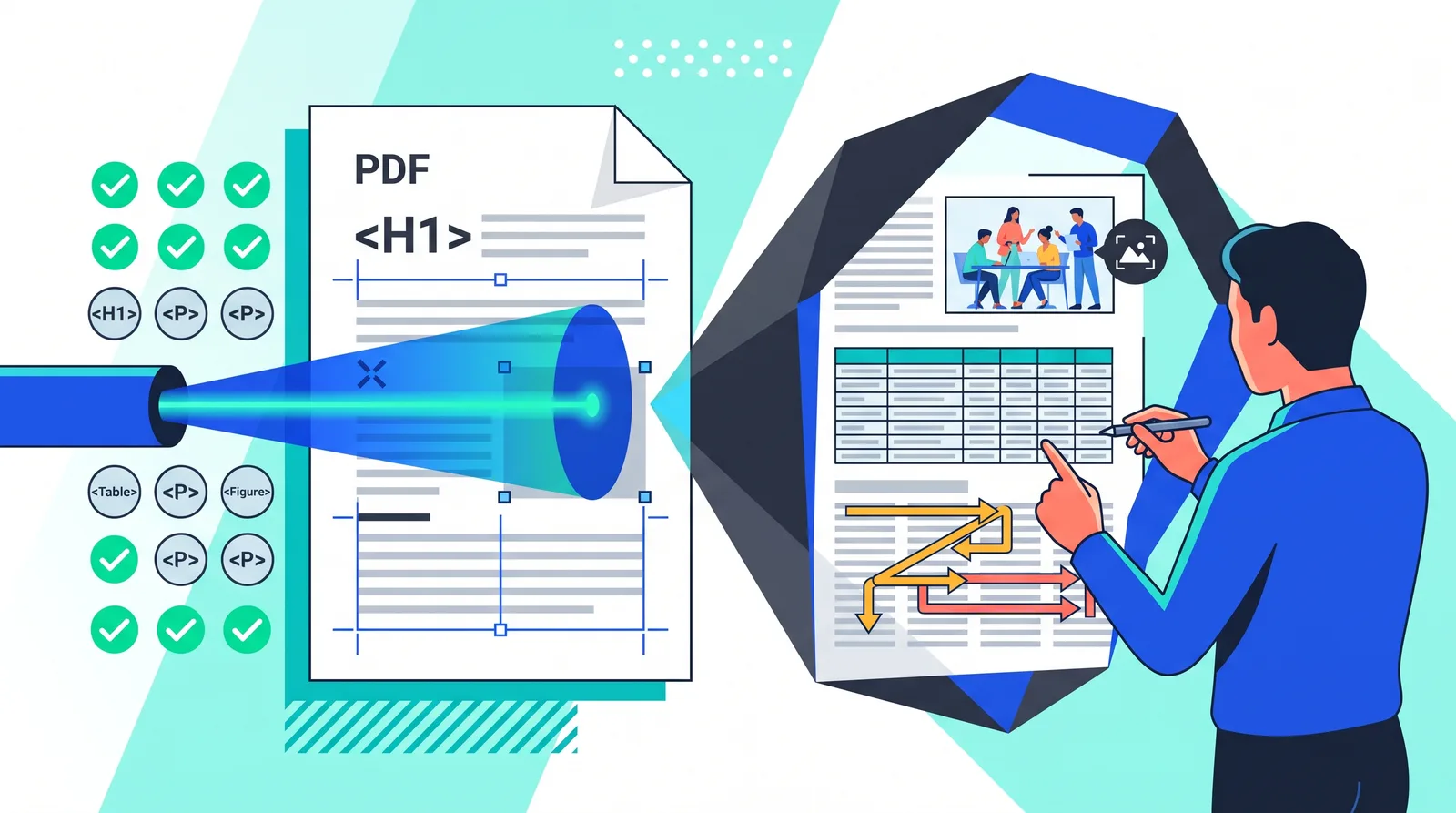
After export, the work shifts from “is my Google Doc formatted well?” to “what is inside this PDF?” That is where Ordecto, a PDF accessibility tool from the team behind Otio, checks exported PDFs against PDF/UA-1, using WCAG 2.2 as a referenced test model.
PDF/UA is the PDF-specific accessibility standard for the structure and behavior of PDF files. It deals with how a PDF’s tags, content, annotations, metadata, and reading behavior should support assistive technology. WCAG is broader web content accessibility guidance; for PDFs, teams often need both the PDF-specific structure lens and the content-accessibility lens.
Ordecto reports findings as failed, needs a person, or not tested. That distinction matters. It does not label a processed file as “accessible,” “compliant,” or certified, because no automatic check can make that judgment for every part of a PDF.
If the exported Google Docs PDF has structural problems, PDF remediation is the repair step. Ordecto can repair headings, paragraphs, lists, tables, links, figures with descriptions, form fields, reading order, and decorative content marked as artifacts. For scanned pages, it can add a text layer so the words can be read.
A person still needs to judge the meaning of images, complex table relationships, and intended reading order. The repaired PDF and report should be reviewed before release, especially for public-facing policies, course materials, healthcare forms, legal documents, financial reports, and anything that people must use to complete a task.
If the standards question is the main issue for your team, the PDF/UA checker is the deeper place to inspect the exported file through that lens. Treat the output as evidence for review, not proof of conformance.

The release decision: publish only the reviewed PDF
Publish the PDF only after the automated findings have been addressed or documented, the tag structure and reading order have been inspected, images and complex tables have received human review, and keyboard or screen-reader testing has been completed where relevant.
For recurring Google Docs workflows, keep a short review record. Include:
- PDF filename or version
- source document name
- checker findings
- repairs made
- unresolved items
- reviewer
- test date
- final release file location
If the document is later updated in Google Docs, treat the next export as a new PDF. A previous review does not automatically transfer to a newly exported file, because the PDF’s tags, reading order, links, pagination, and object structure may change.
The next action is simple: upload the exported PDF to Ordecto’s free PDF accessibility checker to see which issues need fixing and which findings still require a person’s review.
FAQ
Q: Does Google Docs automatically make an accessible PDF?
A: No. Google documents that PDFs exported from Google Docs can be used with a screen reader, but that does not guarantee correct PDF tags, alt text, reading order, table structure, or overall accessibility. Review the exported PDF itself.
Q: Should I review the Google Docs file or the exported PDF?
A: Review both when possible, but the exported PDF is the release artifact and needs its own accessibility review. Source-document structure does not by itself prove that the PDF contains the right tags or reading order.
Q: Can an automated PDF checker decide whether image alt text is correct?
A: It can flag missing or technically problematic descriptions, but a person must decide whether the description conveys the image’s meaning in context. Complex tables and intended reading order also require human judgment.