
Presentation Workflow
15 Best AI Tools for Creating Presentations from Research and Notes
Compare 15 AI presentation tools for turning research and notes into usable decks, with guidance on citations, slide control, collaboration, and export formats.

If the deck is based on research, pick the tool by inputs, evidence, and export path, not by the prettiest AI theme. Gamma, Copilot, Gemini, Plus AI, Canva, and Pitch are the safest starting points for most decks; Otio belongs earlier in the workflow when the real problem is turning PDFs, web pages, videos, and notes into a cited outline you can trust.
A good workflow is usually two tools: one workspace to collect and verify evidence, then one slide editor to control layout, branding, collaboration, and delivery. Treat every AI-generated slide as a draft until you have checked the claims, numbers, quotations, charts, and citations against the original sources.
The best AI presentation tool depends on your source material and output needs
The best AI presentation tool is the one that matches the material you already have. A pasted outline, a 40-page PDF, a Google Doc, a spreadsheet, and a messy folder of notes are different inputs. Tools that handle one well often struggle with another.
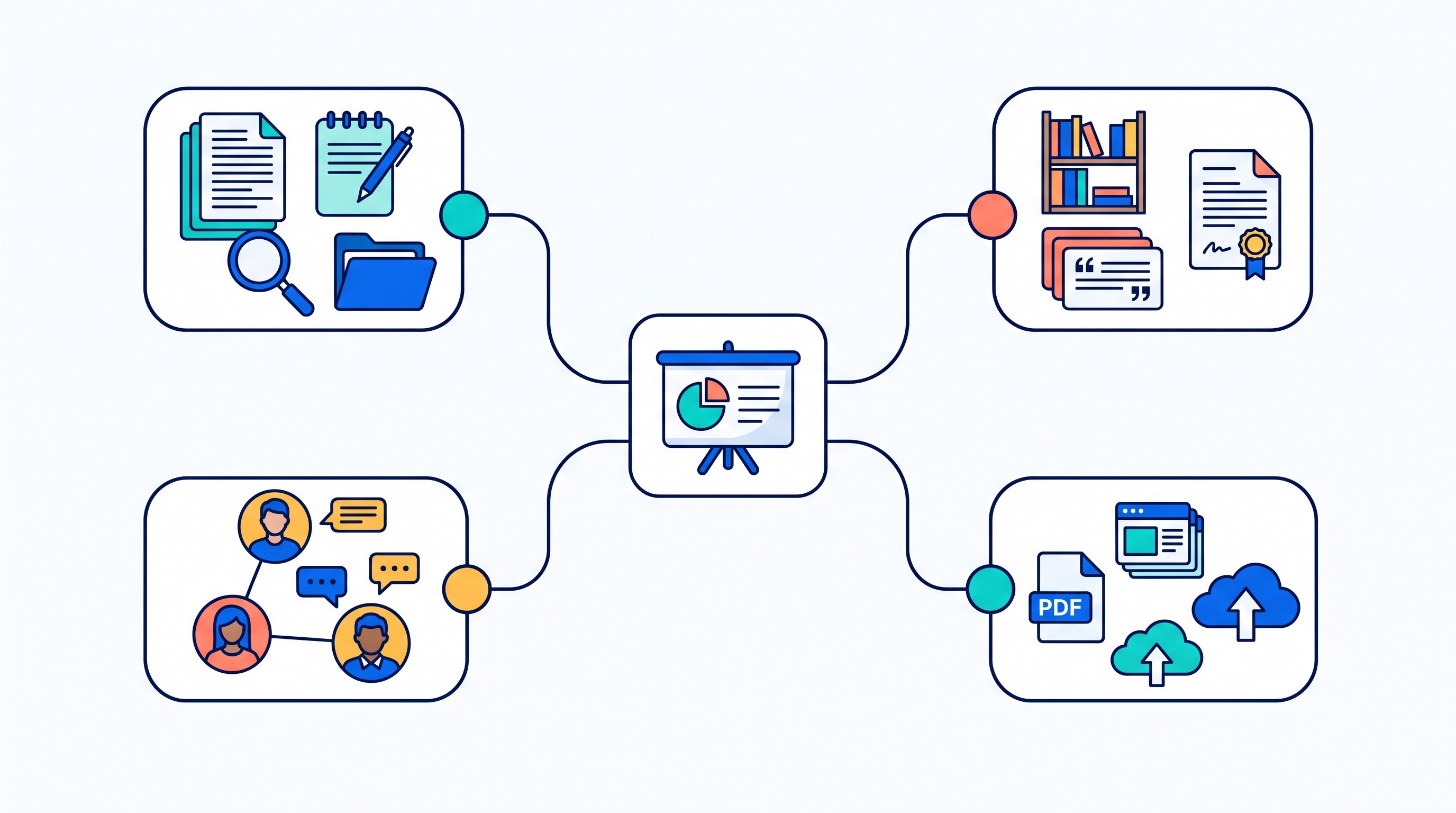
Visual polish is only one part of the decision. For research-based decks, compare:
Input support: prompt, pasted notes, Word doc, PDF, Google Doc, Notion page, spreadsheet, web link
Source traceability: whether claims can be traced back to original material
Citation workflow: whether references stay attached to claims or must be rebuilt manually
Editing control: whether slides are truly editable in PowerPoint or Google Slides
Collaboration: comments, permissions, shared workspaces, version control
Export quality: PPTX, PDF, web link, speaker notes, image-heavy exports
Privacy: whether uploaded research can be used for model training, workspace permissions, enterprise controls
A 2026 Zapier review of AI presentation makers notes that some tools can start from “rough notes, a full draft or script, or selected source material like a website,” which is exactly the distinction that matters for research decks: the input shape drives the output quality more than the AI label does (Zapier).
Here is the short version before the individual reviews:
Need | Start with |
|---|---|
Fast polished draft from outline or notes | Gamma |
Branded design and team assets | Canva |
PowerPoint-native workflow | Microsoft Copilot in PowerPoint |
Google Workspace workflow | Google Gemini for Slides |
Editable slides inside PowerPoint or Google Slides | Plus AI |
Consistent layouts with less formatting | Beautiful.ai |
Narrative, web-native storytelling | Tome |
Collaborative team decks | Pitch |
Text-to-slide generation in Google Slides | SlidesAI |
Non-linear, zoom-based presentation | Prezi AI |
Guided presentation creation | Decktopus |
Data-rich and infographic-style decks | Visme |
Student and classroom template decks | Slidesgo AI Presentation Maker |
Mixed-content document-to-deck drafting | PopAI |
Cited research base before slide creation | Otio |
How to choose an AI tool for creating presentations from research and notes
Start with the output your audience expects. A conference session, internal strategy review, thesis defense, sales update, and classroom presentation may all be “presentations,” but they reward different tools.
Use these criteria before testing any AI presentation app:
Criterion | What to check | Why it matters |
|---|---|---|
Accepted inputs | Prompt, notes, DOCX, PDF, PPTX, URL, spreadsheet | Determines how much prep work you must do |
Outline generation | Sectioning, hierarchy, slide titles, transitions | Prevents a deck from becoming a summary dump |
Source-grounding | Links, citations, quoted passages, traceable answers | Essential for research-heavy claims |
Slide editing | Native objects vs flattened images | Affects how easily you can fix the deck |
Charts and images | Editable charts, data labels, image provenance | Reduces risk of misleading visuals |
Speaker notes | Generated notes, talking points, presenter view | Useful for lectures, pitches, and defenses |
Collaboration | Comments, permissions, shared templates | Matters for team decks |
Privacy | Upload policy, admin controls, workspace access | Matters for confidential research |
Pricing | Free limits, AI credits, team plans | Prevents surprise constraints |
Export | PPTX, PDF, Google Slides, web link | Determines whether the deck fits the final venue |
Separate two categories.
Deck generators create a complete first draft from a prompt, notes, or documents. Gamma, Tome, Decktopus, PopAI, Slidesgo, and many web-native tools fit here.
Slide-native assistants work inside PowerPoint or Google Slides, or generate editable slides for those apps. Microsoft Copilot, Gemini for Slides, Plus AI, and SlidesAI are closer to your final editing environment.
That distinction matters because the fastest first draft is not always the easiest final deck. One-click generation can give you structure in minutes, but slide-native tools usually give more control over layouts, brand rules, charts, and last-minute edits.
A source-checking pass is non-negotiable. Before presenting, compare every claim, number, quotation, citation, chart label, and image caption with the original research. This is especially important because AI tools can create confident language around unsupported or incorrectly merged evidence.
If citation reliability is your main worry, read Otio’s guide on why AI-generated citations fail even when the prose sounds right before building the final slides.
1. Gamma: best for turning a rough outline into a polished first draft
Gamma is strongest when you have a rough outline, a structured memo, or notes that already imply a story. It can turn sections into a clean visual sequence faster than a blank PowerPoint file.
Its best use is early drafting: executive briefings, course presentations, product narratives, research summaries, and market analysis decks where the main job is structure plus visual polish. It is less ideal when the deck needs exact institutional formatting, dense methods slides, or highly controlled scientific figures.
The main research question is not “does it look good?” It is “does the generated deck preserve the hierarchy of the source?” A useful Gamma draft should keep the argument intact: problem, method, evidence, implication. If it compresses nuanced findings into generic claims, treat it as a design scaffold, not a finished deck.
Geekflare’s 2026 review says Gamma can import from sources such as Google Docs, Notion, PowerPoint, PDFs, and Word, and describes its strength as restructuring existing content into card-based presentations (Geekflare). That makes it a good fit for messy but already-organized research notes.
Watch the export path. Web-native decks can lose interactivity, spacing, or editability when moved into PowerPoint or another slide editor. Before committing, export a sample deck and check whether text boxes, images, charts, and speaker notes remain editable.
2. Canva: best for branded presentations with a large design library
Canva is the practical choice when the final deck must look on-brand and you need templates, icons, stock imagery, brand kits, and shared editing in one place. It is especially useful for marketing teams, student groups, educators, and small organizations that do not have a dedicated designer.
Its AI features can help with drafting, rewriting, and design suggestions, but Canva is still primarily a design environment. The strongest Canva workflow starts with a clean outline: slide title, claim, supporting evidence, visual idea, and citation. Feeding it raw research and expecting a rigorous evidence structure is the wrong use case.
Canva works well for:
Branded reports and summaries
Workshop decks
Classroom presentations
Social or web-friendly slide visuals
Collaborative design review
The limitation is research traceability. References, evidence tables, and quoted material usually need to be managed outside the design surface, then pasted in deliberately. For academic or technical presentations, keep a separate source list and add a references slide.
Export choices should be tested early. If the audience expects PowerPoint, download a sample and check layout fidelity. If the deck will be shared as a link or PDF, Canva is often more comfortable.
3. Microsoft Copilot in PowerPoint: best for working inside PowerPoint
Microsoft Copilot in PowerPoint is the obvious starting point for organizations already living in Microsoft 365. The advantage is not novelty; it is location. You can generate, revise, summarize, and restructure slides without leaving the PowerPoint environment.
This matters for teams with existing templates, legal-approved branding, corporate slide masters, and review workflows. A web-native AI deck that looks good but breaks the template can create more work than it saves.
Copilot is most useful when the source material already exists in Microsoft’s ecosystem: Word documents, meeting notes, previous decks, or prompts describing the intended audience. It can help turn a document into a slide structure and revise slides for clarity.
The human review step still matters. Copilot may help draft content, but citations and evidence placement are not automatically presentation-ready. Check generated claims against the source document, especially if the deck contains financial metrics, medical claims, legal analysis, or research findings.
Access also depends on Microsoft plan, admin settings, and organizational policy. Before planning a team workflow around Copilot, confirm that the people who need it actually have access.
4. Google Gemini for Slides: best for Google Workspace teams
Gemini for Slides fits teams that draft, comment, and present inside Google Workspace. If the source material lives in Docs, Drive, Gmail, or shared folders, staying in the Google environment can reduce friction.
The best workflow is incremental. Use Gemini to help create an outline or draft individual slides, then refine the deck slide by slide. Do not accept a full deck unchanged, especially for research-heavy material.
Gemini is useful for:
Internal team updates
Classroom decks
Lightweight research summaries
Collaborative Google Slides workflows
Drafting speaker notes or alternate phrasings
Its limitations are familiar: source context may not transfer perfectly, citations may need manual handling, and visual complexity still needs human editing. For formal research presentations, keep the original document or source notes open while editing the generated slides.
Before using it for a public or client-facing presentation, verify Workspace eligibility, sharing settings, download behavior, and whether your organization restricts AI access.
5. Plus AI: best for generating editable slides in existing presentation software
Plus AI is built for people who want AI help without leaving PowerPoint or Google Slides. That is the key distinction: the output is meant to stay editable in the software where the deck will be finished.
This makes Plus AI a strong fit for consultants, analysts, researchers, and operators who already know their slide workflow. You can start from pasted notes, a prompt, or an outline, then use the tool to rewrite slides, adjust layouts, or produce alternative versions.
Plus AI is usually a better fit than a web-native generator when:
Your team uses Google Slides or PowerPoint as the system of record
The deck must follow an existing template
You need editable text boxes and slide objects
You expect several rounds of stakeholder edits
The tradeoff is that you still own the evidence layer. Plus AI can help turn notes into slides, but source citations, chart provenance, and figure captions need manual checking. If your outline contains “study found X,” make sure the slide includes the actual source and does not overstate the finding.
For related tool comparisons across research workflows, see Otio’s guide to AI tools for researchers.
6. Beautiful.ai: best for consistent layouts with less manual formatting
Beautiful.ai is for people who want layout discipline. Its smart templates and automated formatting help prevent the common failure mode of AI-assisted decks: inconsistent spacing, overloaded slides, and design drift across sections.
This is useful for business reviews, strategy updates, proposals, onboarding decks, and recurring internal presentations. If the content follows familiar patterns, Beautiful.ai can save time.
The tradeoff is control. Automated layouts can become a constraint when research content needs unusual diagrams, dense methods comparisons, complex evidence tables, or custom figure arrangements. A strict template may make a slide cleaner while removing detail the audience actually needs.
Use Beautiful.ai when consistency matters more than custom structure. Avoid it as the sole tool for highly technical research decks unless you are comfortable simplifying the evidence display.
Check collaboration, template management, presentation mode, and export options before moving a team into it. As with other AI tools, test one finished deck in the format your audience will use.
7. Tome: best for narrative presentations and visual storytelling
Tome is best when the presentation is closer to a story than a conventional slide deck. It works well for product narratives, founder updates, thought pieces, project proposals, and research explainers meant to be read as much as presented.
The strength is flow. Tome can help turn a prompt or outline into a sequence with a beginning, middle, and end. That is valuable when the raw research is fragmented and the hardest part is deciding what comes first.
For research-heavy work, the risk is evidence becoming invisible. A narrative deck may read well while losing the citations, caveats, and methods behind each claim. If you use Tome for a literature-based or data-heavy presentation, keep citations near the relevant claims and maintain a separate references section.
Also distinguish web-native delivery from traditional slide delivery. Tome-style presentations often work best as shareable web experiences. If the final requirement is an editable PPTX for a conference, class, or corporate template, test conversion before investing time.
8. Pitch: best for collaborative team decks
Pitch is strongest for teams that need shared editing, comments, reusable templates, and presentation delivery around a central deck. It is less about producing a one-off AI artifact and more about keeping a team presentation process organized.
Use Pitch for:
Startup and product decks
Team updates
Sales and partnership decks
Recurring business reviews
Collaborative narratives with many contributors
For research-heavy slides, evaluate how well it handles evidence summaries, timelines, comparison tables, and charts. A good collaborative editor should make it easy to assign slide ownership and resolve comments, not just generate attractive layouts.
Pitch is also useful when consistency matters across many decks. Reusable templates and shared brand components reduce the amount of manual cleanup after AI drafting.
Verify workspace permissions, external sharing, AI limits, and export formats before adopting it for client or academic work. If outside stakeholders require PowerPoint, test whether exported slides remain editable.
9. SlidesAI: best for converting text into slides in Google Slides
SlidesAI is a straightforward choice when you already have prose or notes and want a Google Slides draft. It is not trying to replace the whole presentation workflow; it helps convert text into slides inside the environment many students and teams already use.
The best input is structured text: headings, bullet points, short paragraphs, and a clear sequence. Long unstructured notes will usually produce weaker slides because the tool must infer both hierarchy and emphasis.
Use SlidesAI when you need:
A quick slide draft from a text document
A Google Slides-first workflow
A starting point for a class, meeting, or internal presentation
Editable slides rather than a static visual artifact
The quality test is simple: does the generated deck preserve the source’s argument? Check section breaks, slide titles, claim order, and whether important caveats disappeared.
Citations, quotations, data labels, and visual claims should be checked manually. If the source text includes references, make sure they survive the conversion and remain attached to the correct claims.
10. Prezi AI: best for non-linear and zoom-based presentations
Prezi AI is best for presentations that benefit from a spatial map rather than a slide-by-slide sequence. If the topic is a system, network, concept map, customer journey, research framework, or set of relationships, Prezi’s zoom-based structure can make the argument easier to follow.
It is less suitable when the audience expects a conventional PowerPoint deck. Many academic conferences, corporate meetings, and classroom submissions still assume linear slides, fixed aspect ratios, and downloadable files.
Prezi works well for:
Concept maps
Strategy landscapes
Process overviews
Relationship-heavy topics
Workshops where navigation can be non-linear
The research limitation is density. Zoom-based storytelling can help explain structure, but it can also hide precise evidence if citations and details are not placed carefully. Keep source notes and references visible enough for the audience and useful enough for follow-up.
Check accessibility, export behavior, collaboration features, and offline presentation needs before choosing Prezi for a high-stakes session.
11. Decktopus: best for guided presentation creation
Decktopus is useful when you want guided structure rather than a blank canvas. It asks for information about the topic, audience, goal, and style, then helps build a presentation around that brief.
That makes it a good fit for people who are less confident structuring decks: students, founders, trainers, freelancers, and professionals preparing a talk quickly. The guidance can reduce the “what should slide 3 be?” problem.
Decktopus can help with:
Audience-specific wording
Presentation structure
Templates
Speaker notes
Interactive or lead-capture elements, depending on current plan features
For research-based decks, the main judgment still belongs to the presenter. Which claims deserve slide space? Which sources are strongest? Which caveats matter? The AI can suggest a sequence, but it cannot decide the evidentiary weight of a study or report without careful checking.
Use Decktopus for structure and speed. Use a separate research workflow for citations and source validation.
12. Visme: best for data-rich and infographic-style presentations
Visme is a strong option when the presentation needs charts, diagrams, infographics, and branded visual communication alongside slide text. It fits research reports, survey summaries, nonprofit updates, business dashboards, and educational explainers.
Its value is visual range. Not every research finding belongs in a bullet list. Some need a chart, map, process diagram, timeline, comparison graphic, or infographic-style summary.
Use Visme when:
The deck includes survey data or metrics
You need infographic assets
Brand consistency matters
The presentation may also become a report, handout, or web asset
The risk is chart accuracy. Imported data must stay correctly labeled, axes must remain honest, and visual emphasis must not distort the finding. If AI helps create the chart or layout, verify the underlying values and labels.
Also decide whether the final artifact is an interactive web presentation, a PDF, or a downloadable slide file. Those outputs are not equivalent for editing or delivery.
For broader options in this part of the workflow, see Otio’s roundup of AI visualization tools for data.
13. Slidesgo AI Presentation Maker: best for template-led student and classroom decks
Slidesgo AI Presentation Maker is best for fast, template-led decks on familiar topics. It suits students, teachers, and presenters who need a clean starting point more than a deeply customized research workflow.
The templates are the point. If the assignment is a classroom presentation, topic explainer, or short overview, template-led generation can save time and make the first draft presentable.
The limitation is generic structure. Template-led decks can overfit to common topic patterns and underfit to your actual argument. For research assignments, expect to reshape the outline, replace generic visuals, add course-specific requirements, and insert accurate references.
Check:
Supported editing destination
Export formats
Free-plan restrictions
Attribution or licensing requirements
Whether AI-generated elements can be edited after creation
Slidesgo is a good starter, not a substitute for understanding the material.
14. PopAI: best for generating presentations from mixed content
PopAI is useful when the source material is mixed: text, documents, notes, and possibly other uploaded content. It fits users who want to turn material into a presentation outline and first draft without first rewriting everything into a perfect brief.
This is common in student and research work. Notes come from PDFs, lecture slides, web pages, transcripts, and copied excerpts. A tool that can summarize and restructure mixed inputs can save time at the drafting stage.
SlideSpeak’s 2026 guide to converting research papers to PowerPoint includes PopAI among tools tested for paper-to-presentation workflows, which reflects the broader demand for turning long academic material into deck drafts (SlideSpeak).
Still, mixed-content generation has a predictable failure mode: it merges context. A definition from one source may be placed next to a statistic from another, or a caveat may be dropped because it complicates the slide.
Run a manual check for:
Unsupported inferences
Missing context
Fabricated or misplaced references
Incorrect numbers
Overgeneralized findings
Charts or visuals that imply more certainty than the source supports
PopAI can help move from pile-of-material to first draft. It should not be the final authority on what the research says.
15. Otio: best for preparing a cited research base before building the deck
Otio’s AI PDF reader is not a replacement for PowerPoint, Google Slides, Canva, or Gamma. Its role is earlier: building a reliable research base before the slide tool gets involved.
That distinction matters. Most bad research presentations do not fail because the gradient background is wrong. They fail because the deck compresses evidence badly: weak sources get equal weight, citations drift away from claims, and numbers appear without context.
Otio is built for the part of the workflow where that damage usually begins. You can collect PDFs, DOCX files, web pages, YouTube videos, audio, CSVs, notes, and other source material into a unified library. Then you can chat with selected sources, ask for cited answers, summarize material, save useful passages to notes, and organize the project in a Space.
A practical research-to-presentation workflow looks like this:
Create a Space for the presentation. Add papers, reports, interview notes, web pages, videos, spreadsheets, and existing decks.
Summarize sources one by one. Capture the research question, method, finding, limitation, and useful quote.
Ask cross-source questions. For example: “Which sources support the claim that remote monitoring improves adherence, and which sources disagree?”
Build a claim-and-citation outline. Each slide-level claim should have supporting source passages beside it.
Stress-test the outline with another model. Otio supports multiple AI models, so you can compare interpretations instead of relying on one model’s framing.
Create visuals from verified data. When the source includes tables or CSVs, use AI data visualization to explore chart ideas, then verify labels and values before placing them into the deck.
Move the approved outline into a slide editor. Use Gamma, PowerPoint, Google Slides, Canva, Plus AI, Pitch, or another presentation tool for layout and delivery.
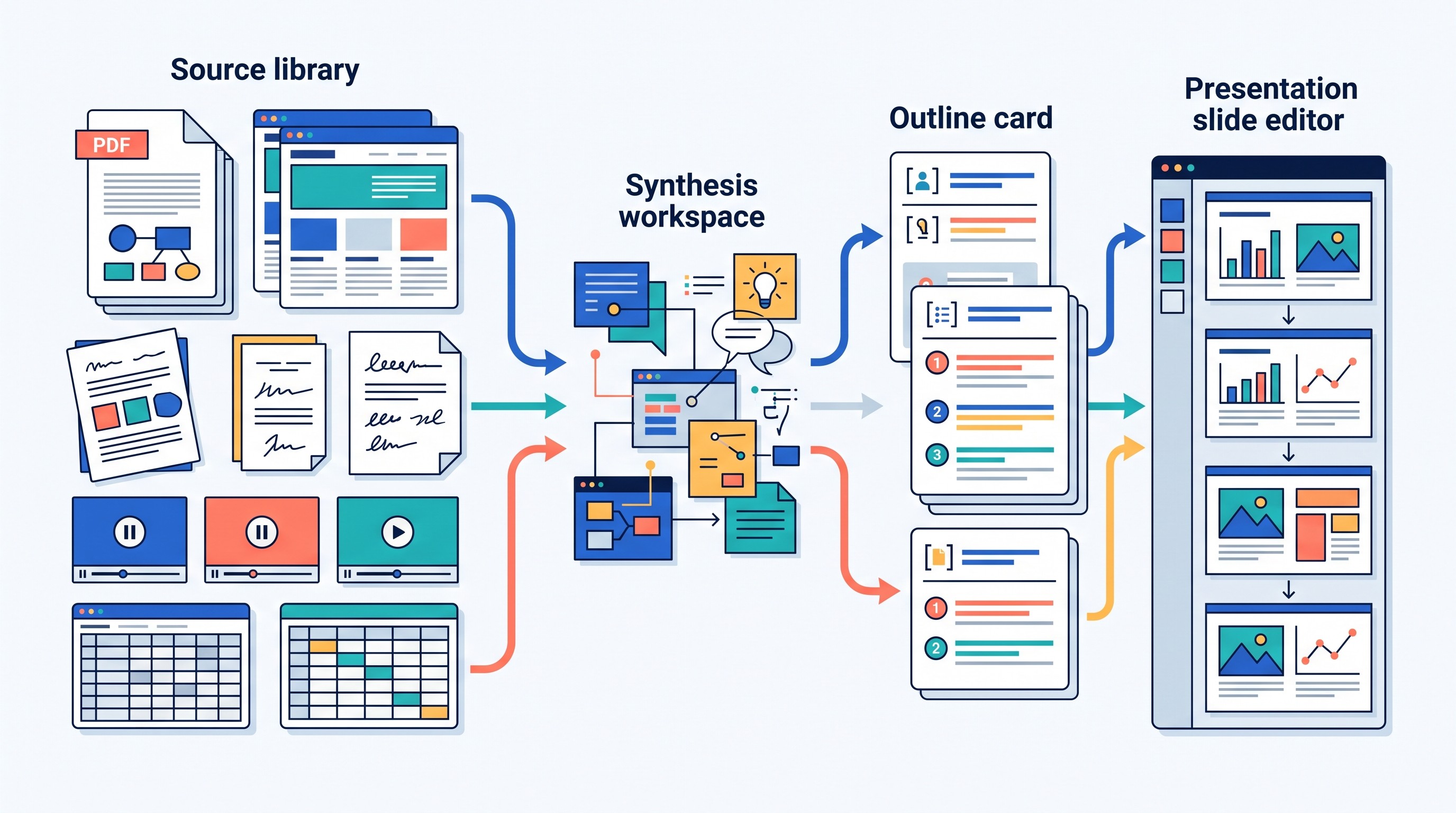
The handoff is intentional. Otio can help prepare the evidence, outline, citations, summaries, notes, and visual analysis; a dedicated presentation editor is still better for slide polish, templates, animations, brand systems, and final delivery.
One useful detail for Google Workspace users: Otio’s connectors can import from cloud storage, and Google native formats auto-export through the connector path, including Slides to PPTX. That can help when the research base and deck assets are moving between Drive and PowerPoint workflows.
The limitation is clear. A research workspace is not automatically a final slide editor. You still need to design the story, simplify the visuals, rehearse the talk, and check every claim against the source.
[[OTIO_INLINE_PROMO:%7B%22title%22%3A%22Have%20you%20checked%20the%20sources%20behind%20each%20slide%20claim%3F%22%2C%22description%22%3A%22Collect%20your%20PDFs%2C%20web%20pages%2C%20videos%2C%20and%20notes%20in%20Otio%2C%20then%20build%20a%20cited%20outline%20before%20moving%20the%20draft%20into%20PowerPoint%20or%20Google%20Slides.%22%7D]]
Which AI presentation tool should you choose?
Choose based on the bottleneck, not the brand.
If your main need is... | Choose... | Why |
|---|---|---|
Fast first draft from rough notes | Gamma | Strong outline-to-visual workflow |
Brand-heavy visual deck | Canva | Templates, assets, collaborative design |
PowerPoint compatibility | Microsoft Copilot or Plus AI | Work closer to the final file |
Google Slides workflow | Gemini for Slides, Plus AI, or SlidesAI | Draft and edit inside Google’s ecosystem |
Team collaboration | Pitch or Canva | Comments, shared workspaces, templates |
Consistent layouts | Beautiful.ai | Automated layout discipline |
Narrative web presentation | Tome | Story-first, web-native format |
Data-rich deck | Visme | Charts, diagrams, infographic assets |
Non-linear presentation | Prezi AI | Spatial structure and zoom navigation |
Guided creation | Decktopus | Prompts and structure for less experienced presenters |
Student template deck | Slidesgo AI Presentation Maker | Quick templates for familiar topics |
Mixed document-to-deck draft | PopAI | Useful for turning varied source material into a first pass |
Source-grounded research preparation | Otio | Keeps evidence, notes, and cited answers close before slide creation |
The safest workflow for research-based presentations is repeatable:
Collect sources. Put papers, reports, notes, videos, transcripts, and data in one place.
Create a claim-and-citation outline. Each planned slide should have one main claim and its supporting source.
Generate the slide draft. Use the AI presentation tool that fits your final editor.
Inspect every claim and visual. Verify citations, numbers, quotations, chart labels, and image meaning.
Rehearse and cut. A deck that contains all the research is usually too dense. Keep the evidence behind the talk, not all on the slide.
Export in the required format. Test PPTX, PDF, or web delivery before the deadline.
A Nuts & Bolts Speed Training review of AI PowerPoint workflows makes a useful point: multiple tools may be necessary because slide generators excel at different things (Nuts & Bolts Speed Training). That is especially true for research decks. Evidence preparation, slide drafting, design control, and delivery are separate jobs.
If the stakes are low, one tool may be enough. If the stakes are high, use two: a research workspace to verify the argument, then a presentation editor to make the deck clear.
FAQ
Q: Can AI create a presentation directly from research papers?
A: Many tools can generate a first draft from pasted text or uploaded documents, but treat the result as an outline and draft. Check every claim, quotation, statistic, citation, and chart against the original papers before presenting.
Q: What is the best AI presentation tool for PowerPoint?
A: PowerPoint-native options such as Microsoft Copilot and tools that export editable PPTX files are the most practical starting points. Confirm export behavior because some web-based tools may lose layouts, animations, or editability during conversion.
Q: How do I keep citations in an AI-generated presentation?
A: Create a source-linked outline before generating slides, keep citations beside the claims they support, and add a references slide. Citation accuracy still requires manual verification.
Q: Should I use one tool for research and presentation design?
A: Not always. A research-focused tool is better for collecting, comparing, and checking evidence, while a presentation editor usually gives stronger control over layouts, branding, charts, and delivery.
[[OTIO_FOOTER_PROMO:%7B%22title%22%3A%22Build%20your%20next%20deck%20from%20your%20own%20source%20set%22%2C%22description%22%3A%22Upload%20your%20research%20sources%20to%20Otio%2C%20verify%20claims%20in%20cited%20answers%2C%20and%20use%20the%20resulting%20outline%20as%20the%20evidence%20layer%20for%20your%20slide%20editor.%22%7D]]