
Workflow Automation
18 Best AI Workflow Automation Tools for Consultants and Knowledge Workers
Compare 18 AI workflow automation tools for research, synthesis, reporting, meetings, and follow-up. Find the best fit for solo consultants, client teams, and knowledge-heavy projects.

The best AI workflow automation tool depends on the work you repeat
The right answer is usually not one tool. Consultants and knowledge workers get better results from a small stack: one tool for app-to-app automation, one for research and source management, one for synthesis or reporting, and one for meetings or follow-up.
If the work is structured and repetitive, start with Zapier, Make, n8n, Airtable, or Notion. If the work is evidence-heavy, use tools like Otio, Perplexity, NotebookLM, or Elicit. If the work becomes client-ready output, ChatGPT, Claude, Microsoft 365 Copilot, Gamma, Power BI, and Otio’s analysis workflows matter more.
The decision criteria are simple:
Workflow question | What to check |
|---|---|
What repeats every week? | Intake, research, synthesis, reporting, meetings, follow-up |
What sources are involved? | Web pages, PDFs, spreadsheets, calls, email, cloud files, databases |
Where does the output go? | Slack, CRM, Drive, PowerPoint, BI dashboard, client memo |
Who must approve it? | Consultant, manager, legal, finance, client team |
Can another person verify it? | Citations, source links, audit trail, version history |
What data is exposed? | Client files, confidential contracts, personal data, internal metrics |
For consultants, the hidden risk is over-automation. A workflow that auto-summarizes interviews is low risk. A workflow that sends client emails, deletes records, or draws financial conclusions without review is not.
This list groups the 18 tools by the part of the workflow they handle best: intake and routing, research and evidence, synthesis and reporting, and meetings and follow-up.
Best tools for intake, routing, and repeatable operations

1. Zapier — best for connecting common business apps with no-code triggers and actions
Zapier is the default choice when the workflow is: “When X happens in one app, do Y in another.” A form submission creates a CRM record. A signed proposal triggers a Slack message. A new support ticket gets classified, tagged, and assigned.
Its main advantage is breadth. TechnologyAdvice notes that Zapier supports 9,000+ app integrations, which makes it useful for consultants moving between client CRMs, spreadsheets, email tools, project trackers, and databases (TechnologyAdvice).
The tradeoff is maintainability. Linear workflows are easy; branching workflows with many exception paths can become hard to debug. GPT for Work’s 2026 comparison describes Zapier as strongest for “linear, event-driven workflows” and less suited to running AI across very large spreadsheet workloads (GPT for Work).
Use Zapier for:
Lead or client intake routing
Notifications and handoffs
CRM updates
Simple AI classification steps
Moving outputs between tools
Do not use it as the system of record for complex consulting projects. It is better as the connective tissue.
2. Make — best for visual, multi-step automations with branching and data transformation
Make is stronger when the workflow has visible logic: branches, filters, routers, error handling, and data transformation. It is useful for operations-heavy consultants who need to see how information moves through a process.
For example, a client intake form might trigger three branches:
Enterprise prospect → create CRM opportunity, assign partner, draft kickoff checklist
Existing client → update account record, notify delivery team
Low-fit inquiry → send qualification email and archive
Stepper’s 2026 comparison draws the same line: Zapier is faster for straightforward trigger-action flows, while Make is better when workflows require “branching logic, conditional routing, and data transformation” (Stepper).
The cost is learning curve. Make gives more control, but the canvas can become a maze if every exception becomes another module. Treat naming, comments, and error paths as part of the build, not cleanup.
3. n8n — best for open-source or self-hosted workflow automation
n8n is the better fit when the team wants more control over where automations run and how data flows through them. Technical consultants, data teams, and security-conscious organizations often prefer this kind of setup because self-hosting can reduce dependency on a fully managed automation vendor.
The tradeoff is operational burden. Someone has to handle deployment, credentials, updates, monitoring, and failure recovery. That is not a problem for a technical team; it is a real cost for a solo consultant who just wants email-to-CRM automation.
Choose n8n when:
You need custom API calls and more control
A client requires stricter data handling
You have technical support available
You want automation logic that can live closer to internal infrastructure
Avoid it if no one owns maintenance. An unattended workflow platform becomes another fragile system.
4. Airtable — best for turning structured records into lightweight operations
Airtable is not just a prettier spreadsheet. Its value is that it turns structured records — clients, interviews, research sources, deliverables, findings, tasks — into a lightweight operational database.
That makes it useful when the workflow depends on status fields, owners, tags, linked records, and views. A consulting team can track interviews, source documents, risks, recommendations, client approvals, and report sections in one base.
Airtable’s own 2026 guide frames AI workflow automation around structured work, where data fields and process steps matter more than open-ended chat (Airtable). That distinction matters: Airtable is strongest when the work can be represented as records. It is weaker when the real job is interpreting messy PDFs, long transcripts, or conflicting evidence.
Use Airtable as a project operations layer, not as the only research workspace.
5. Notion — best for documentation, knowledge bases, databases, and planning in one workspace
Notion works well when the workflow is half documentation, half coordination. It can hold client notes, internal wikis, project plans, lightweight databases, meeting pages, and status dashboards.
Airtable’s 2026 workflow automation guide describes Notion as useful for teams combining documentation, wikis, and lightweight task tracking, while noting that its automation capabilities are simpler than dedicated workflow automation platforms (Airtable). That is the correct framing.
Notion is strongest when the team’s main problem is scattered knowledge. It is less ideal when the workflow requires deep branching logic, governed analytics, or precise source-level evidence across many file types.
For broader tool selection beyond this consultant-focused list, see Otio’s guide to AI workflow automation tools.
Best AI workflow automation tools for research and evidence gathering
6. Otio — best for research-heavy consulting across many source types
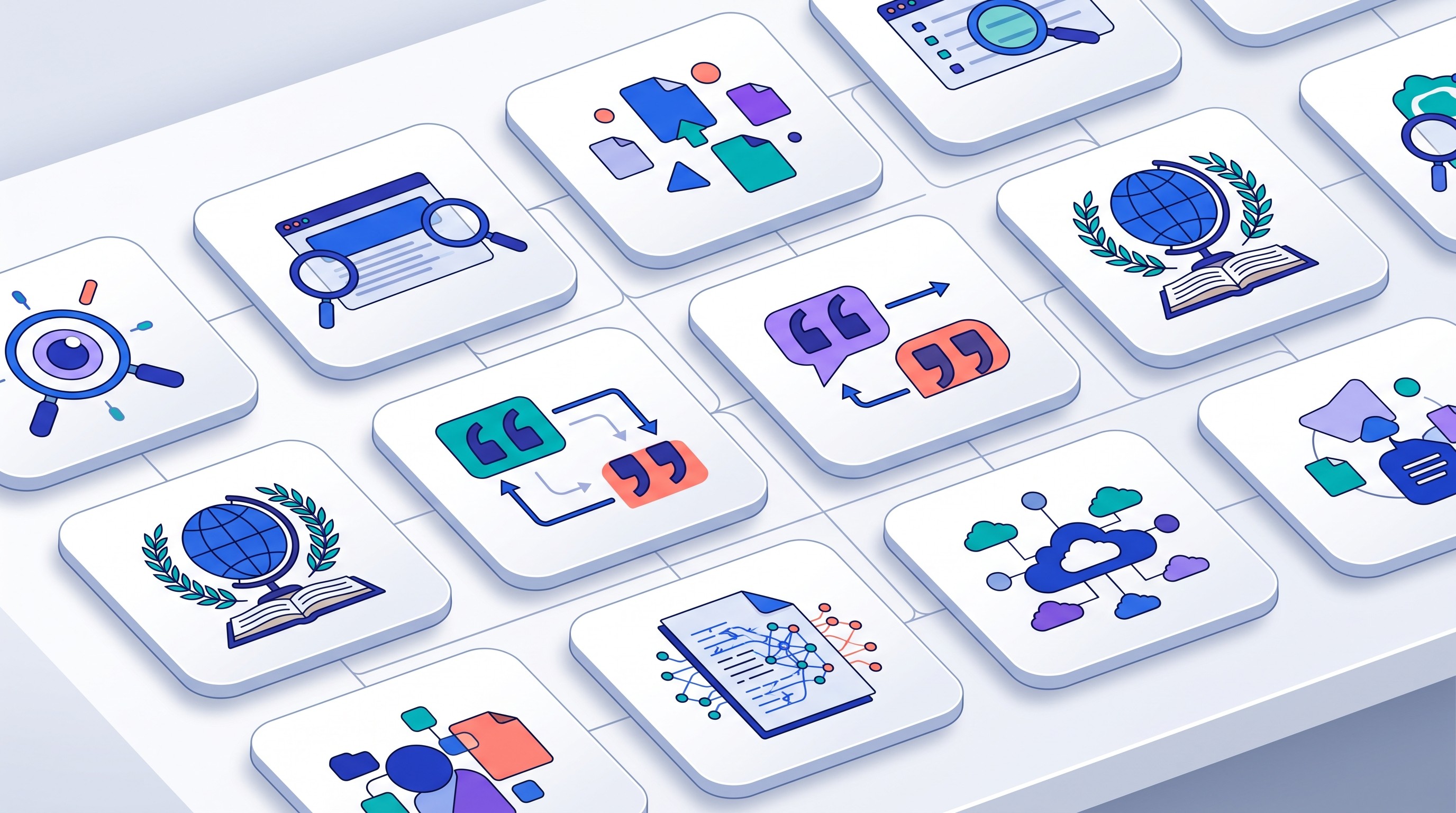
Otio is best when the repeated workflow is not merely “summarize this.” It is “collect many sources, keep them organized, ask questions across them, preserve citations, write notes, analyze files, and produce a defensible output.”
That matters for consultants because the hard part is often not drafting. It is knowing where a claim came from three weeks later.
Otio’s workspace supports PDFs, DOCX, EPUB, TXT, Markdown, PPTX, CSV, audio, video, images, web links, YouTube videos, tweets, notes, and folders in a unified Library. Project Spaces group related chats, notes, folders, and links by client or workstream. The Reader supports PDFs, EPUBs, YouTube transcripts, web pages, CSVs, audio, and video, with a text-selection toolbar for asking Otio about selected passages.
The AI chat layer can use multiple model families, including GPT, Claude, Gemini, Grok, Llama, DeepSeek, Moonshot, and Otio Auto. That is useful when one project involves source extraction, long-document reasoning, spreadsheet questions, and drafting. Otio’s multiple AI models reduce the need to move the same material between separate chat apps.
Its strongest consulting use cases:
Market landscape research from web pages, reports, decks, and interview transcripts
Legal or policy research where source traceability matters
Literature-heavy strategy work
Due diligence source libraries
Turning CSVs and notes into cited analysis
Otio is not a replacement for judgment. Source review still matters. A generated synthesis can help find patterns, but the consultant remains responsible for checking citations, resolving conflicting evidence, and deciding what belongs in the client deliverable.
7. Perplexity — best for fast web-grounded question answering and source discovery
Perplexity is useful at the beginning of a research workflow, especially when the question is broad and the goal is to find relevant sources quickly. It can surface web-grounded answers with citations, which makes it more useful than a blank chat box for source discovery.
The important limitation is verification. A cited answer is not the same as verified research. Open the cited pages, check whether they actually support the claim, and look for primary sources where the stakes are high.
Good uses:
First-pass market scans
Competitor discovery
Finding terminology and adjacent topics
Building a source list before deeper review
Poor uses:
Treating generated summaries as final evidence
Relying on one answer for legal, financial, scientific, or policy claims
Skipping the source-reading step
Perplexity is a discovery tool. Keep it upstream of the real evidence file.
8. NotebookLM — best for asking questions across a defined source set
NotebookLM is strongest when the source boundary is known. Upload or connect a defined set of documents, then ask questions across those materials. That makes it useful for internal briefings, course packs, policy binders, research folders, and client-provided source sets.
The difference from broad web research is important. NotebookLM is not primarily a general automation platform. It is a source-grounded synthesis environment. That is useful when the question is, “What do these documents say?” not “What does the entire market say?”
Use it for:
Q&A over a document packet
Summaries of a fixed source set
Comparing claims across uploaded materials
Preparing for meetings from a known briefing folder
If the workflow depends on external automation, app triggers, CRM updates, or a large multi-tool process, pair it with a separate automation layer.
9. Elicit — best for literature discovery and structured evidence extraction
Elicit is specialized for academic evidence workflows. It is useful when the job is finding papers, extracting study details, and comparing evidence across a literature set.
That makes it stronger for systematic reviews, evidence maps, technical literature scans, and academic consulting than for general business operations. A strategy consultant building a survey of peer-reviewed findings may benefit from Elicit. A consultant automating CRM handoffs will not.
Best uses:
Literature discovery
Screening paper abstracts
Extracting study methods or outcomes
Comparing academic evidence
The limitation is scope. Elicit is not trying to be a CRM, meeting assistant, slide generator, or general automation engine. Its value is depth in research papers.
For adjacent tools, Otio’s guide to AI tools for researchers covers more research-specific options.
10. Google Gemini for Workspace — best for teams already working in Gmail, Docs, Sheets, and Drive
Gemini for Workspace is convenient because it sits close to where many knowledge workers already operate: Gmail, Docs, Sheets, Slides, Meet, and Drive. For teams that live in Google Workspace, proximity matters. The fewer copy-paste steps between email, documents, spreadsheets, and comments, the better.
Its best use is in-suite assistance:
Drafting or refining emails
Summarizing document context
Helping with spreadsheet questions
Creating first-pass slide or document content
Searching across permitted Workspace content
The constraint is governance. Confirm what data Gemini can access in the organization, what permissions apply, and which features are available under the team’s plan and admin settings. Convenience is valuable only if the source coverage and access controls match the work.
[[OTIO_INLINE_PROMO:%7B%22title%22%3A%22Can%20you%20trace%20every%20claim%20to%20its%20source%3F%22%2C%22description%22%3A%22Add%20PDFs%2C%20web%20pages%2C%20transcripts%2C%20decks%2C%20and%20spreadsheets%20to%20one%20Library%2C%20then%20ask%20questions%20across%20them%20with%20citations.%22%7D]]
Best tools for synthesis, analysis, and client-ready reporting
11. ChatGPT — best for flexible drafting, structured analysis, spreadsheet work, and custom assistants
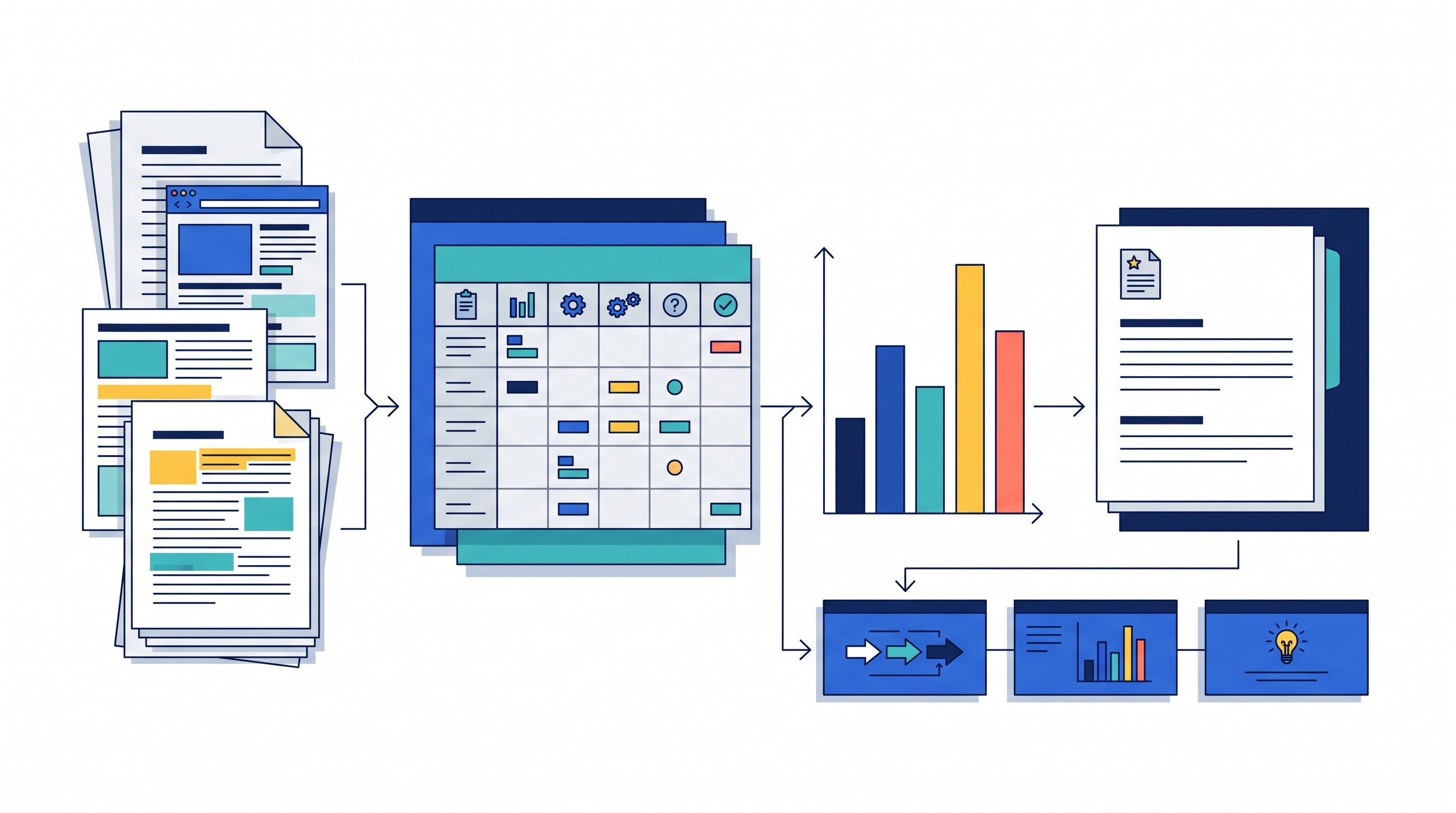
ChatGPT is the most flexible general-purpose AI tool in this list. It can help draft memos, rewrite rough notes, structure an argument, analyze uploaded files, generate tables, build custom assistants, and turn messy inputs into a cleaner working draft.
For consultants, that flexibility is both the value and the risk. ChatGPT can move quickly across tasks, but it does not automatically make an output trustworthy. The workflow needs explicit checks:
What source supports this sentence?
Was confidential data uploaded under the client’s rules?
Did the model omit an important exception?
Is the analysis reproducible from the inputs?
Are spreadsheet calculations correct?
ChatGPT is best as a thinking and drafting layer. It should not be the only place where project evidence lives.
12. Claude — best for long-form document analysis and careful drafting
Claude is often a strong choice for long documents, nuanced drafting, and careful synthesis. It fits workflows where a consultant needs to read a long report, compare policy documents, turn interview notes into themes, or write a polished narrative.
Before building a repeatable workflow around Claude, check the current file, attachment, and context limits for the plan in use. These limits can change, and a process that works for ten documents may fail for a full diligence room.
Use Claude for:
Long-form memos
Document comparison
Executive summaries
Tone-sensitive drafting
Reviewing dense client materials
Its limitation is the same as other general chat tools: project memory, citation management, source organization, and final verification require a broader workflow.
If file limits are central to the workflow, Otio has a separate guide to Claude file upload limits.
13. Microsoft 365 Copilot — best for organizations working inside Microsoft 365
Microsoft 365 Copilot is best when the organization already keeps its work in Outlook, Teams, Word, Excel, PowerPoint, OneDrive, and SharePoint. Like Gemini in Google Workspace, the advantage is workflow proximity.
It can support common knowledge-worker tasks:
Summarizing meeting or email context
Drafting Word documents
Assisting in Excel
Building PowerPoint drafts
Working from files the user has permission to access
The key issue is tenant governance. Copilot’s usefulness depends on permissions, file hygiene, access controls, and admin configuration. If a SharePoint environment is messy, Copilot can surface that mess faster.
For consultants working with enterprise clients, confirm whether Copilot can be used on client materials and whether outputs need separate retention or review.
14. Gamma — best for turning an outline into a presentation quickly
Gamma is useful when the goal is a first-pass presentation or visual document, not a final client deck. It can turn an outline or narrative into a structured presentation quickly, which helps when a team needs to test story flow before committing to slide production.
Its best place is the middle of the workflow:
Evidence gathered elsewhere
Narrative or outline drafted
Gamma used to produce a visual first pass
Consultant checks claims, sequencing, formatting, and brand standards
Final deck refined in the client’s preferred format
The limitation is consulting reality. Client decks often have strict templates, house style, chart rules, and political nuance. Gamma can speed up the blank-page stage, but it does not remove editorial judgment.
15. Power BI with Copilot — best for governed dashboards and business intelligence
Power BI with Copilot belongs in a different category from lightweight spreadsheet analysis. It is for teams that need dashboards, governed datasets, repeatable metrics, and business-intelligence workflows.
Use it when the consulting output depends on recurring data exploration:
Sales performance dashboards
Financial operating metrics
Customer segmentation views
Operational KPIs
Executive reporting packs
The value is that analysis happens inside a BI environment rather than a loose spreadsheet. The risk is misplaced trust. Generated measures, calculations, summaries, and interpretations still need validation by someone who understands the data model.
This is especially important when the dashboard becomes a client-facing decision tool. A fluent explanation of a bad measure is still a bad measure.
16. Otio’s AI data-analysis workflow — best for moving from collected files to cited analysis in one workspace
Otio is also useful when research and analysis are not separate jobs. A consultant might have PDFs, web sources, meeting transcripts, notes, and CSVs in the same project. The work is to connect those materials, not just analyze one spreadsheet.
Otio supports CSV analysis in chat, spreadsheet viewing, inline citations, generated charts, downloadable documents, and visualizations. For spreadsheet-heavy work, its Spreadsheet AI is most useful when the CSV is part of a larger evidence set rather than a standalone model.
A typical workflow:
Create a project Space for the client or workstream.
Add reports, web links, interview transcripts, notes, and CSVs.
Ask source-specific questions first.
Extract evidence into a working table.
Analyze the CSV in relation to the qualitative sources.
Generate a cited summary, chart, or report draft.
Review calculations, citations, and interpretation before delivery.
This is not a substitute for statistical review, financial-model governance, or data-quality checks. It is a way to keep the analysis closer to the source material.
For more data-focused options, see Otio’s comparison of AI tools for CSV analysis and data-heavy workflows.
Best tools for meetings, capture, and follow-up
17. Fireflies.ai — best for recording, transcribing, and searching recurring meetings
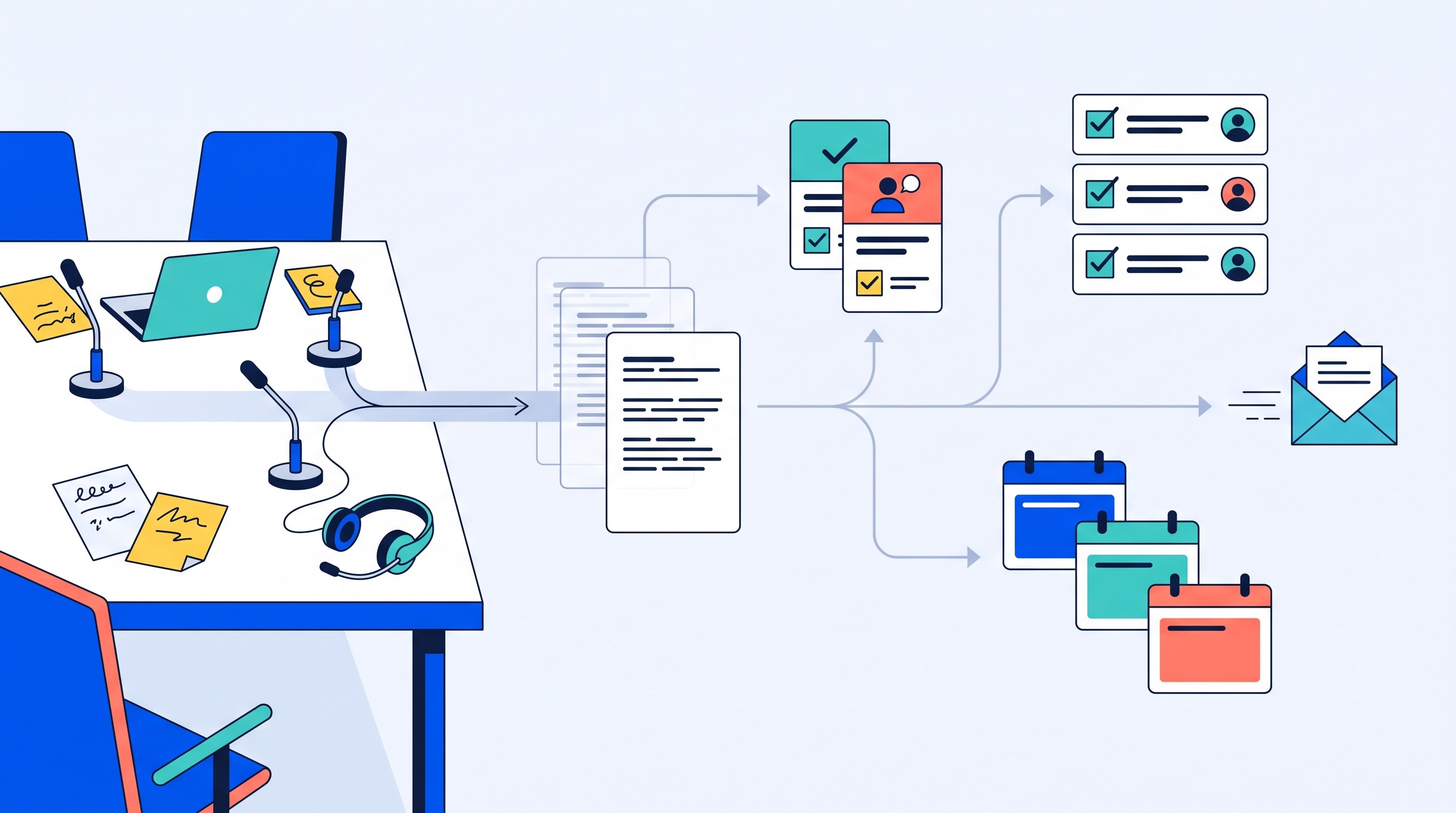
Fireflies.ai is useful when meetings are a recurring source of project knowledge. It can record, transcribe, summarize, and make meeting content searchable across client calls, internal standups, interviews, and workshops.
Jamie’s guide for consultants describes Fireflies.ai as an AI notetaker that transcribes and analyzes meetings across platforms such as Zoom, Google Meet, and Microsoft Teams, with capture through a meeting bot, Chrome extension, desktop app, or mobile app (Jamie).
Before deploying it, check four things:
Consent requirements in the relevant jurisdiction
Client recording policies
Transcript accuracy for accents, technical terms, and noisy calls
Integrations with the project management and documentation tools already used
Meeting automation can create a false sense of completeness. A transcript preserves what was said; it does not decide what matters.
18. Reclaim — best for protecting calendar time for recurring work
Reclaim is not a research tool or reporting tool. Its job is calendar automation. It helps protect time for recurring tasks, habits, project work, and focus blocks.
That makes it useful for consultants because the most common workflow failure is not always tool friction. It is capacity leakage. Research, synthesis, review, and client follow-up all need calendar space, and that space disappears when every open slot becomes a meeting.
Use Reclaim for:
Blocking recurring research time
Protecting report-writing windows
Scheduling follow-up tasks
Reserving review time before client deadlines
Coordinating habits or internal routines
The limitation is that calendar automation does not set priorities. It can defend time, but it cannot decide which client deliverable matters most or negotiate scope creep.
How to assemble an AI workflow automation stack without over-automating
A good stack assigns one tool to one repeated job. A bad stack gives five AI tools access to the same client data and produces five different versions of the truth.
Start with the workflow, not the software.
1. Pick one recurring job first
Choose a low-risk process before automating anything external. Good starting points include:
Research intake
Source summarization
Meeting notes
Report formatting
Internal status updates
Drafting a non-client-facing memo
Avoid starting with automated client emails, financial conclusions, legal opinions, deletions, approvals, or anything that changes a system of record without human review.
For inspiration, Otio’s list of workflow automation examples is useful because it separates automations by business function rather than treating all workflows as interchangeable.
2. Keep source libraries and action systems separate
Research tools and action tools solve different problems.
A source library should preserve:
Original documents
Links
Notes
Citations
Interview transcripts
Versioned outputs
An action system should handle:
Assignments
Status changes
Notifications
Calendar blocks
CRM updates
Approvals
When those roles blur, teams lose track of whether a system contains evidence, tasks, or both. That is how outputs become hard to audit.
3. Require human approval at the risky points
Some workflow steps should always stop for review:
Client-facing claims
Financial conclusions
Legal or regulatory analysis
Sensitive personal or client data
Permission changes
Automated send actions
Delete or archive actions
Model-generated calculations
Approval checkpoints are not bureaucracy. They are part of quality control.
4. Use consistent naming and project spaces
The best automation in the world cannot fix a chaotic file system. Use consistent names for clients, workstreams, dates, source types, and output versions.
A practical pattern:
ClientName_Workstream_SourceType_DateClientName_Interview_RespondentRole_DateClientName_ReportDraft_v03_DateClientName_Data_Cleaned_Date
Project Spaces, shared folders, databases, or workspaces should make it possible for another person to understand how an output was produced. If only the original analyst can reconstruct the path, the workflow is not mature.
5. Test with ugly real inputs
Do not test the workflow only on clean examples. Use representative edge cases:
Scanned PDFs
Long transcripts
Missing fields
Duplicate records
Conflicting sources
Very large CSVs
Client-specific terminology
Documents with tables, footnotes, and appendices
Measure four things before expanding:
Time saved
Error rate
Review effort
Output quality
A workflow that saves 30 minutes but adds 45 minutes of review is not automation. It is displacement.
6. Choose the stack by dominant workflow
Here is the practical selection rule:
Dominant workflow | Start with |
|---|---|
App-to-app routing | Zapier |
Branching operations | Make |
Self-hosted automation | n8n |
Structured project records | Airtable |
Team documentation | Notion |
Research source library | Otio |
Fast web discovery | Perplexity |
Fixed source-set Q&A | NotebookLM |
Academic literature extraction | Elicit |
Google-native work | Gemini for Workspace |
General drafting and analysis | ChatGPT |
Long-form document synthesis | Claude |
Microsoft enterprise work | Microsoft 365 Copilot |
Presentation first drafts | Gamma |
Governed dashboards | Power BI with Copilot |
Research plus CSV analysis | Otio data workflows |
Meeting capture | Fireflies.ai |
Calendar protection | Reclaim |
The best stack for a solo strategy consultant might be Otio, Perplexity, ChatGPT or Claude, Gamma, and Reclaim. A client operations team might choose Airtable, Make, Microsoft 365 Copilot, Power BI, and Fireflies.ai. A technical consulting firm might prefer n8n, Otio, Claude, Power BI, and a governed document repository.
The point is not to collect tools. It is to reduce repeated work while preserving evidence, judgment, and accountability.
FAQ
Q: What is the best AI workflow automation tool for consultants?
A: There is no single best option for every consultant. Zapier or Make suits app-to-app automation, while Otio is a stronger fit for research-heavy consulting that involves collecting, analyzing, citing, and organizing many source types.
Q: What is the difference between AI tools and workflow automation tools?
A: AI tools generate, summarize, classify, or analyze content. Workflow automation tools connect triggers, decisions, and actions across applications; the most useful professional workflows often combine both.
Q: Can AI workflow automation replace a consultant’s research process?
A: It can reduce repetitive collection, transcription, sorting, drafting, and reporting work, but it should not replace source verification, professional judgment, confidentiality controls, or client-specific interpretation.
Q: How should knowledge workers choose between ChatGPT, Claude, and Otio?
A: Choose ChatGPT for broad flexible assistance, Claude for long-form document work, and Otio when the central need is a persistent research workspace that connects sources, notes, chats, citations, and project spaces.
[[OTIO_FOOTER_PROMO:%7B%22title%22%3A%22Ready%20to%20test%20this%20on%20a%20live%20project%3F%22%2C%22description%22%3A%22Create%20a%20Space%20for%20one%20client%20workstream%2C%20import%20its%20sources%2C%20and%20compare%20the%20time%20and%20review%20effort%20with%20your%20current%20process.%22%7D]]