Video Research
20 Best YouTube Chapter and Video Research Tools for Students and Podcasters
Compare 20 tools for finding YouTube chapters, searching transcripts, summarizing lectures, capturing sources, and researching podcast episodes—with limits and best-fit use cases.

If you only need to find a moment in one video, start with YouTube’s chapters and transcript. If you need to compare lectures, prepare podcast questions, save quotes, or cite sources, use a transcript-search or research workspace instead of trusting a summary alone.
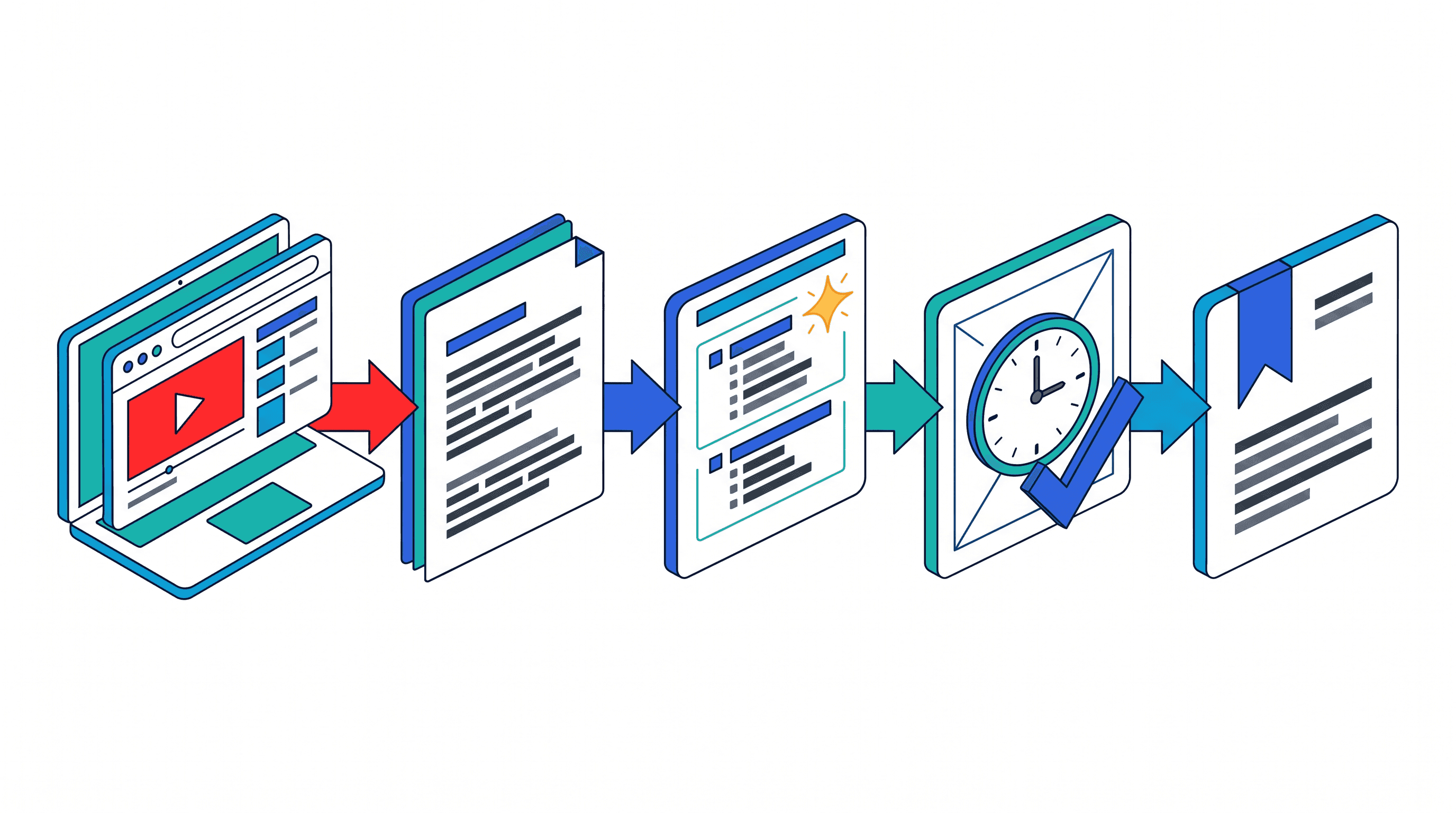
The best stack is usually small: YouTube for navigation, an AI summarizer for triage, a transcript tool for exact wording, and Zotero/Docs/Notion/Otio for the research record. The hard part is not generating a summary; it is preserving the timestamp, context, speaker, and source so the finding survives into an assignment or episode outline.
How to choose a YouTube research tool
A YouTube research tool can do five different jobs, and confusing them wastes time.
Chapter discovery helps you jump around a video. Transcript search helps you find the exact phrase or claim. Summarization gives a fast map of the argument. Note-taking turns useful moments into reusable material. Source management connects the video claim to the article, book, dataset, or primary source behind it.
Use these criteria before picking a tool:
Chapter availability: Does it read existing chapters, generate sections, or ignore chapters entirely?
Transcript quality: Does it use YouTube’s transcript, create a new transcript, or require manual upload?
Timestamp search: Can you jump from text to the exact moment in the recording?
Summary transparency: Does the tool show where a claim came from, or only produce a polished paragraph?
Export options: Can you export TXT, SRT, DOCX, PDF, Markdown, CSV, or clips?
Source capture: Can you save the video URL, timestamp, quote, and context together?
Citation support: Does it integrate with Zotero/Mendeley or at least preserve metadata cleanly?
Audio/video inputs: Does it handle YouTube only, or also MP3, M4A, MP4, WebM, Zoom recordings, and interviews?
Price: Is it free enough for occasional student use, or built for a production team?
Privacy: Are you uploading private interviews, unpublished lectures, or sensitive fieldwork recordings?
AI summaries are useful for orientation, not evidence. They can omit qualifications, flatten disagreement, or misread a speaker’s point. For anything important, verify the claim against the transcript and watch the surrounding timestamp.

Job | Best first tool | Add when the work matters |
|---|---|---|
Review a lecture | YouTube transcript | Otio, NoteGPT, Google Docs |
Prepare a podcast episode | Otio, Descript, Riverside | Notion, Zotero |
Research an interview guest | YouTube search, Google search | Glasp, Notion, Otio |
Capture exact quotes | YouTube transcript, Otter.ai, Sonix | Google Docs, Zotero |
Cite sources in academic work | Zotero | Otio, Google Docs |
Decide whether a video is worth watching | Eightify, NoteGPT | YouTube transcript verification |
Edit a podcast or video | Descript | Riverside, Trint, Sonix |
Best tools for YouTube chapters, transcripts, and fast navigation
1. YouTube chapters and transcript: best free starting point
YouTube’s built-in chapters and transcript are still the fastest way to navigate a single public video. Chapters divide the timeline into sections; the transcript lets you scan spoken text and jump to a timestamp. Guides from Wistia and Captions both describe chapters and transcripts as navigation and accessibility aids, which is exactly how researchers should treat them: useful maps, not verified notes (Wistia, Captions).
For students, the workflow is simple. Open the description or timeline chapters, jump to the relevant section, open the transcript panel, then search for the term you care about. If you are writing from the video, record the exact timestamp and quote.
The limitation is obvious once you use it seriously: chapters may be absent, creator-written, auto-generated, vague, or wrong. Transcripts can also mistranscribe names, formulas, technical terms, and accented speech.
2. YouTube search and playlists: best for finding candidate videos
YouTube search is a discovery tool, not a research database. It is good for finding lectures, conference talks, explainer videos, panel discussions, interviews, and creator playlists around a topic.
For repeatable student research, combine:
A broad query: “climate migration lecture”
A speaker or institution: “climate migration lecture Oxford”
A format: “interview,” “debate,” “conference talk,” “seminar”
A playlist search when a course or channel has multiple related videos
Watch history when you need to recover a source you saw earlier
The failure mode is mistaking discoverability for authority. A highly ranked video may be useful, but it is not automatically reliable. Treat YouTube search as a way to build a candidate pool, then verify claims through transcripts and primary sources.
3. Google search with timestamped video queries: best for corroboration
Google is often better than YouTube when you remember a phrase, speaker, or video title but cannot find the original moment. Search the video title plus a distinctive phrase from the transcript, or search the speaker and claim to find related talks, papers, interviews, or institutional pages.
Good query patterns:
"speaker name" "distinctive phrase""video title" transcript topic"channel name" "timestamp phrase"site:youtube.com speaker topic interviewtopic "conference talk" "YouTube"
This helps with corroboration, but it does not establish authority. Search results can surface reposts, summaries, SEO pages, or inaccurate paraphrases. If a claim matters, follow it back to the original source.
4. SponsorBlock: best for skipping non-research segments
SponsorBlock is a community-powered browser extension that marks segments such as sponsorships, intros, outros, and self-promotion in many YouTube videos. For research, its value is navigation: it can reduce time spent on segments that are unlikely to contain substantive material.
It is not a chaptering tool, transcript tool, citation tool, or fact-checking tool. Community labels can also be inconsistent. Use it to move faster through eligible videos, not to decide what counts as evidence.
5. vidIQ: best for creator research, not student citation
vidIQ is built for YouTube creators studying topics, titles, competitors, and audience demand. If you are a podcaster or video creator, it can help identify which angles already exist, how competing videos are packaged, and what search terms people use around a topic.
For students, vidIQ is usually not the tool you need. It does not solve the core academic problem: capturing exact claims, timestamps, transcript passages, and source metadata. Use it when your research question is “what should I make?” rather than “what did this source say?”
Best AI tools for summarizing lectures, interviews, and podcast episodes
6. Otio: best research workspace for videos, transcripts, notes, and sources
Otio is strongest when the YouTube video is one source among many. You can add a YouTube URL to a unified library, open the embedded player with a transcript panel, ask questions about the video, select transcript passages, save useful quotes into notes, and organize related videos in project Spaces.
That matters for students and podcasters because most research does not end at one summary. A lecture points to papers. A podcast episode points to guest claims, books, prior interviews, and competing arguments. A workspace keeps those pieces together.
The right Otio workflow is:
Add the YouTube URL to the library.
Open the video reader and scan the AI-generated summary.
Use the synced transcript to find the relevant moment.
Ask follow-up questions about the video.
Select the exact transcript passage and save it to a note.
Put the video, notes, and related sources in a project Space.
Verify important claims at the timestamp before quoting or publishing.
The limitation is the same as with every AI research assistant: the answer is only as useful as the retrieved source context and your verification step. Do not cite the AI answer. Cite the video timestamp and, when possible, the primary source behind the speaker’s claim.
7. YouTube Video Summarizer by Otio: best for fast triage plus follow-up research
A dedicated YouTube video summarizer is faster than manually reviewing a 90-minute lecture just to decide whether it is relevant. The useful output is not a final paragraph; it is a map of what to inspect.
Use it when you have a list of videos and need to separate “watch carefully” from “skip.” After the summary, ask transcript-grounded follow-up questions: What does the speaker say about X? Where do they define Y? Which section includes the evidence? Then jump to the timestamps and save the exact passages.
This is especially useful for podcast preparation. A summary can reveal the guest’s recurring claims; the transcript lets you turn those into precise questions.
8. NotebookLM: best for source-grounded notebooks
NotebookLM is useful when you want a notebook organized around a set of sources rather than a generic chat session. For video research, its value depends on how you bring video-derived material into the notebook and whether the transcript is available in a usable format.
It is a good fit for class notes, reading packets, and research projects where video transcripts sit beside PDFs, slides, and web pages. Before relying on it for academic work, check three things: whether your input is supported, whether the answer shows source grounding clearly, and whether citations preserve enough context for your required format.
NotebookLM is less suitable when the core job is editing audio/video or producing timestamped podcast clips.
9. NoteGPT: best for quick study notes from YouTube
NoteGPT is designed for fast YouTube transcripts, summaries, and study notes. It fits the student who wants a quick outline of a lecture before deciding where to spend time.
The key question is whether the output preserves enough timestamp context. If a tool gives you clean bullets but hides where they came from, it is weak for academic writing. Check how it handles long videos, whether it exposes the transcript, and whether you can export notes in a format you will actually use.
For exam review, NoteGPT can be enough. For research papers, treat it as a first pass.
10. Eightify: best for deciding whether to watch
Eightify is a fast overview tool. It is useful when you are scanning many videos and need to know whether one is worth full attention.
Its strength is speed. Its weakness is the same: fast summaries compress nuance. That tradeoff is acceptable for triage, weak for quotations, and risky for contested claims.
Use Eightify to answer “Should I spend 30 minutes here?” Then use the YouTube transcript or a research workspace to answer “What exactly did the speaker say?”
[[OTIO_INLINE_PROMO:%7B%22title%22%3A%22Need%20to%20turn%20a%20video%20summary%20into%20usable%20notes%3F%22%2C%22description%22%3A%22Add%20the%20YouTube%20URL%20to%20Otio%2C%20search%20its%20transcript%2C%20ask%20follow-ups%2C%20and%20save%20verified%20passages%20with%20timestamps%20beside%20related%20sources.%22%7D]]
Best tools for transcript search, meeting notes, and source capture
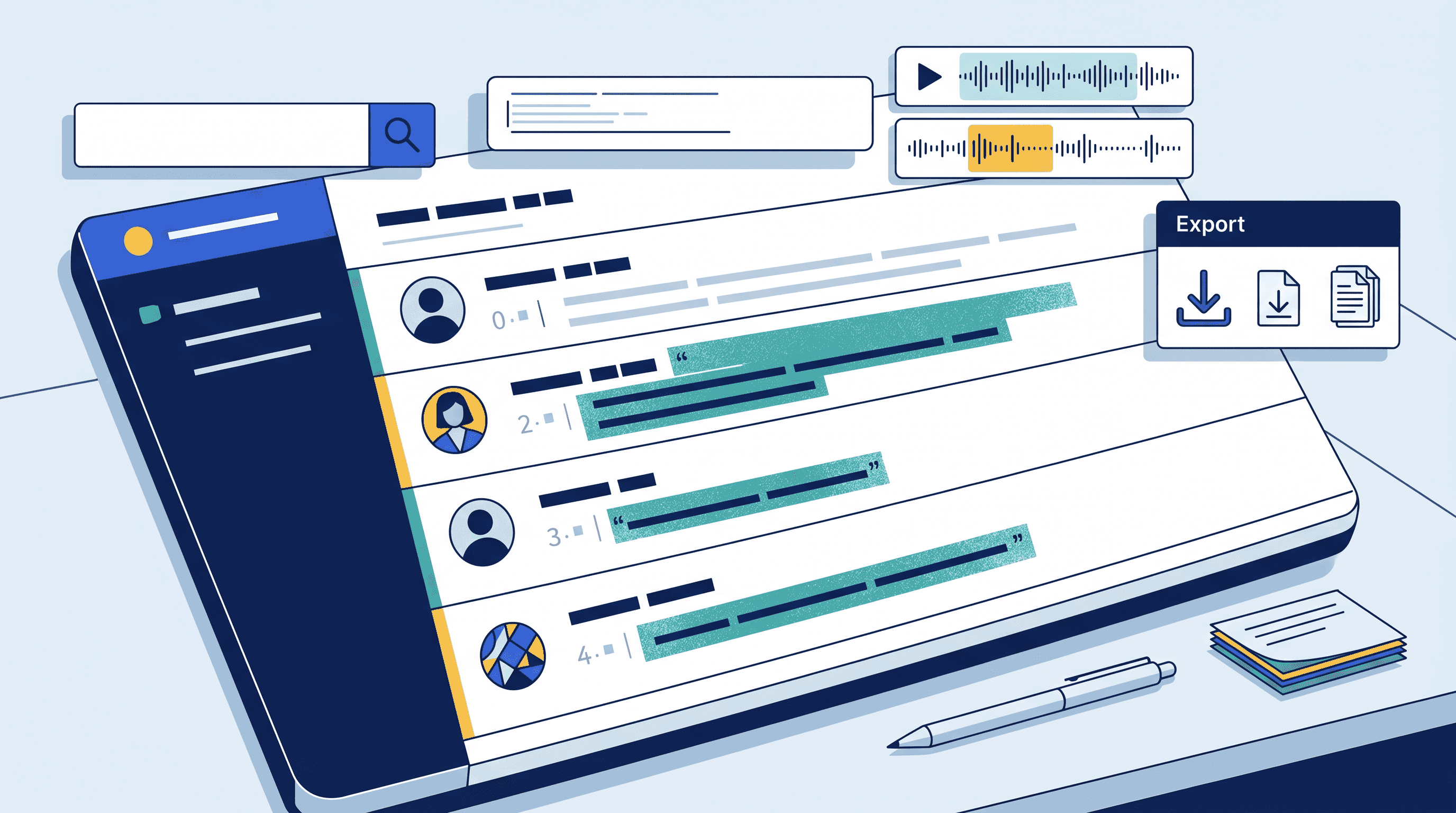
11. Glasp: best for highlighting and collecting web-video material
Glasp is useful when your research process involves highlighting articles, web pages, and videos for later review. It is more of a collection and annotation layer than a deep transcript-questioning system.
For YouTube research, Glasp fits lightweight clipping: save a video, capture a useful passage, and keep it with related web highlights. That is enough for a creator building a topic file or a student collecting background sources.
If your work depends on asking detailed questions across long transcripts, comparing multiple recordings, or saving quotations into structured project notes, you may want a more dedicated research workspace. For broader student stacks, see this guide to research tools for students.
12. Descript: best for transcript-centered podcast editing
Descript is built around the transcript as an editing surface. Podcasters use this kind of workflow to search recordings, correct transcript text, cut sections, repurpose clips, and move from raw audio/video toward publishable material.
That makes it excellent for production. If the job is “find every place my guest talks about pricing and cut a 45-second clip,” transcript-centered editing is exactly right.
It is less ideal as a citation manager or academic source system. Descript helps produce media; it does not replace a research note that records the source, quote, context, and evidence trail.
13. Otter.ai: best for live lectures, interviews, and meetings
Otter.ai is useful when the source is not already on YouTube. It can record or transcribe lectures, interviews, planning calls, and conversations, then make the transcript searchable.
For student and podcast research, look closely at speaker separation, timestamp navigation, and export formats. If you interview a guest, the transcript becomes the backbone for follow-up questions, show notes, and quote review.
The main risk is transcription error. Names, abbreviations, technical language, drug names, legal terms, and overlapping speech often need correction before you quote.
14. Trint: best for editorial transcript workflows
Trint fits teams that need searchable transcripts for interviews, published audio/video, and editorial review. It is closer to professional transcription infrastructure than a casual YouTube summarizer.
Use it when transcripts are assets in a newsroom, production company, or research-heavy podcast workflow. Search, edit, review, and export matter more here than a flashy summary.
The tradeoff is overhead. If you only need a quick summary of a lecture, Trint may be more tool than task. If you need reliable editorial handling of many interviews, it belongs on the shortlist.
15. Sonix: best for automated transcription and exports
Sonix is another strong option for automated transcription, time-aligned text, and export-heavy workflows. It is useful for podcasters and researchers who work with audio or video files outside YouTube.
Pay attention to export needs. Some workflows require TXT for notes, SRT/VTT for captions, DOCX for review, or timestamped formats for editing. A good transcript tool should not trap your text.
As with Otter and Trint, review accuracy before relying on it. Accents, overlapping speakers, noisy rooms, and specialized vocabulary can all distort meaning.
Best tools for podcast planning, citations, and research organization
16. Riverside: best for recording-first podcast workflows
Riverside is built for podcasters who need recording, transcripts, and post-production workflow support. It belongs here because many podcast research workflows begin with recording an interview, not analyzing a public YouTube video.
A recording platform solves capture quality and production logistics. It does not solve source verification by itself. If a guest cites a study, book, article, or statistic, the research workflow still needs to capture and check the underlying source.
Use Riverside when the input is your own conversation. Use transcript and citation tools when that conversation becomes research material.
17. Fireflies.ai: best for recurring interview and planning records
Fireflies.ai is meeting-notes oriented. It is useful for recurring podcast planning calls, guest prep meetings, editorial discussions, and internal interviews.
Its strength is searchable conversation memory. If a production team meets weekly, searchable meeting records can prevent lost decisions and repeated questions.
It is not primarily a public YouTube research tool. If your work centers on existing lectures and videos, a YouTube transcript/summarization workflow will usually be cleaner.
18. Zotero: best for citing the sources behind the video
Zotero is not a YouTube chapter tool, and that is the point. It is where you store the underlying articles, books, webpages, reports, and datasets that a video mentions.
For academic work, avoid citing an AI summary alone. A better workflow is:
Use YouTube chapters or transcript search to find the claim.
Record the speaker, video title, channel, publication date if available, timestamp, and exact quote.
Identify the primary source the speaker references.
Save that primary source in Zotero.
Attach the timestamped quote or transcript excerpt as a note.
Cite the primary source when appropriate; mention the video only when the video itself is the object of analysis.
Otio also has a Zotero integration for researchers who want to bring reference-library material into an AI workspace, but Zotero remains the safer citation system of record.
19. Google Docs: best simple destination for verified notes
Google Docs is not specialized, but it is often enough. A clean document with timestamped notes can beat a complicated tool that nobody maintains.
Use a simple structure:
Video title
Channel or speaker
URL
Date accessed
Relevant timestamps
Exact quotes
Your paraphrase
Open questions
Primary sources to verify
Docs works well for lecture notes, episode briefs, interview questions, and manually verified quotations. It is weaker for searching large video libraries, extracting transcripts, and managing formal citations.
20. Notion: best for podcast research databases and episode planning
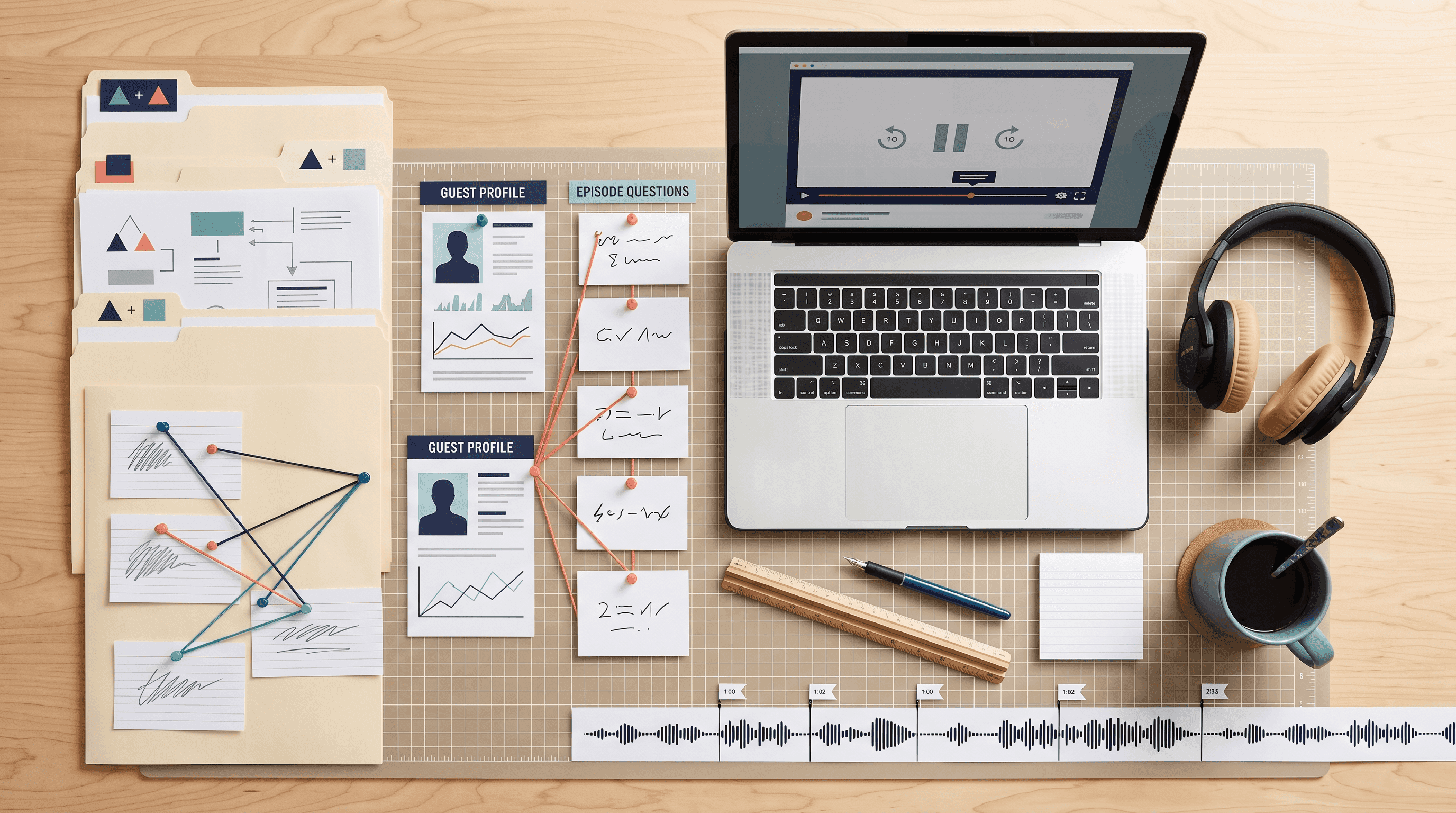
Notion is useful when research becomes a database: guests, episodes, clips, claims, questions, sponsorship notes, publication status, and content calendars.
For podcasters, a Notion database can track:
Guest name and background
Prior interviews
YouTube source videos
Timestamped moments
Potential questions
Claims to verify
Books/articles mentioned
Clip ideas
Episode status
The gap is extraction. Notion can organize research well, but you may need a separate tool for transcript extraction, reliable video summarization, or citation management. If note systems are the bottleneck, this comparison of note-taking apps for PhD students and researchers gives a broader view of research-note tradeoffs.
How to use YouTube chapters without trusting them blindly
Chapters are a navigation layer, not a source of truth. The safest workflow is short and repeatable.
Scan the chapters. Use them to understand the rough structure of the video.
Open the transcript. Search for the target term, name, concept, or phrase.
Jump to the timestamp. Start before the exact line, not on it.
Watch or listen for context. Give yourself enough lead-in and follow-up to understand the qualification.
Record the exact quote. Do not paraphrase first if wording matters.
Save the original URL and timestamp. A note without a timestamp is hard to audit later.
Separate the claim from the evidence. Note what the speaker says and what source they rely on.
When chapters are missing, use the transcript panel, browser find, or a transcript extraction tool. If the video is long or part of a larger project, move it into a workspace where the transcript can be searched and saved beside notes.
When chapters are misleading, trust the spoken content over the label. A chapter called “methods” may include limitations, results, or a sponsor transition. Extend the review window before and after the marker, then write the corrected description in your notes.
For research writing, capture enough metadata that someone else can find the same moment:
Speaker
Video title
Channel
Publication date, when available
URL
Timestamp range
Exact quotation
Your paraphrase
Primary source mentioned
Verification status
The practical recommendation is to choose the lightest tool that completes the job. YouTube’s transcript is enough for one quote. A summarizer is enough for triage. For assignments, literature reviews, or published podcast episodes, move important findings into a structured note or citation system before drafting.
For more video-specific comparisons, see Otio’s guides to YouTube video summarizer tools, AI tools to summarize YouTube videos, and video summarization tools.
FAQ
Q: How do I use YouTube chapters to find a specific part of a video?
A: Open the video’s description or timeline and select a chapter, then use the transcript panel or browser search to locate a keyword. Watch or listen around the timestamp because chapter labels can be incomplete or imprecise.
Q: What should I do if a YouTube video has no chapters?
A: Use the transcript, search for distinctive terms, and jump through nearby timestamps. A transcript or video research tool can make this faster, but important quotations still need to be checked against the original recording.
Q: Are AI YouTube summaries reliable enough for academic research?
A: They are useful for triage and orientation, but they should not be treated as evidence by themselves. Verify important claims, quotations, and interpretations against the transcript, original timestamp, and any primary sources cited in the video.
Q: What is the best workflow for researching a podcast episode from YouTube?
A: Use chapters or transcript search to identify relevant moments, save timestamped quotes and source links, then organize verified findings in a notes or citation system. For multiple episodes, a library-based tool such as Otio can keep videos, transcripts, questions, and notes together.
[[OTIO_FOOTER_PROMO:%7B%22title%22%3A%22Organize%20your%20own%20video%20sources%22%2C%22description%22%3A%22Add%20lectures%2C%20interviews%2C%20and%20podcast%20links%20to%20one%20library%2C%20then%20keep%20transcript%20passages%2C%20questions%2C%20notes%2C%20and%20related%20sources%20together%20in%20a%20project%20Space.%22%7D]]