
Local AI and Compute Workflows
How to Use an iPhone as a Second GPU for Local AI Models
An iPhone cannot usually act like a plug-in GPU for a computer, but it can help with local AI through networked inference and split workloads. This guide explains the architecture, setup decisions, model limits, and troubleshooting steps.

If you’re searching for how to use an iPhone as a second GPU, the honest answer is: you usually can’t attach it to a Mac or PC as a normal external GPU for AI inference. An iPhone’s Apple-silicon GPU can help only when the software is built for networked inference, on-device inference, or an experimental distributed runtime.
The practical move is to stop thinking of the iPhone as a plug-in graphics card and treat it as a second compute node or client. That changes the setup: instead of “share GPU memory over USB,” you choose where the model weights live, where tokens are generated, and how much network latency you can tolerate.
Can you use an iPhone as a second GPU for local AI?
Not in the conventional desktop-GPU sense.
A normal GPU used for local AI is visible to the host machine through supported drivers and compute APIs: CUDA for NVIDIA, ROCm for AMD, Metal on Apple devices, DirectML on Windows, and so on. The host can allocate memory, move tensors, run kernels, and coordinate the model’s layers directly.
An iPhone does not expose its GPU to a nearby computer that way. Plugging an iPhone into USB-C or Lightning does not make it appear as a CUDA, Metal, or OpenCL accelerator. iOS also sandboxes apps, controls background execution, and does not let another machine treat the phone as a raw GPU device.
What the iPhone can do is more limited but still useful:
Run a model entirely on the iPhone
Act as a client for a model running on your computer
Participate in a distributed inference system, if the runtime explicitly supports it
Those are different architectures. Mixing them up is where most bad advice on this topic starts.
The three workflows people confuse
1. iPhone-only inference
The model runs inside an iOS app or custom iOS build. The model weights are stored on the iPhone. The iPhone’s CPU, GPU, Neural Engine, or some combination of local accelerators does the work, depending on the runtime.
This is useful for smaller models, offline use, privacy-sensitive tasks, and quick experiments. It is not using the iPhone as a second GPU for your desktop. It is using the iPhone as the only machine running that particular model.
Examples of relevant runtime families include Core ML-based apps, llama.cpp-derived mobile builds, MLC-style mobile inference, and iOS apps designed for local LLMs. Support changes fast, so check the current app, iOS version, model format, and quantization requirements before moving large files around.
2. Computer-hosted inference with the iPhone as a client
This is the simplest useful setup.
Your Mac, Windows PC, or Linux box runs the model with Ollama, LM Studio, llama.cpp server, LocalAI, text-generation-webui, KoboldCpp, vLLM, or another local inference server. The iPhone connects over your local network through Safari, a native app, an API client, or a web UI.
In this setup, the iPhone is not doing GPU compute for the model. It sends prompts and receives generated tokens. The computer’s GPU, CPU, or Apple Silicon unified memory does the inference.
For most people, this is the best answer because it works with existing tools and avoids distributed-compute fragility.
3. Split or distributed inference across the computer and iPhone
This is the only architecture that resembles “using the iPhone as a second GPU,” but it requires software that was built for it.
A distributed runtime may split work by layer, shard model weights, route tensors between devices, or assign different parts of a pipeline to different nodes. Experimental projects in this category exist, but support is not universal, model compatibility is narrower, and network overhead can erase the benefit.
This is not something Ollama or LM Studio magically does just because the phone and computer are on the same Wi-Fi network. The runtime must understand both devices, know how to schedule work across them, and support the model format you want to run.
Why the iPhone is not a drop-in AI accelerator
The constraint is not just “Apple won’t let you.” It is architectural.
A desktop GPU accelerator needs:
A host-visible device interface
Driver support
Shared or transferable memory buffers
A compute runtime that can schedule kernels
Low-latency data movement
Model code that knows how to place tensors on that device
An iPhone gives you none of that as an external peripheral. It is a separate computer with its own operating system, memory, thermal envelope, power policy, and app sandbox.
That distinction matters because LLM inference is memory- and bandwidth-heavy. Every generated token depends on model weights and a growing key-value cache. If a runtime has to send intermediate tensors over Wi-Fi at every layer, the network can become the bottleneck long before the iPhone GPU helps.
What to expect before you try
Set expectations before choosing tools.
Latency: A local network client is usually fine for chat because only prompts and generated tokens travel across the network. Split tensor execution is more sensitive because intermediate activations may move between devices repeatedly.
Memory: An iPhone’s usable memory is the hard ceiling. A 4-bit 7B-class model may fit on some modern devices, but context length, tokenizer buffers, runtime overhead, and iOS memory pressure all matter. Larger models can fail even when the raw quantized file looks small enough.
Thermals: iPhones are passively cooled. Sustained generation can slow down as the device heats up. A desktop GPU with active cooling is a different class of machine for long sessions.
Runtime support: Model files are not interchangeable across every runtime. GGUF, Core ML packages, MLX-oriented formats, ONNX, and app-specific bundles have different compatibility rules.
Background execution: iOS may suspend or constrain apps when they are backgrounded, locked, or under memory pressure. That is a poor fit for a node that must continuously serve another machine.
Model quality: Smaller on-device models may be useful for summarization, classification, drafting, and coding assistance, but they will not behave like a large desktop-hosted model. If the real problem is choosing between models, start with a model-selection workflow rather than a hardware hack. Otio’s multiple AI models feature is useful for comparing GPT, Claude, Gemini, Llama, DeepSeek, and others in a research workspace, but it is not an iPhone GPU runtime.
The safest rule: verify current iOS, macOS, runtime, and model support from the primary project documentation before assuming GPU offload is available.
Choose the right iPhone-to-computer architecture
Pick the architecture based on the job, not the novelty of using another device.
Architecture | Where the model runs | Does the iPhone do GPU compute? | Best for | Main limitation |
|---|---|---|---|---|
iPhone-only inference | On the iPhone | Yes, if the app/runtime uses it | Offline mobile use, small models, private quick tasks | Memory, thermals, model compatibility |
Computer-hosted inference with iPhone client | On the computer | No | Most local AI users who want phone access | iPhone adds convenience, not compute |
Task-level split | Both devices, separate jobs | Sometimes | Desktop runs main LLM; iPhone runs a smaller local task | Requires manual routing or orchestration |
True distributed inference | Across computer and iPhone | Yes | Experiments with multi-device local compute | Runtime maturity, network overhead, fragile setup |
The correct answer for most setups is the second row: run the model on the stronger computer and use the iPhone as a local client. It gives you mobile access to your local model without pretending that iOS can become a PCIe GPU.
If you specifically want the iPhone’s GPU to contribute computation, look at iPhone-only inference first. If you specifically want one model split across machines, expect an experimental project, a narrow model list, and a lot of benchmarking.
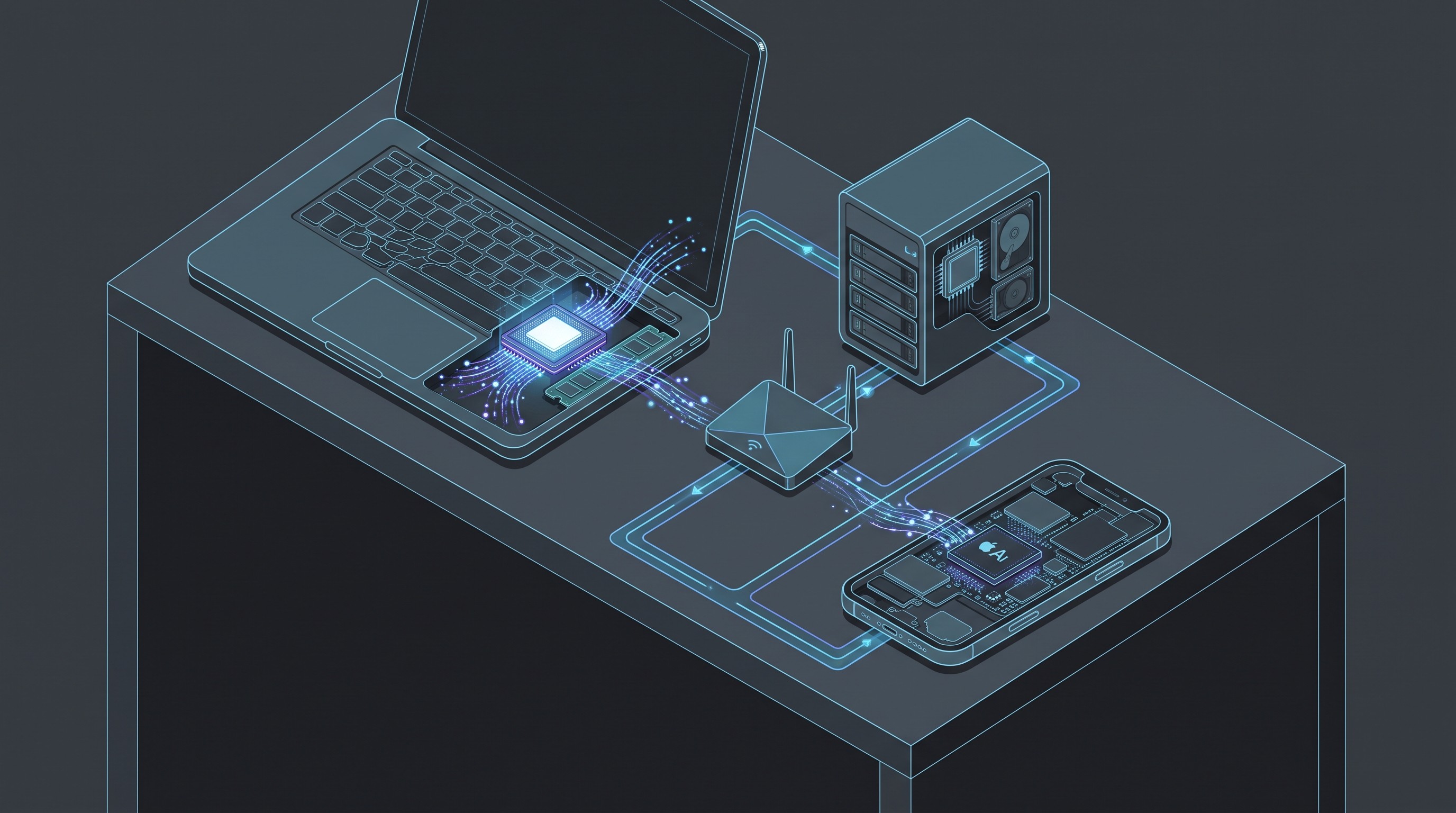
Option A: Use the iPhone as a client for a computer-hosted model
This is the cleanest local workflow.
The computer does the heavy work. The iPhone becomes the interface. Prompts go from phone to computer; generated tokens stream back from computer to phone.
A typical setup looks like this:
Install a local inference server on the computer
Common choices include Ollama, LM Studio, llama.cpp server, LocalAI, text-generation-webui, or KoboldCpp. Pick based on your model format, GPU support, and whether you want a browser UI or API.
Download a model that fits the computer
For consumer hardware, start with a quantized 7B or 8B model before trying larger models. If you are still deciding which open model belongs in the workflow, use a model guide like Otio’s open-weight AI model overview to narrow the field by task rather than chasing the largest file that fits.
Bind the server to your local network
Many tools default to localhost, meaning only the computer itself can connect. To reach it from an iPhone, the server must listen on the computer’s LAN address or all local interfaces. The exact setting depends on the tool.
Find the computer’s local IP address
On a home network this is usually something like 192.168.x.x or 10.0.x.x. The iPhone and computer must be on the same network unless you set up a VPN or secure tunnel.
Open the interface from the iPhone
If the tool exposes a web UI, open it in Safari using the computer’s local IP and port. If it exposes an API, use a compatible client or your own small web front end.
Lock down access
Do not expose a local inference server directly to the public internet. Use LAN-only access, a firewall rule, a VPN such as Tailscale, or a reverse proxy with proper authentication if remote access is required.
This gives you the experience many people actually want: local AI on your phone, backed by a desktop GPU or high-memory Mac. It does not add iPhone GPU compute, but it is stable and practical.
Option B: Run a separate model on the iPhone
Choose this when the iPhone must perform computation locally.
This is useful when the phone should work offline, when prompts should not leave the device, or when the task is small enough for mobile hardware. Examples include:
A small chat model for offline drafting
A classifier for routing notes
A summarizer for short documents
A local coding helper for snippets
A speech, OCR, or vision model if the app supports that workload
The setup is app-specific, but the decision process is consistent:
Choose an iOS runtime or app first
Do not start by downloading a random model file. Start with the iOS app or runtime and read which formats it supports.
Choose a model size that leaves memory headroom
The model file is not the whole memory requirement. Context length and runtime buffers also consume memory. If the app crashes, shortens context, or stalls during generation, the model is probably too large for the device or settings.
Use quantized models where supported
Quantization reduces memory use by storing weights at lower precision. It can make mobile inference possible, but it can also reduce quality, especially on reasoning, coding, and long-context tasks.
Benchmark the task you care about
Tokens per second is only part of the answer. Test the prompt length, output length, and task type you actually need. A model that feels fine for one-paragraph replies may be painful for long summarization.
Keep the iPhone awake and cool
Local inference can heat the device. Plugging in power may help battery life, but it can also add heat. If performance drops after a few minutes, thermal throttling may be the reason.
This architecture does not combine iPhone and desktop memory. It gives you a second independent inference device.
Option C: Split the workload at the task level
Task-level splitting is often better than tensor-level splitting.
Instead of trying to divide every transformer layer between devices, assign different jobs to different devices. For example:
The desktop runs the main 14B, 32B, or larger model.
The iPhone runs a smaller local model for quick classification.
The desktop handles retrieval, long-context synthesis, or code generation.
The iPhone handles capture, short summaries, or private first-pass triage.
A script or manual workflow routes tasks based on size and sensitivity.
This is not glamorous, but it avoids the worst distributed-inference bottleneck: shipping intermediate tensor data back and forth constantly.
For research workflows, this split can be simple. Use the computer for source-heavy synthesis and the phone for capture or quick review. If the task involves switching among model providers rather than local hardware, a guide on when and how to switch AI models may solve more of the problem than adding another device.
Option D: Use a genuine distributed inference runtime
This is the closest match to “iPhone as a second GPU,” but it is also the least dependable path.
A distributed runtime needs to do several things well:
Detect both devices as compute nodes
Support the iPhone’s available compute backend
Support the model architecture and file format
Split work without excessive network traffic
Handle device failure, sleep, heat, and memory pressure
Report performance clearly enough to tell whether the setup helped
Experimental local-AI projects sometimes attempt this across Macs, phones, and other edge devices. The details change quickly. Before investing time, confirm that the project currently supports your exact iPhone model, iOS version, computer OS, model family, and quantization format.
Then benchmark against the obvious baseline: the same model running on the computer alone. If adding the iPhone makes generation slower, increases crash rate, or forces a smaller context window, it is not helping.
A practical setup path
If the goal is to get useful local AI on an iPhone-connected workflow, use this order.
Step 1: Define what “second GPU” means for your case
Ask one question first: does the iPhone need to generate tokens, or does it only need to access a local model?
If the phone only needs access, use computer-hosted inference. If the phone must compute offline, use iPhone-only inference. If one model must span devices, look for a distributed runtime and accept that it may not be production-ready.
Step 2: Start with computer-hosted inference
Install a local inference server on the strongest machine. Use a model that comfortably fits. Confirm it works locally from the computer before involving the iPhone.
Do not debug Wi-Fi, iOS browser behavior, firewall settings, and model-loading failures at the same time.
Step 3: Add iPhone access over the LAN
Put both devices on the same network. Open the server’s web UI or API endpoint from the iPhone. If it fails, check binding, firewall, port, and whether the iPhone is isolated on a guest network.
This gives you the highest chance of success in the first hour.
Step 4: Decide whether iPhone compute is still worth it
Once the client workflow works, ask what the iPhone GPU would actually improve.
If the computer already has a capable GPU, the iPhone may add complexity without speed. If the computer is weak but the iPhone is recent, running a small separate model on the iPhone may be useful. If both devices are modest, a smaller model and better quantization may beat distributed inference.
Step 5: Try on-device iPhone inference for a smaller task
Pick a small model and a narrow job. Do not start with the same model you run on the desktop. Test short prompts, longer context, battery drain, heat, and app stability.
If the iPhone performs well on a narrow task, keep it there. That is a real gain even if it is not GPU pooling.
Step 6: Only then test distributed inference
If you still want split-device compute, choose a runtime that explicitly supports it. Follow its supported hardware matrix closely. Use one model, one quantization, and one benchmark prompt. Compare three runs:
Computer alone
iPhone alone, if supported
Computer plus iPhone
If the combined setup is not faster or more capable, abandon it. Local AI hardware should make work easier, not become the work.
Troubleshooting: why the iPhone setup usually fails
The iPhone cannot reach the computer
The server is probably bound to localhost, the firewall is blocking the port, or the devices are not on the same network. Guest Wi-Fi networks often isolate devices from each other.
The web UI opens but generation never starts
The model may not be loaded, the backend may have failed, or the server may be rejecting requests from non-localhost clients. Check the server logs on the computer.
The iPhone app crashes during local inference
The model is likely too large, the context window is too high, or iOS is killing the process under memory pressure. Use a smaller quantization, shorter context, or smaller model family.
Distributed inference is slower than one device
That is common. The network and synchronization overhead can dominate. This is especially likely when the runtime sends frequent intermediate data between devices instead of splitting work into coarse chunks.
The iPhone gets hot and slows down
Sustained AI inference is a heavy workload. Remove the case, reduce output length, use a smaller model, or move the main generation back to the computer.
The model format is not supported
A GGUF file for llama.cpp, a Core ML-converted model, an MLX-oriented model, and an app-specific mobile bundle are not automatically interchangeable. Choose the runtime first, then the model format.
The setup breaks after an iOS or app update
Mobile inference support is still moving. Treat iOS updates, runtime updates, and model conversions as compatibility events. If the workflow matters, keep a known-good setup documented before upgrading.
When this is worth doing
Using an iPhone in a local AI workflow makes sense when at least one of these is true:
You want mobile access to a local model running on a private computer.
You need small-model inference offline on the phone.
You are experimenting with distributed inference as a research or hobby project.
You want task-level routing across devices, not a single giant pooled GPU.
You care more about privacy and local control than maximum throughput.
It is usually not worth doing when:
You expect the iPhone to behave like a USB eGPU.
You want to speed up a desktop model with no runtime support for distributed execution.
Your model barely fits on the computer already.
Your workload needs long, sustained generation.
You cannot tolerate crashes, heat, or setup churn.
The best default
For most people, the right architecture is:
Computer runs the model. iPhone connects as a local client. Smaller iPhone models handle separate offline tasks only when useful.
That gives you most of the practical benefit without pretending the iPhone is a desktop GPU. If the workload involves sensitive research files or unpublished material, also think through where prompts, documents, and model logs live; the privacy risks are different for local servers, cloud tools, and mobile apps. Otio has a separate guide on protecting unpublished research data and ideas from AI tools that is worth reading before putting confidential material into any model workflow.
An iPhone can be part of a local AI system. It just needs to be treated as a separate computer with specific runtimes and limits, not as a second GPU you can bolt onto an existing model process.
[[OTIO_FOOTER_PROMO:%7B%22title%22%3A%22Apply%20this%20architecture%20to%20your%20sources%22%2C%22description%22%3A%22Add%20your%20runtime%20notes%2C%20model%20documentation%2C%20and%20benchmark%20results%20to%20Otio%20to%20compare%20evidence%20and%20plan%20a%20workable%20local%20AI%20workflow.%22%7D]]