Productivity
22 Productivity Hacks for Knowledge Workers Managing Overload
Cut information overload fast with 22 concrete hacks that help knowledge workers capture, process, and organize inputs without burnout.

You've got 37 tabs open, three unread newsletters, a half-finished note in Notion, and one PDF you swear you already summarized last week. The fix isn't another productivity app; it's a tighter intake-to-output loop with hard limits at each stage.
Use these 22 hacks to cut inputs, process faster, organize once, and protect attention. If your overload is mostly documents and research sources, an AI research workspace like Otio can help once the system is in place, but the system comes first.
Knowledge work breaks when everything feels equally worth saving. Most things aren't.
Who this list is for
This list is for people whose day starts as reading and somehow turns into archaeology.
Researchers know the pattern: a paper links to six more papers, Semantic Scholar throws up another batch, Slack has a thread with a “quick” decision buried 19 messages down, and a meeting note arrives as a Google Doc with no owner. By 4 p.m., the problem isn't lack of discipline. It's too many open loops.
STEMCELL Technologies' guide for scientists puts the pressure plainly: information technology has made researchers process information faster and more often than before. That tracks with how academic and professional work actually feels now. The volume isn't theoretical.
This is also for students who already use “the stack”: Zotero for references, Google Drive for PDFs, Notion or Obsidian for notes, ChatGPT on the side, maybe Slack or Discord for group work. The failure point usually sits between those tools. You can find things once, then lose the connection two days later.
If you want a broader frame, we covered how to manage information overload separately. This piece is narrower: 22 moves you can apply without rebuilding your life.
How we picked these 22 hacks
We used three filters.
First, the hack had to take under five minutes to start. A productivity method that needs a Saturday setup session usually dies by Tuesday. No color-coded life operating system here.
Second, it had to fix a specific workflow failure: too many inputs, slow processing, scattered notes, or broken focus. Gartner's advice on reducing information overload emphasizes clearer communication and process design, not personal heroics, and the same logic applies to a solo research workflow: reduce ambiguity before asking yourself to work harder (Gartner's information overload strategies).
Third, it had to survive contact with messy work. A hack that only works on a clean inbox at 8 a.m. doesn't earn a spot. The useful moves are the ones that still work when you're tired, behind, and switching between a PDF reader and a meeting recap.
We also treated online complaints as signal, not evidence. Threads from productivity and grad-school communities are good at surfacing the places where systems break: unread piles, duplicated notes, dead bookmarks, forgotten highlights. They aren't proof. They’re the smoke alarm.
Here’s the operating model behind the list:
Without a triage system | With a triage system |
|---|---|
Save every link “for later” | Cap new sources before they enter |
Re-read PDFs from page one | Check abstract and conclusion first |
Scatter notes across tools | Keep one master note per project |
Let meetings fracture the day | Add buffers before context switches |
The goal isn't to become perfectly organized. It’s to stop paying the same cognitive tax twice.
Hacks for cutting incoming volume

Input control sounds boring until it buys back half a day.
Most knowledge workers try to process their way out of overload. Wrong end of the pipe. If 60 new items enter your system daily and you can process 25, better note-taking only delays the pileup.
1. Turn off non-urgent notifications for 90 minutes.
Use iOS Focus, Android Do Not Disturb, macOS Focus, or Windows Do Not Disturb. Don't “check less.” Block the feed mechanically.
Google's Android help documentation describes Do Not Disturb and modes as tools for limiting interruptions and deciding when notifications can break through (Google Android Help on Do Not Disturb). The practical version: allow calls from family, calendar alerts, and your boss if needed. Kill everything else for one 90-minute block.
Start with mornings if your work involves writing, analysis, or source review. If mornings are meeting-heavy, use the first clean block after lunch. Short enough to be safe. Long enough to matter.
2. Route newsletters and low-priority alerts into one Friday folder.
Create one inbox rule. Not ten.
In Gmail, Outlook, or Superhuman, make a folder called something bland like “Friday review.” Route newsletters, product updates, journal table-of-contents alerts, and low-priority listservs there. Review once a week.
This works because it stops newsletters from pretending to be work. A useful industry update at 9:14 a.m. is still an interruption if you're trying to finish a methods section.
3. Unsubscribe from anything you haven't opened in 30 days.
Use Gmail search, Outlook filters, or a bulk tool like Unroll.me if your organization allows it.
The rule is simple: if you haven't opened the sender in a month, cut it. For academic work, be more careful with grant alerts, calls for papers, and institutional mail. Everything else can earn its way back later.
A small mercy: unsubscribe while scanning the Friday folder. Don't make “email hygiene” a separate project. That's how the chore grows teeth.
4. Cap your reading list at three new sources per day.
This feels artificial. Good.
A reading list without a cap becomes a guilt ledger. Set a daily limit of three new papers, links, reports, or videos. If a fourth item appears, it goes into a next-week parking lot.
Researchers hate this because discovery feels productive. Sometimes it is. Often, it’s avoidance dressed as diligence.
If your field moves fast, raise the cap to five. Don't remove the cap.
5. Replace open-ended alerts with one curated digest.
Google Alerts can be useful. They can also spray loosely related articles into your inbox forever.
Pick one weekly digest in your field: a lab newsletter, a professional association roundup, a journal alert, or a trusted Substack. Then retire overlapping alerts. The best digest is the one you'd still read when behind.
This is where AI productivity tools can help, but only after you've reduced the incoming surface area. Summarizing junk still leaves you with junk.
6. Forward long threads and meeting notes to a dedicated read-later folder.
Long Slack threads, email debates, and meeting recaps should not sit in the same place as urgent requests.
Create a folder or label called “read later — decisions.” Forward anything that requires comprehension rather than action. Then schedule two review windows per week.
The name matters less than the boundary. Email is for current work. The folder is for material that needs slower reading.
Hacks for faster processing
Processing fails when you treat every source as if it deserves full attention.
It doesn't. A lot of knowledge work is triage: decide whether a document deserves more time, extract the one useful claim, then move on. HBR's piece on information overload describes the brain strain of assimilating large amounts of new information, especially in a new role or high-input environment (Harvard Business Review on saving yourself from information overload). The same overload shows up in literature review, consulting research, legal prep, and product strategy.
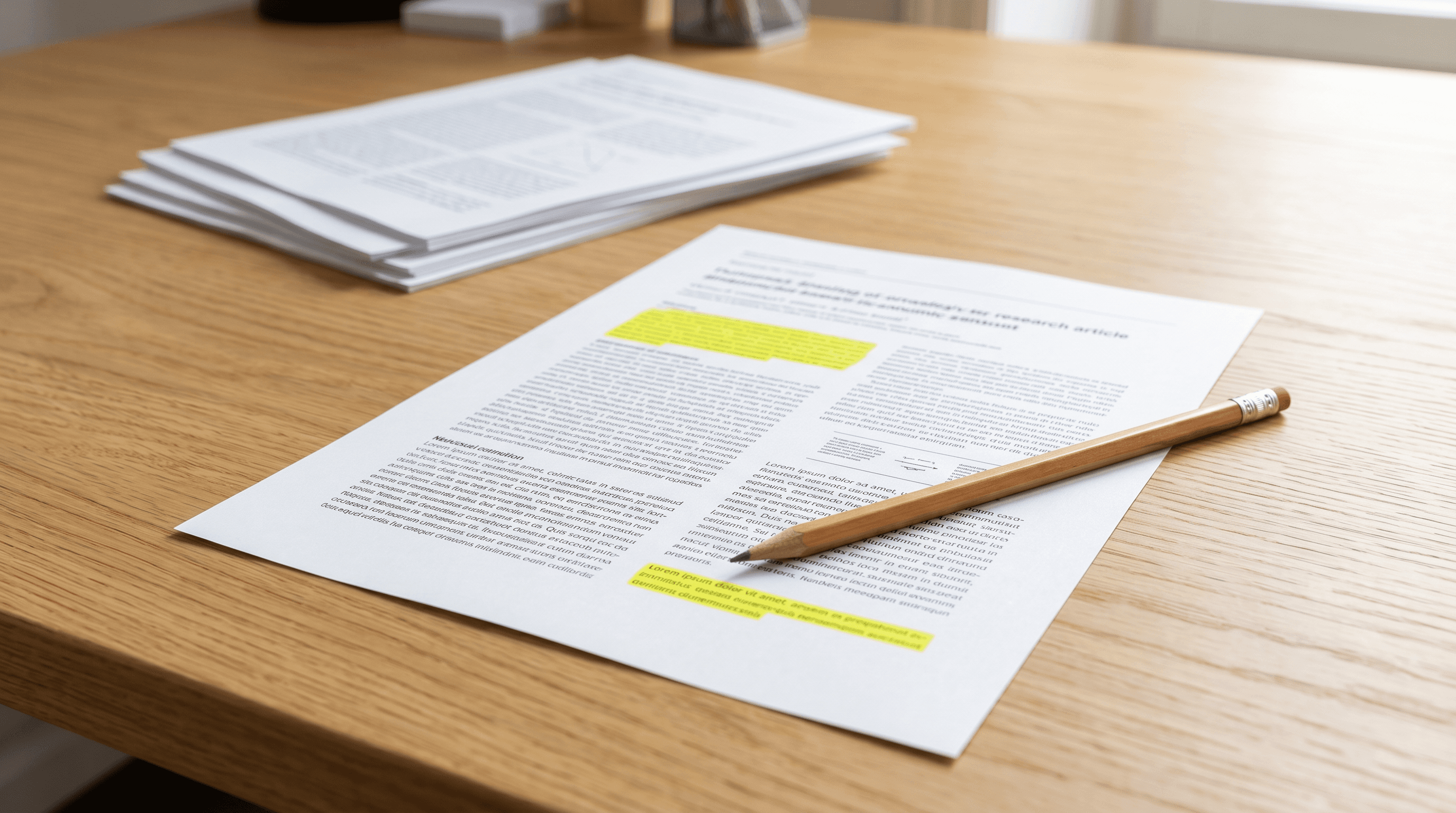
7. Read the abstract and conclusion first.
For research papers, start with the abstract, then jump to the conclusion. If those two sections don't answer your current question, skim the figures or tables. Only then decide whether the full paper is worth reading.
This offends completionists. Let it.
The abstract tells you what the paper claims. The conclusion tells you what the authors think survived the analysis. Methods decide whether you trust it. The introduction can wait.
For a more tool-heavy version, compare AI tools for summarizing research papers, but keep the human triage step. AI summaries are weaker when the question is vague.
8. Highlight only sentences that answer your current question.
Before opening the source, write one question at the top of your note. “What evidence supports remote monitoring for heart failure readmissions?” beats “remote monitoring paper.”
Then highlight only sentences that answer that question. Ignore beautiful background sentences. Ignore clever framing unless you're writing the framing section right now.
The tell is when your highlights cover whole paragraphs. That means you're saving the burden for later.
9. Use the two-minute summary rule.
If a document can be summarized in under two minutes, do it immediately.
Use one sentence: claim, evidence, limitation. For example: “This paper argues X using Y dataset, but the sample excludes Z.” No decorative prose. No “interesting implications.”
ClickUp's 2026 productivity advice recommends choosing one or two tactics that match your current pain point, including time blocking or the two-minute rule for inbox overwhelm (ClickUp's productivity hacks guide). The useful part is the constraint. Two minutes prevents summary theater.
10. Convert voice notes to text right away.
Voice notes win on capture speed. They lose on retrieval.
If you record a thought while walking back from a meeting, transcribe it before the day ends. Otherwise it becomes one more audio blob you'll never search. Transcripts are imperfect, but searchable beats elegant and lost.
In tools like Otter, Apple Voice Memos with transcription, or Otio's in-browser audio recording and transcription flow, the key is routing the transcript into the same note system as typed material. Split pipelines create forgotten piles.
11. Ask one specific question per source.
Don't ask a paper, report, or transcript to “tell you everything useful.” That's how you get a vague paragraph and false confidence.
Ask for one thing: the causal claim, the dataset limitation, the strongest counterargument, the quoted definition, the pricing assumption. If you need five things, run five passes.
This works especially well with dense PDFs. Use Otio's text-selection Ask-Otio toolbar inside a reader to question a paragraph or table without pulling the whole document into a separate chat.
12. Batch similar documents.
Process similar sources together: all RCTs in one sitting, all vendor security docs in another, all customer interview transcripts after lunch.
Context switching is expensive because each document type asks your brain to load a different schema. Slack's guide to information overload notes that moving between unrelated tasks creates cognitive burden that can hurt productivity (Slack on workplace information overload). Batching doesn't eliminate the work. It removes some of the reload cost.
Don't over-batch. Three to seven similar items is usually enough before attention sours.
Hacks for organizing knowledge
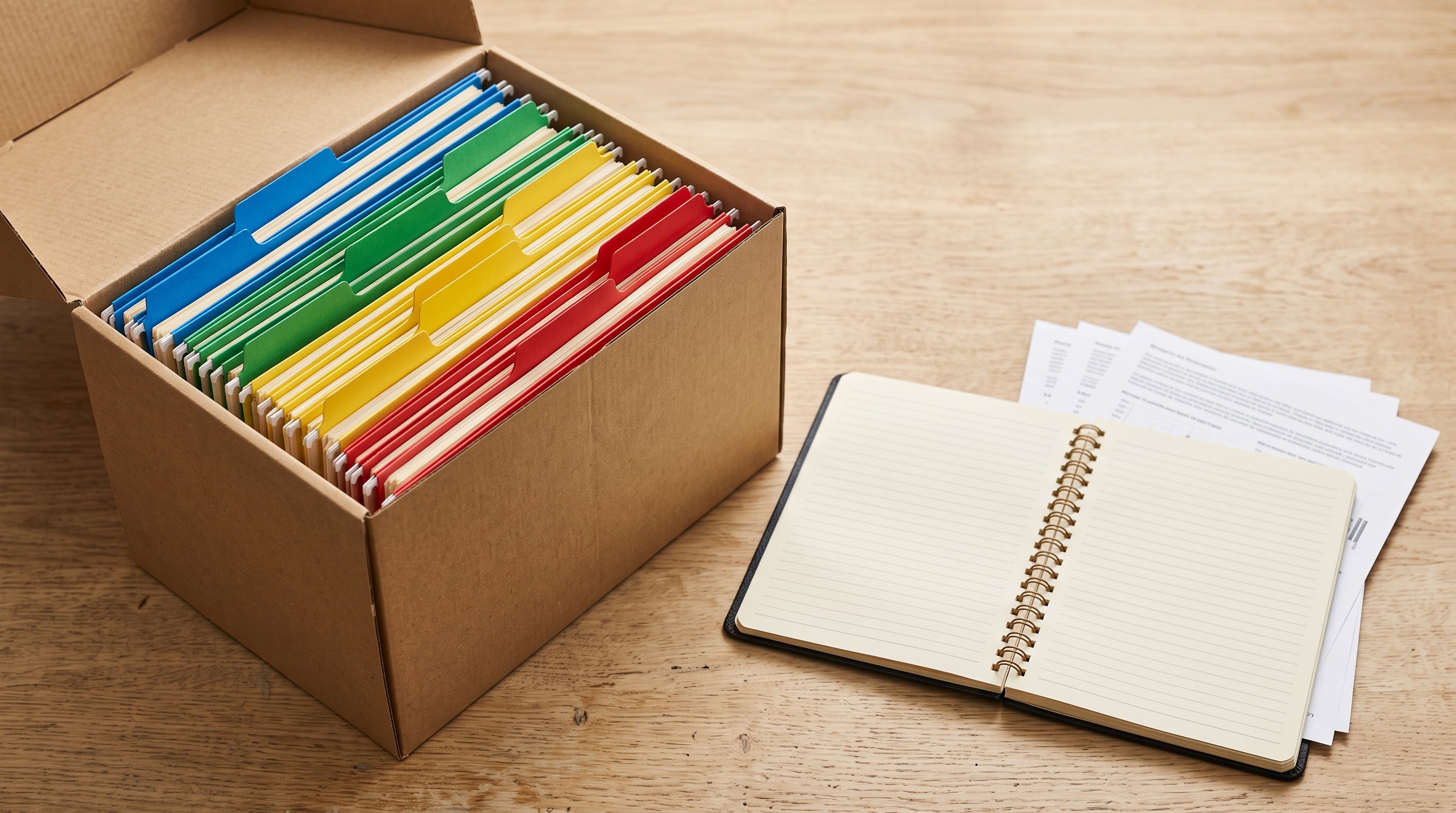
Organization should happen at the moment of saving, not during a heroic cleanup later.
Most knowledge systems rot because saving is cheap and retrieval is expensive. The trick is to add a tiny amount of friction up front: one tag, one project link, one “why this matters” sentence. Annoying? A little. Cheaper than re-reading.
13. Store every source in one searchable library.
Pick one primary library for PDFs, links, notes, YouTube transcripts, datasets, and recorded material.
That can be Zotero for citation-heavy academic work, DEVONthink for local-first document storage, Notion for team notes, or a dedicated research workspace. The wrong move is letting “temporary” storage become permanent: downloads folder, browser bookmarks, Slack saved items, desktop screenshots.
If your work spans formats, personal knowledge management software is worth comparing before you commit. The feature to care about is retrieval under pressure, not how pretty the graph view looks.
14. Create one master note per project.
Every active project gets one master note.
That note links to source summaries, open questions, decisions, definitions, and next actions. It doesn't need to hold every detail. It needs to be the front door.
A good master note prevents the “where did I put that?” spiral. It also exposes gaps. If the source summary exists but isn't linked from the master note, it may as well be in a drawer.
This is the lightweight version of the second brain method: not a life archive, just a working memory extension for active projects.
15. Use atomic notes for ideas you may reuse.
Atomic notes get over-romanticized. Keep them practical.
One note, one idea. A definition. A result. A counterargument. A useful example. If a note needs five headings, it's probably a project note, not an atomic note.
The benefit appears later, when you're writing. You can recombine small notes without dragging along irrelevant context.
16. Add a “why this matters” sentence before closing the tab.
Before saving any source, write one sentence explaining why it belongs in the project.
“Useful background” doesn't count. Try “Defines cognitive overload in a way I can use in the intro” or “Contradicts the 2022 trial on adherence.” Specificity protects you from future-you's blank stare.
This takes 20 seconds. It saves ten minutes later.
17. Review, delete, archive, and attach related sources once a week.
Once a week, open your library and touch every item added in the last seven days.
Delete weak saves. Archive material that isn't tied to an active project. Attach related sources to the same project thread or master note so the context travels with them.
This is where building a personal knowledge system becomes less mystical. The weekly review is maintenance, not self-improvement cosplay.
If two reviewers disagree on what “relevant” means, the system breaks fast. Fix the definition before sorting. Otherwise one person archives what the other person needs.
Hacks for maintaining focus
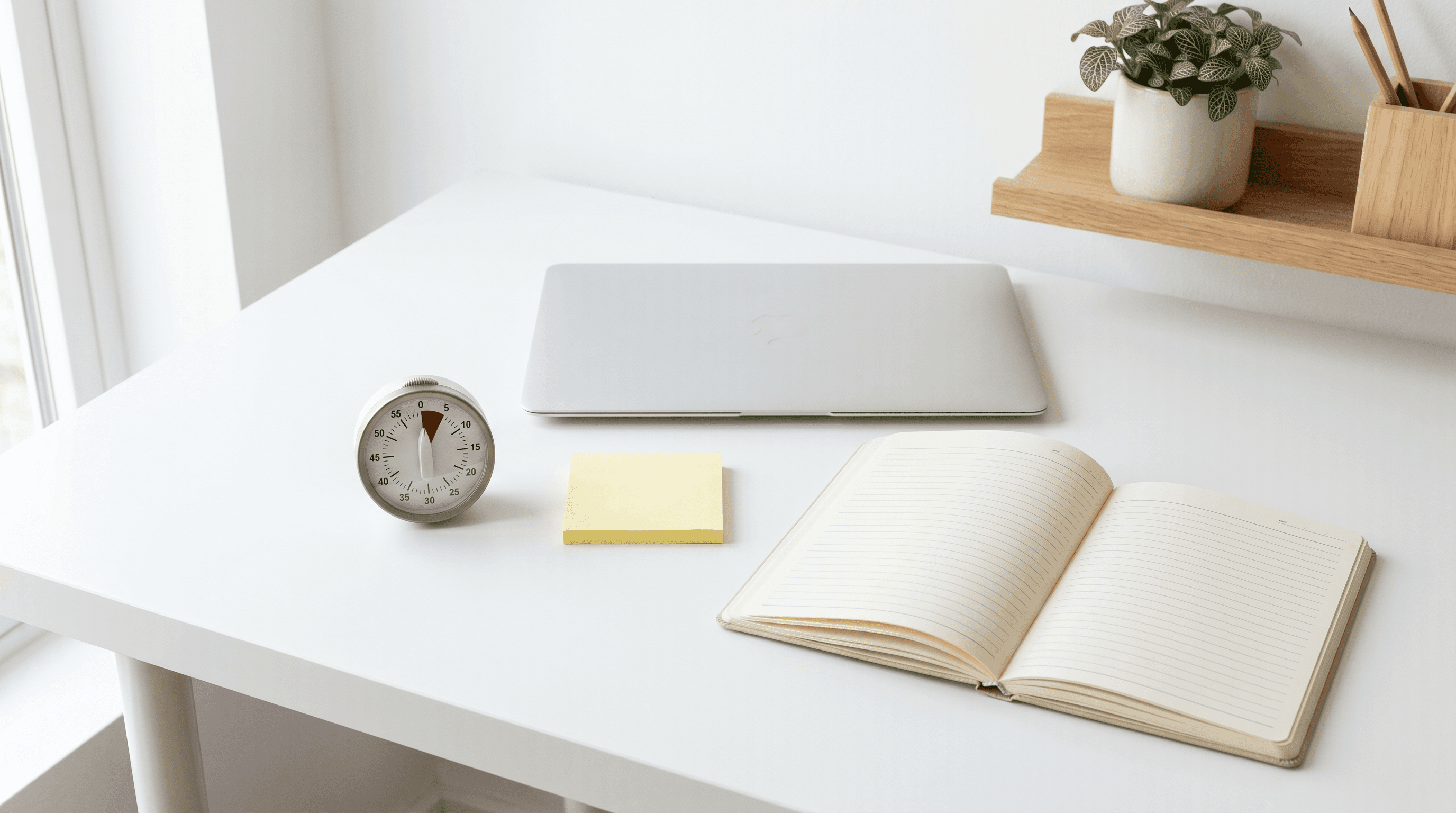
Focus is mostly environmental design plus a visible stopping rule.
You can't out-willpower a day chopped into 11 fragments. You can make the fragments less destructive.
18. Block 25-minute deep-work windows.
Put focus blocks on the calendar like meetings.
Twenty-five minutes is short enough to defend and long enough to finish a meaningful subtask: summarize three papers, clean one source matrix column, draft the recommendation section, review a contract exhibit. If 25 minutes feels too small, good. You're trying to start, not perform a productivity identity.
Protect one block first. Add more only when the first one survives.
19. Keep a visible current-question note.
Write the current question on a sticky note, whiteboard, or top line of your doc.
Examples: “What evidence supports claim 2?” “Which vendor risk is uncapped?” “What did the interviews say about onboarding?” Every tab must serve that question. If it doesn't, close it or park it.
This tiny object does a surprising amount of work. It turns browsing into interrogation.
20. End each block with the next action.
Before switching tasks, write the next action in one sentence.
Not “continue literature review.” Write “Check whether Chen's sample excluded under-18 patients.” Not “finish memo.” Write “Add the confidentiality carve-out example to section 3.”
Stopping cleanly makes restarting cheaper. The task remains warm.
21. Use split view only for the active document and note editor.
A second monitor can help. It can also become a museum of half-intentions.
During processing, keep only two panes visible: the source and the note. PDF on the left, note on the right. Transcript on one side, synthesis table on the other. Everything else hides.
If you need AI assistance, use it inside the same loop rather than opening a wandering side quest. This is one reason tools that combine library, reader, and chat beat a stack of disconnected tabs for serious document work.
22. Schedule a 10-minute buffer between meetings.
Back-to-back meetings create residue. You leave one decision half-processed and enter the next conversation already behind.
Add a 10-minute buffer after meetings that generate notes, decisions, or follow-up reading. Use it to clear the mental stack: file the note, write the next action, send the one message that prevents confusion.
Atlassian defines information overload as taking in more information than the brain can process (Atlassian's Work Life piece on information overload). Meeting-heavy calendars are a perfect delivery mechanism for that problem.
How to use this list next
Pick one category. Not all four.
If incoming volume is the problem, start with hacks 1–3 today: notification block, Friday folder, unsubscribe pass. If processing is slow, use hacks 7–9 on the next three sources you open. If notes keep disappearing, start with the master note and “why this matters” sentence.
Track one metric for a week:
Open tabs at 5 p.m.
Unread items in the main inbox.
Sources processed per focus block.
Notes you can retrieve without search panic.
Saved items with a project link.
Don't track ten things. That's another overload system wearing a Fitbit.
If your workflow already includes PDFs, web links, transcripts, and notes, move the processed sources into one searchable place. Try Otio for your next overloaded research week if you want the library, reader, notes, and chat layer in the same workspace.
FAQ
Q: How do I manage information overload without new apps?
A: Start with notification blocks and one weekly review folder. Those two changes reduce the number of items competing for attention before you touch your note system.
Q: What is the fastest way to process research papers?
A: Read the abstract and conclusion first, then highlight only sentences that answer your current research question. Write a one-sentence summary before opening the next paper.
Q: How can I keep notes from getting scattered?
A: Use one master note per project and link every source summary back to it. If a note isn't connected to a project, archive it or give it a clear reason to exist.
Q: How often should I review my saved sources?
A: Once a week is enough for most knowledge work. Delete weak saves, archive inactive material, and connect useful sources to the project where they'll be used.