
File and Data Handling
20 Best File Conversion Tools for EPUB, PDF, DOCX, and Markdown
Compare 20 file conversion tools for EPUB, PDF, DOCX, and Markdown by format support, batch processing, OCR, privacy, and output quality. Find the right desktop, web, or developer workflow.

Use Calibre for EPUB and ebook-library work, Pandoc for Markdown and structured documents, LibreOffice for office files, Adobe Acrobat Pro or PDF24 for everyday PDF operations, and OCRmyPDF or ABBYY FineReader PDF for scanned documents. If privacy matters, prefer desktop, command-line, or self-hosted tools over browser upload services.
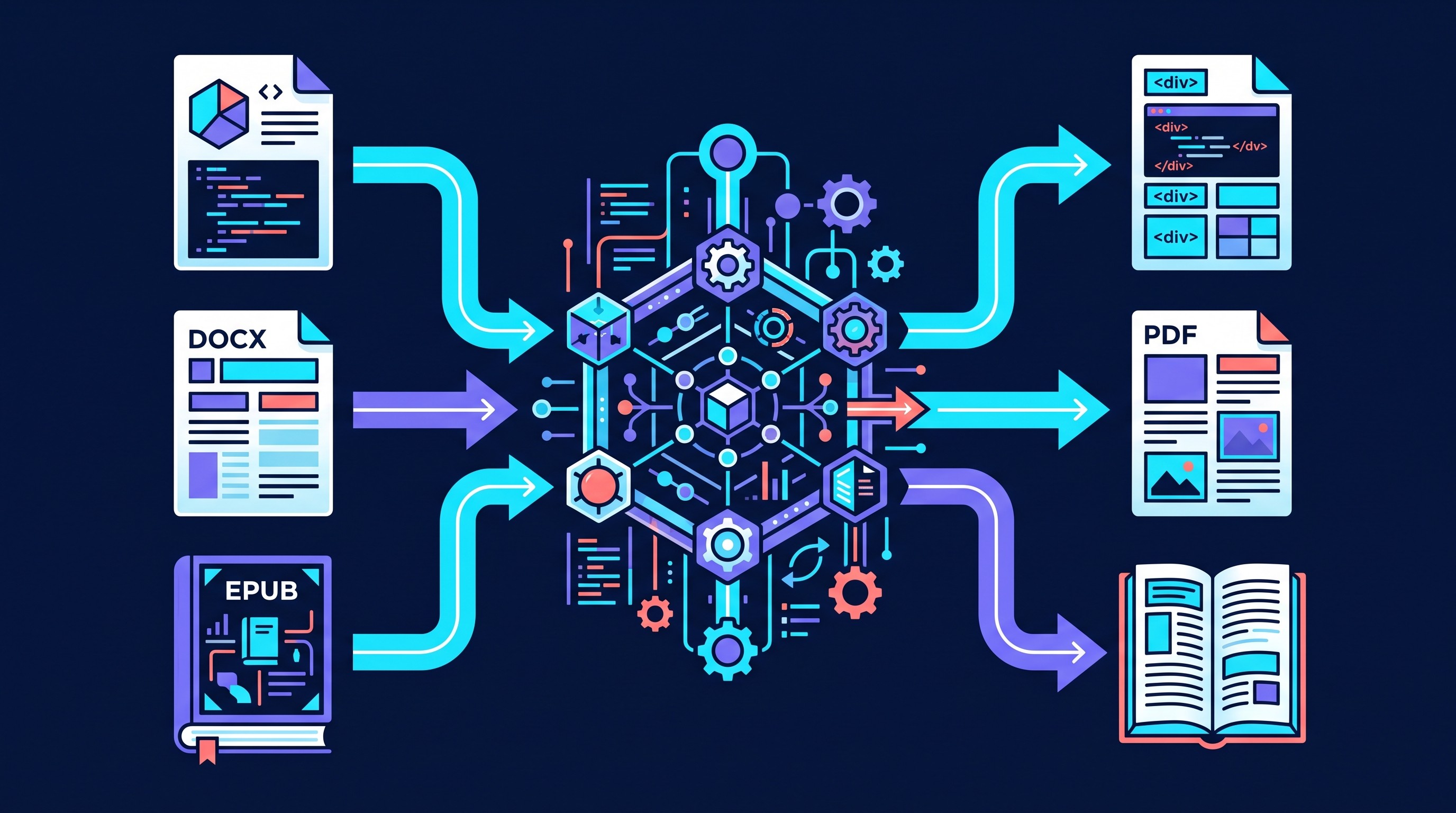
There is no universal “best” converter because EPUB, PDF, DOCX, and Markdown encode documents differently. EPUB is reflowable, PDF is page-fixed, DOCX is style-heavy, and Markdown is semantic text. A clean conversion depends less on brand reputation than on the source-target pair.
Which file conversion tool should you use?
Start with the job, not the tool. “Convert my file” can mean at least four different things:
Conversion changes one file format into another, such as DOCX to PDF or EPUB to MOBI.
Export saves a document from its native editor into another format, often with better fidelity than a third-party converter.
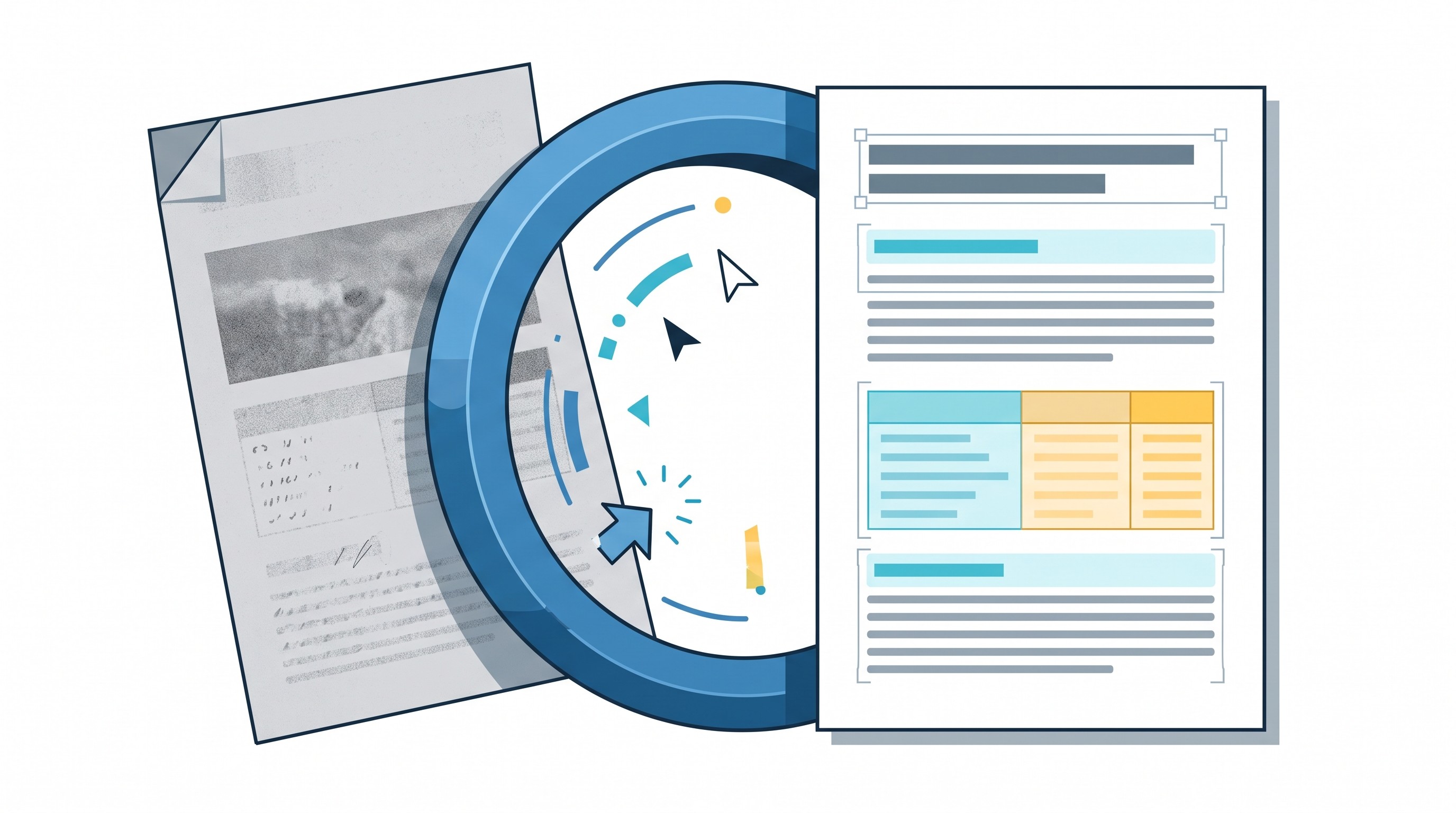
OCR turns scanned page images into searchable or editable text.
Document extraction pulls structure, text, tables, metadata, or layout signals from a file for downstream use. It may not preserve visual appearance.
That distinction matters. A PDF reader is not necessarily a PDF converter. An AI summarizer may understand a document without producing a faithful DOCX, EPUB, or Markdown file. A parser may extract tables beautifully while failing to recreate a page.
If the converted file becomes source material for reading, annotation, or synthesis, put it somewhere stable after the conversion. Otio is useful here as a post-conversion research workspace: its library can store PDFs, DOCX files, EPUBs, Markdown, TXT, CSV, web links, media, and notes together, then let you read and ask questions across them. It is not a general-purpose file converter, so use the tools below for the actual format change.

Tool | Primary formats / job | Desktop or web | Batch / API | OCR | Privacy model | Best fit |
|---|---|---|---|---|---|---|
Calibre | EPUB, MOBI, AZW3, PDF, DOCX, HTML | Desktop | Batch | No | Local | Ebook libraries |
Pandoc | Markdown, DOCX, EPUB, HTML, LaTeX, PDF via engines | Desktop / CLI | CLI batch | No | Local | Structured publishing |
LibreOffice | DOCX, ODT, PPTX, XLSX, PDF | Desktop / CLI | CLI batch | No | Local | Office conversions |
CloudConvert | Broad document, ebook, image, media formats | Web / API | API | Limited by format | Hosted upload | Broad web/API conversion |
Zamzar | Common document, ebook, image formats | Web | Plan-dependent | No | Hosted upload | Occasional simple jobs |
Convertio | Document, ebook, image, archive formats | Web | Plan-dependent | Some OCR features | Hosted upload | Quick browser conversions |
Quarto | Markdown, notebooks, PDF, HTML, DOCX, EPUB | Desktop / CLI | CLI batch | No | Local | Research publishing |
Mammoth | DOCX to clean HTML | Library / CLI | Scriptable | No | Local if self-run | Semantic DOCX extraction |
Docling | PDF, DOCX, PPTX, images to structured output | Library / CLI | Scriptable | OCR-dependent setup | Local if self-run | Document understanding |
Typst | Typst source to PDF and related publishing outputs | Desktop / CLI / web options | CLI batch | No | Local or hosted | Typeset PDFs |
Adobe Acrobat Pro | PDF creation, editing, export, Office interoperability | Desktop / web | Some batch actions | Yes | Desktop + cloud features | Professional PDF work |
PDF24 Creator | PDF merge, split, compress, convert, print-to-PDF | Desktop / web tools | Some batch | Some OCR tools | Local desktop or hosted web | Windows PDF utilities |
Sejda PDF | PDF editing, conversion, splitting, compressing | Web / desktop | Limited | Some OCR tools | Hosted or desktop | Quick PDF edits |
Smallpdf | PDF conversion and utility tasks | Web / desktop | Plan-dependent | Some OCR tools | Hosted or desktop | Occasional PDF tasks |
ABBYY FineReader PDF | OCR, searchable PDFs, PDF editing/export | Desktop | Batch in higher workflows | Yes | Local desktop | High-quality OCR |
OCRmyPDF | Adds OCR text layer to scanned PDFs | CLI | Strong CLI batch | Yes | Local | Searchable scanned PDFs |
Tesseract | OCR engine | CLI / library | Scriptable | Yes | Local | Developer OCR pipelines |
Stirling PDF | PDF operations, self-hosted web app | Self-hosted / local | Automation varies | Some OCR features | Self-hosted | Private PDF workflows |
Gotenberg | HTML/Office to PDF service | Self-hosted HTTP service | API | No | Self-hosted | Automated PDF generation |
WeasyPrint | HTML/CSS to PDF | Library / CLI | Scriptable | No | Local | Code-driven PDFs |
Best all-purpose and desktop file converters
1. Calibre: best for EPUB and ebook-library workflows
Calibre is the default recommendation when EPUB is central to the job. It handles ebook format conversion, metadata editing, cover management, library organization, and device-oriented workflows in one desktop application.
It is strongest when the source is already book-like: chapters, headings, front matter, images, and relatively simple tables. It is weaker when you expect a visually complex PDF, magazine layout, or academic paper to become a clean reflowable EPUB. That is a format problem, not just a Calibre problem.
Use Calibre when you need to:
Convert EPUB to PDF, MOBI, AZW3, DOCX, or HTML for personal workflows.
Normalize metadata across a large ebook library.
Batch-convert many ebooks with similar structure.
Inspect how an EPUB will behave as a reflowable book rather than a fixed page.
Watch page breaks, tables, image placement, footnotes, and fonts after conversion. EPUB and PDF have different layout assumptions, so EPUB-to-PDF can look mechanically correct while still reading poorly.
2. Pandoc: best for Markdown and structured document conversion
Pandoc is the strongest tool on this list for structured text. It is especially good for moving between Markdown, DOCX, EPUB, HTML, LaTeX, and PDF-producing workflows.
Its advantage is semantic control. Headings, lists, citations, code blocks, footnotes, tables, and metadata can be transformed predictably when the source document is structured well. For researchers, technical writers, and documentation teams, that matters more than drag-and-drop convenience.
Pandoc is not magic for highly designed documents. If the source DOCX depends on manual spacing, floating text boxes, custom fonts, or complex page art, expect to use reference DOCX templates, filters, or manual cleanup.
Use Pandoc for:
Markdown to DOCX or PDF.
DOCX to Markdown for drafting or version control.
Markdown to EPUB for long-form publishing.
HTML or LaTeX-adjacent workflows where reproducibility matters.
3. LibreOffice: best practical desktop converter for office files
LibreOffice is often the most practical local tool for DOCX, ODT, PPTX, XLSX, and PDF export. It is free, desktop-based, and scriptable enough for many batch jobs.
Its command-line conversion is useful when a folder of DOCX files needs to become PDFs without uploading anything to a web service. For many administrative, academic, and internal business documents, that is good enough.
The trade-off is fidelity. Microsoft Office and LibreOffice do not always interpret complex DOCX features the same way. Macros, proprietary fonts, tracked changes, embedded objects, and carefully tuned page breaks can shift.
Use LibreOffice when privacy matters and the source files are conventional office documents. Open a sample in both Word and LibreOffice before converting a whole archive.
4. CloudConvert: best broad web converter and API option
CloudConvert is useful when you need a web-based converter with broad format coverage and an API-friendly workflow. It is the “I have an odd format and need a practical output” option.
The main reason to use it is breadth. The main reason not to use it is the upload. Any hosted converter requires a privacy decision before a convenience decision.
For confidential files, unpublished manuscripts, legal records, medical records, student records, or proprietary research, check retention, deletion, storage region, and account settings before uploading. If the file would not be acceptable in an email attachment to a vendor, it probably should not go through a generic browser converter.
5. Zamzar: best for occasional simple browser conversions
Zamzar is a good fit for low-stakes one-off conversions where simplicity matters more than advanced control. Upload a file, choose the output, download the result.
That convenience is the whole point. It is not the right tool for high-volume reproducible pipelines, strict confidentiality, or layout-sensitive publishing.
Before using it for real work, compare file-size limits, speed, queue behavior, and plan restrictions against desktop alternatives. If the conversion is frequent, Pandoc, LibreOffice, Calibre, or a self-hosted service will usually age better.
Best tools for EPUB, DOCX, and Markdown conversion
6. Convertio: best quick browser converter for common formats
Convertio belongs in the same mental category as CloudConvert and Zamzar: convenient, broad, and browser-based. It is useful when the document is not sensitive and the conversion does not need careful automation.
It supports common document and ebook workflows well enough for casual jobs. The risk is assuming that a successful download means a successful conversion.
Check three things before trusting the result:
Privacy: whether the file is appropriate for upload.
Maximum file size: especially for illustrated PDFs, ebooks, and slide decks.
Output fidelity: headings, hyperlinks, image positions, tables, and footnotes.
For high-stakes documents, use Convertio to make a quick working copy, not the archival version.
7. Quarto: best for research and technical publishing
Quarto is built for reproducible publishing, not casual file shuffling. It works well when Markdown-like source documents need to become HTML, PDF, DOCX, slides, websites, or books, often with code, equations, citations, and figures included.
That makes it a good fit for researchers, data teams, instructors, and technical writers. If a report must be regenerated after the data changes, Quarto is a better category of tool than a drag-and-drop converter.
It is less appropriate for “turn this arbitrary PDF into a perfect DOCX.” Quarto rewards starting from structured source files and maintaining them as source files.
Use Quarto when the document is part of a repeatable publishing workflow: paper drafts, lab reports, computational notebooks, course notes, technical books, and data reports.
8. Mammoth: best for clean DOCX-to-HTML extraction
Mammoth is useful when the goal is clean content, not visual mimicry. It converts DOCX into HTML that reflects document structure: headings, paragraphs, lists, tables, links, and basic formatting.
This is exactly what you want if a DOCX file is being moved into a CMS, documentation site, Markdown pipeline, or parser. It is not what you want if the DOCX layout itself is the product.
Mammoth intentionally avoids reproducing every visual detail. That restraint is a feature when the source has messy Word styling. It strips away much of the formatting noise that makes DOCX-to-web conversion painful.
Choose Mammoth when semantic text matters more than page appearance.
9. Docling: best for structured document extraction
Docling is best thought of as a document understanding and normalization tool. It can help turn complex documents into machine-readable structures for downstream processing.
That puts it in a different category from Calibre or Zamzar. The goal is not a pretty EPUB or a visually identical DOCX. The goal is to extract useful structure from PDFs, office files, or images so another system can search, analyze, index, summarize, or transform the content.
Docling is relevant if you are building a pipeline around research papers, reports, invoices, technical manuals, or mixed-format archives. For a personal one-off conversion, it is probably more machinery than needed.
If your work involves PDF parsing rather than ordinary file conversion, this category overlaps with the tools covered in Otio’s guide to PDF parsing tools.
10. Typst: best for producing polished PDFs from structured text
Typst is a typesetting and publishing system. It is best for creating polished PDFs from structured source files, especially when you want more layout control than basic Markdown but a lighter writing experience than traditional LaTeX.
Do not treat Typst as a universal reverse converter. It is not the tool for converting arbitrary PDFs back into editable Word documents.
Use it when the source is under your control: notes, assignments, technical documentation, reports, handouts, or papers. The result can be a clean, consistent PDF generated from text-based source.
[[OTIO_INLINE_PROMO:%7B%22title%22%3A%22Ready%20to%20compare%20your%20converted%20files%20side%20by%20side%3F%22%2C%22description%22%3A%22Add%20the%20outputs%20from%20your%20EPUB%2C%20DOCX%2C%20or%20Markdown%20tests%20to%20Otio%E2%80%99s%20library%2C%20then%20ask%20questions%20across%20them%20in%20one%20chat.%22%7D]]
Best PDF converters, editors, and OCR tools
11. Adobe Acrobat Pro: best professional PDF tool
Adobe Acrobat Pro is the safest recommendation for professional PDF creation, editing, export, commenting, form work, and Microsoft Office interoperability. It is especially useful in organizations where PDF review, redaction, accessibility, signatures, and Office export are routine.
The trade-off is cost. Advanced capabilities sit behind paid plans, and even Acrobat cannot guarantee perfect conversion from a badly structured PDF.
PDF-to-DOCX is the classic trap. A PDF may look like a document but behave internally like positioned text fragments. Acrobat can often reconstruct an editable file, but proofreading is still required.
Use Acrobat Pro when PDF is the final business format and mistakes are expensive.
12. PDF24 Creator: best free Windows PDF utility suite
PDF24 Creator is a strong option for Windows users who need many local PDF operations in one place: merge, split, compress, rearrange, print to PDF, extract pages, and convert common inputs.
Its desktop version is useful because many tasks can happen locally. PDF24 also offers web tools, but those should be treated differently from the desktop app when privacy is involved.
Use the desktop app for routine local PDF handling. Use the web tools only when the document is suitable for upload and the convenience is worth it.
13. Sejda PDF: best lightweight PDF editor for quick jobs
Sejda is good for straightforward PDF edits and conversions without installing a heavy professional suite. It offers web and desktop options, which makes it flexible for occasional users.
It is best for tasks like splitting, merging, compressing, filling forms, adding text, and simple conversions. It is not a substitute for a full document production workflow.
The constraints to check are task limits, file-size limits, and daily usage limits. Those limits may be acceptable for occasional work and annoying for batch processing.
14. Smallpdf: best occasional browser-based PDF toolkit
Smallpdf is a polished browser-based toolkit for common PDF tasks: compress, convert, merge, split, sign, and related operations. It is a good fit when the task is simple and the document is not sensitive.
Its limitation is the same as other hosted services. Upload policies, processing limits, and subscription terms matter.
If a PDF contains contracts, unpublished research, patient data, employee records, or confidential financial material, choose a local or self-hosted workflow. For public forms, classroom handouts, and low-risk PDFs, Smallpdf is often convenient enough.
15. ABBYY FineReader PDF: best polished OCR application
ABBYY FineReader PDF is the tool to consider when OCR quality and document structure matter more than a free workflow. It is designed for turning scans into searchable PDFs, editable text, and office-style outputs.
It is especially useful for scans with tables, multi-column layouts, forms, and mixed text-image pages. Still, OCR is probabilistic. No OCR tool should be trusted blindly.
Proofread:
Names and proper nouns.
Numbers, dates, and citations.
Tables and column alignment.
Footnotes and headers.
Unusual fonts, stamps, handwriting, and degraded scans.
After OCR, a tool such as Otio’s AI PDF reader can help with reading, searching, and asking questions across the processed PDFs, but the OCR quality check still comes first.
Best privacy-first, batch, and developer conversion tools
16. OCRmyPDF: best local tool for searchable scanned PDFs
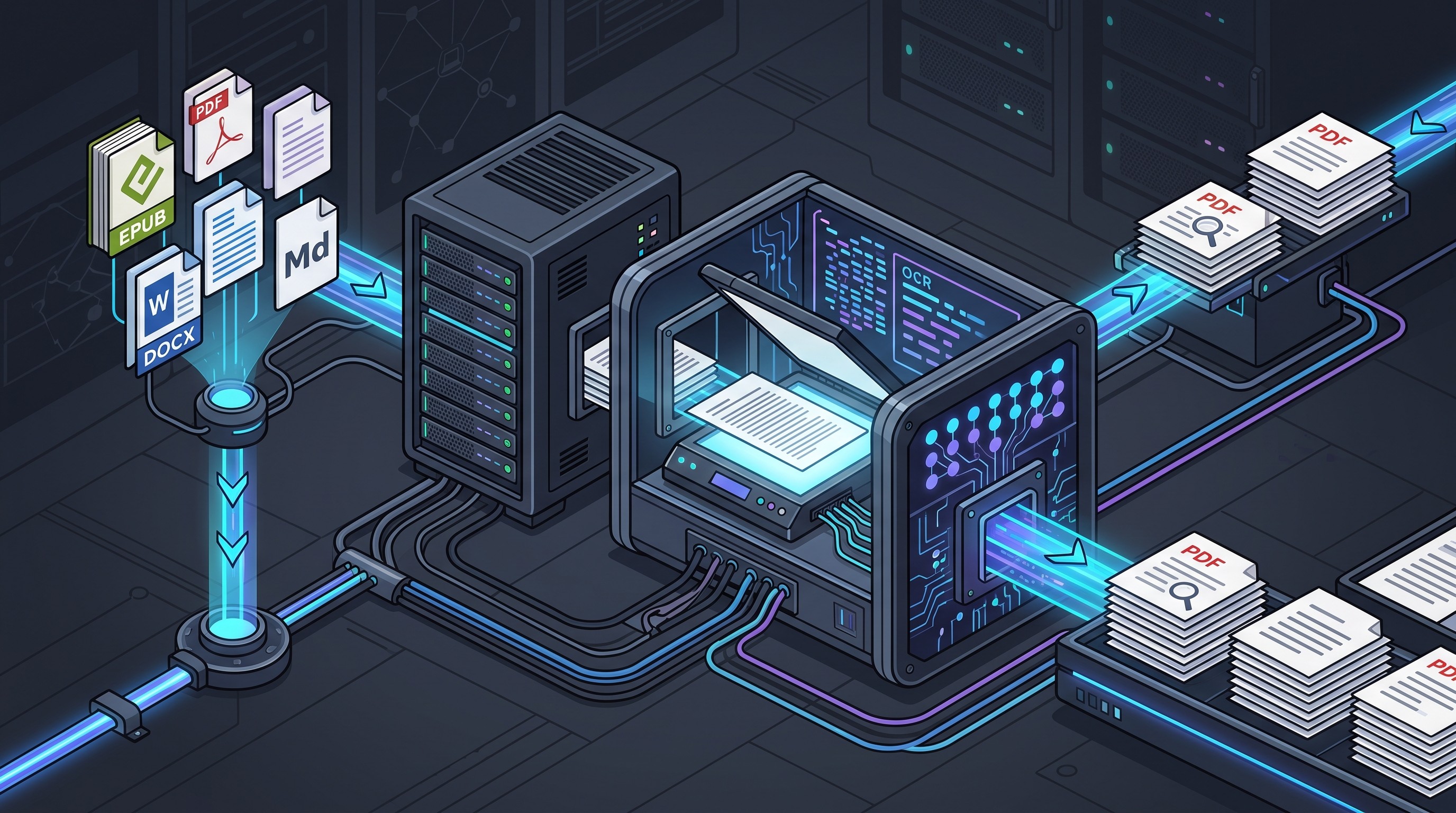
OCRmyPDF adds a searchable text layer to scanned PDFs while preserving the original page image. That is the right model for archives: the visual scan stays intact, and the hidden text layer makes search, copy, and indexing possible.
It is a command-line tool, so it is best for people comfortable with terminal workflows or batch scripts. That is also its strength. A folder of scanned PDFs can be processed consistently without opening each file by hand.
Use OCRmyPDF when you want:
Local OCR.
Batch processing.
Searchable PDFs, not necessarily pretty DOCX exports.
A workflow that preserves the original scan.
Keep the original scan and spot-check the OCR output. Search for names, dates, references, and headings before relying on the processed file.
17. Tesseract: best open-source OCR engine for developers
Tesseract is an OCR engine, not a polished document conversion app. That distinction matters.
Developers use it inside larger pipelines: image cleanup, page segmentation, OCR, post-processing, validation, indexing, and export. It can be powerful, especially when local processing and customization are important.
For ordinary users, OCRmyPDF or ABBYY FineReader will usually be easier. For developers building a private OCR pipeline, Tesseract is a core component.
18. Stirling PDF: best self-hosted PDF toolkit
Stirling PDF is useful when a team wants browser-based PDF tools without sending documents to a third-party hosted service. It can be self-hosted, which makes it attractive for privacy-first environments.
The trade-off is operational work. Someone has to deploy it, update it, manage access, monitor storage, and decide how files are handled after processing.
Choose Stirling PDF when privacy and local control are worth that overhead. Choose PDF24, Sejda, Smallpdf, or Acrobat when convenience and support matter more.
For broader workflow automation around documents, see Otio’s guide to document workflow automation tools.
19. Gotenberg: best HTTP service for automated PDF generation
Gotenberg is for developers who need document conversion as a service. It exposes HTTP endpoints for converting office documents, HTML, and other inputs into PDFs in automated systems.
That makes it useful for internal tools, reporting systems, invoice generation, document portals, and batch PDF production. It is not a consumer file converter.
The setup questions are engineering questions:
How will the service be deployed?
What file types are allowed?
How are untrusted inputs validated?
What resource limits prevent runaway jobs?
How are failures reported per file?
Where are temporary files stored?
If those questions sound excessive, use a desktop converter. If they sound normal, Gotenberg may fit.
20. WeasyPrint: best HTML/CSS-to-PDF tool for code-driven publishing
WeasyPrint turns HTML and CSS into PDFs. It is best when your source documents already live in web-like formats or can be generated as HTML.
Use it for reports, invoices, documentation, certificates, and publishing pipelines where templates produce predictable HTML. It gives developers a clean way to render styled PDFs without using a browser manually.
It is not a general EPUB, DOCX, or PDF round-trip converter. Its strength is one direction: structured HTML and CSS into paginated PDF.
How to choose the right file conversion tool
The fastest way to choose is to name the exact source-target pair. “Best file converter” is too broad. “DOCX to Markdown with clean headings” or “scanned PDF to searchable PDF locally” is actionable.
Use this decision rule:
If you need to… | Start with… | Main risk |
|---|---|---|
Convert EPUBs or manage ebooks | Calibre | Layout changes when moving to fixed-page formats |
Convert Markdown, DOCX, EPUB, HTML | Pandoc | Needs templates for polished output |
Convert office documents locally | LibreOffice | Formatting differences from Microsoft Office |
Do quick low-risk browser conversion | CloudConvert, Zamzar, Convertio | Upload privacy and plan limits |
Edit or export professional PDFs | Adobe Acrobat Pro | Paid plan and imperfect PDF reconstruction |
Handle everyday Windows PDF tasks | PDF24 Creator | Web vs desktop privacy differences |
OCR scanned PDFs with a GUI | ABBYY FineReader PDF | OCR still needs proofreading |
OCR scanned PDFs locally in batch | OCRmyPDF | Command-line setup |
Build OCR into software | Tesseract | Not an end-user app |
Self-host PDF tools | Stirling PDF, Gotenberg, WeasyPrint | Deployment and maintenance |
For confidential material, choose local or self-hosted processing first. That includes manuscripts under review, legal documents, medical records, unpublished research, HR files, financial reports, and anything containing personally identifying information.
For batch work, test the boring details before committing:
Can it process folders?
Does it have a command-line interface or API?
Are file-size limits acceptable?
Are rate limits acceptable?
Does it report failures per file?
Can it preserve filenames and folder structure?
Does it overwrite files or create copies?
Can you reproduce the same conversion later?
For visual documents, do not judge conversion quality by whether the output opens. Inspect fonts, page breaks, tables, footnotes, hyperlinks, images, accessibility tags, metadata, headers, and page numbers.
For OCR, keep the original scan. Then search the output for the things most likely to break: names, numbers, citations, headings, equations, table values, and unusual characters.
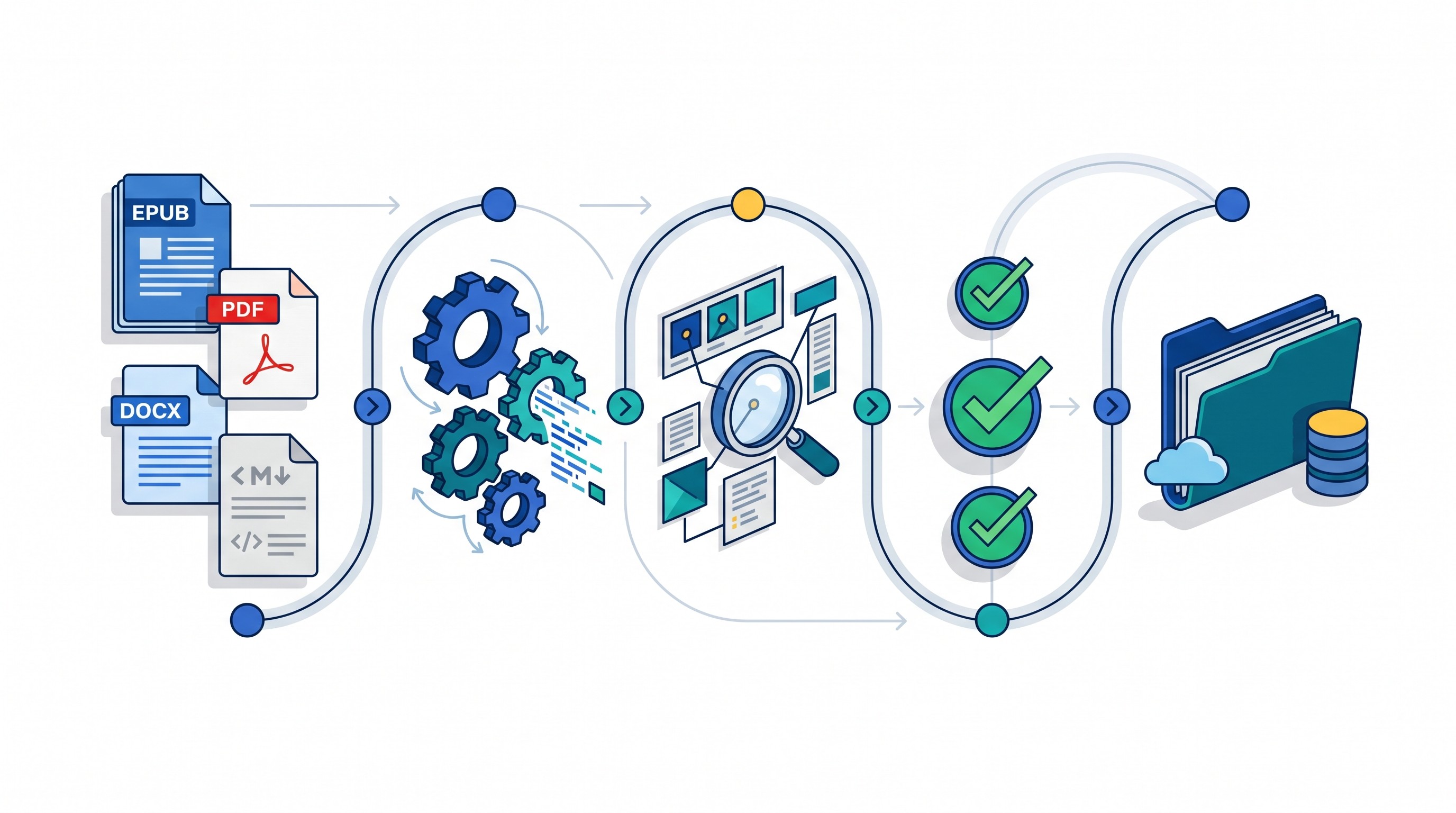
A practical quality-control workflow looks like this:
Preserve the original. Never convert the only copy.
Convert a duplicate. Use a clear filename such as
source_converted_2026-08-09.Inspect representative pages. Check the title page, dense text, tables, images, footnotes, and references.
Validate text and links. Copy sample text, test hyperlinks, and search for names or figures.
Archive the approved output. Move it into the document system, knowledge base, citation manager, or research workspace.
If the converted files are part of a research workflow, import the approved versions into a stable library rather than leaving them in a downloads folder. Otio can store PDFs, EPUBs, DOCX files, Markdown, notes, links, and media in one library, which is useful after conversion when the real work becomes reading and synthesis.
FAQ
Q: What is the best tool for converting EPUB to PDF?
A: Calibre is the best default for ebook-focused EPUB-to-PDF workflows. Use Pandoc when the EPUB is mostly structured text and you want template-based control, then inspect page breaks, fonts, images, and tables.
Q: Which file converters are safest for private documents?
A: Prefer local desktop, command-line, or self-hosted tools such as LibreOffice, OCRmyPDF, Tesseract, Stirling PDF, or Gotenberg. For browser services, review upload retention, deletion, encryption, and account policies before using them.
Q: Can file converters preserve formatting between DOCX, PDF, EPUB, and Markdown?
A: Not consistently. Headings, links, lists, and basic images usually transfer more reliably than page-specific layouts, complex tables, footnotes, fonts, tracked changes, and interactive elements.
Q: What is the best tool for converting scanned PDFs into editable text?
A: ABBYY FineReader PDF is suited to users who want a polished OCR application, while OCRmyPDF and Tesseract are better for local or automated workflows. Always proofread names, numbers, tables, citations, and unusual characters after OCR.
[[OTIO_FOOTER_PROMO:%7B%22title%22%3A%22Apply%20this%20workflow%20to%20your%20own%20document%20archive%22%2C%22description%22%3A%22Upload%20representative%20PDFs%2C%20EPUBs%2C%20DOCX%20files%2C%20or%20Markdown%20notes%20to%20Otio%2C%20keep%20originals%20beside%20converted%20copies%2C%20and%20compare%20what%20changed.%22%7D]]