
PDF Tools
22 Best OCR Tools for Scanned PDFs and Research Documents
Compare 22 OCR tools for turning scanned PDFs into searchable, editable research documents, from free local utilities to desktop software and cloud APIs.

The best OCR tool depends on your document workflow
If you only need to clean up a few scanned PDFs, use a desktop PDF editor such as Adobe Acrobat, ABBYY FineReader PDF, Foxit, Nitro, or PDF-XChange. If privacy, repeatability, or batch control matters more, use OCRmyPDF, Tesseract, or NAPS2 locally; if you process thousands of pages, use a cloud OCR API; if OCR is just the first step before reading, questioning, and summarizing documents, use a research workspace like Otio’s AI OCR for PDFs.
OCR turns image-only scans into machine-readable text. That does not make the result automatically reliable. Tables, formulas, footnotes, citations, marginal notes, handwriting, faint scans, skewed pages, and old typefaces still need human review.
So there is no single “best OCR tool.” There is a best fit for the job: searchable PDFs, editable Word exports, local batch processing, browser conversion, structured extraction, or research analysis after OCR.
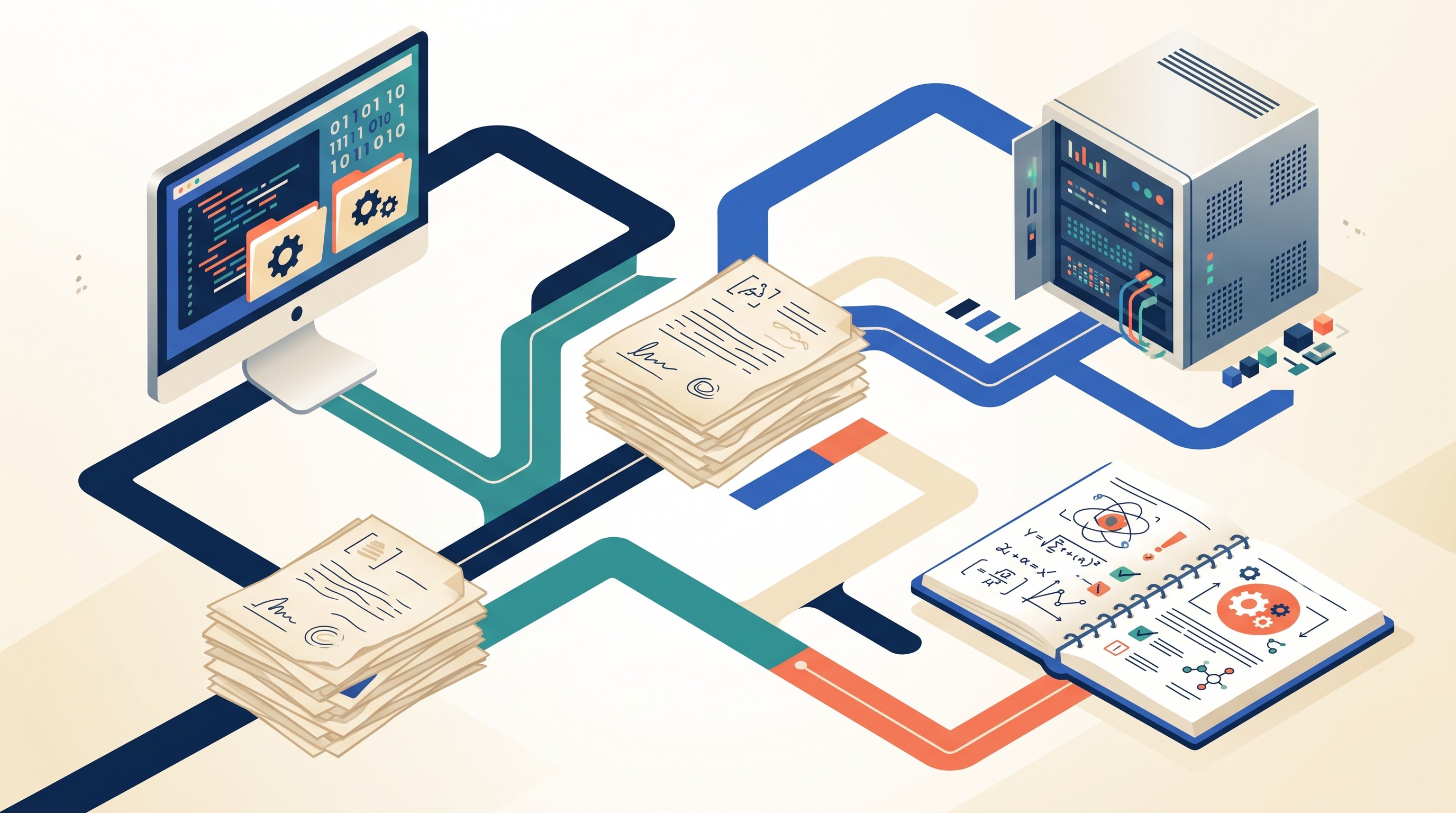
Workflow | Best fit | Tools to start with |
|---|---|---|
Occasional PDF cleanup | Desktop PDF editor | Adobe Acrobat, Foxit, Nitro, PDF-XChange |
Layout-sensitive conversion | Dedicated OCR desktop software | ABBYY FineReader PDF, Readiris PDF |
Private or repeatable batch work | Local OCR | OCRmyPDF, Tesseract, NAPS2 |
One-off online conversion | Browser OCR | Smallpdf, iLovePDF, PDF24, Sejda |
Large document pipelines | Cloud API or extraction platform | Amazon Textract, Google Cloud Vision, Azure AI Vision, Docsumo |
Research reading after OCR | Research workspace | Otio, plus your validated OCR source file |
How to choose an OCR tool for scanned PDFs
Start with the output you need.
A searchable PDF keeps the original scanned page visible and adds a hidden text layer. That is often enough for finding names, phrases, citations, and passages. Adobe describes its online Acrobat OCR as applying text recognition to create searchable PDFs that can be copied and highlighted via Adobe Acrobat online OCR.
An editable document export is harder. The OCR tool must infer paragraphs, headings, line breaks, tables, footnotes, and columns. The more complex the page, the more cleanup follows.
A structured extraction workflow is harder still. If the end goal is a spreadsheet, database field, citation list, or table extraction, OCR accuracy alone is not enough. You need layout detection, validation, and review.
Use these criteria when comparing tools:
Searchable PDF creation: Does it add a reliable hidden text layer without changing page appearance?
Editable export: Can it export DOCX, TXT, XLSX, HTML, or other formats you actually use?
Batch processing: Can it process folders or hundreds of PDFs without manual clicking?
Language support: Are the required languages and scripts supported, including mixed-language documents?
Tables and layout: Does it preserve multi-column pages, footnotes, tables, captions, and page boundaries?
Handwriting: Does it claim handwriting recognition, and does it work on your handwriting samples?
API access: Can developers call it from scripts, databases, or document pipelines?
Privacy controls: Does processing happen locally, in the browser, or on a cloud server?
Pricing model: Is it free, subscription-based, usage-based, or bundled with a PDF editor?
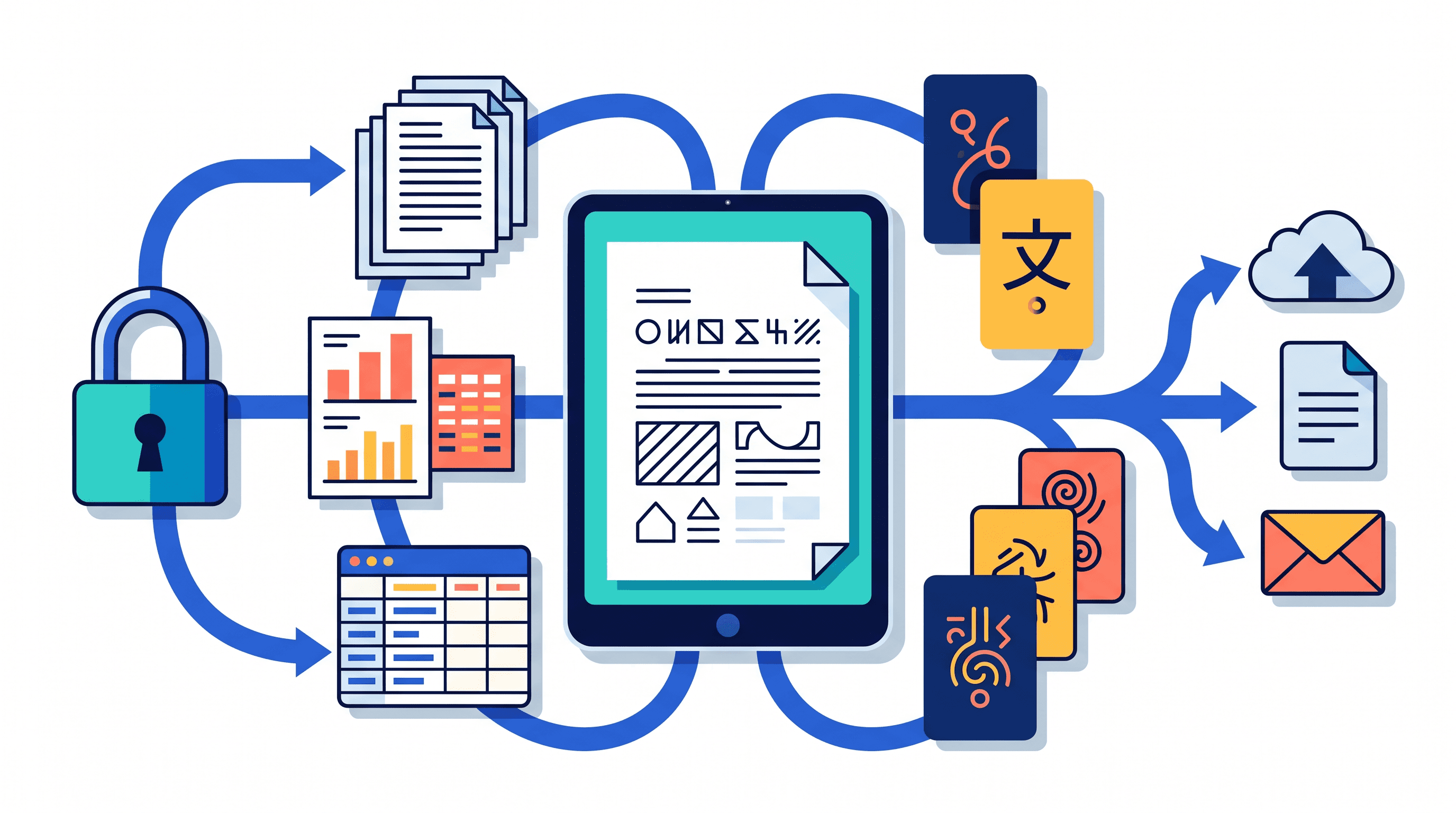
The privacy distinction matters. Local OCR runs on your own machine, which is better for confidential interviews, unpublished manuscripts, legal files, medical records, or restricted archives. Browser OCR usually requires upload, so read the provider’s retention and deletion terms. Cloud APIs are powerful for scale but require more governance: account permissions, regions, logging, retention, encryption, and review workflows.
Before committing, test five pages:
One clean typed scan.
One skewed, faint, or noisy scan.
One multi-column journal page.
One table-heavy page.
One page with citations, formulas, footnotes, or special symbols.
Then compare the output against the scan. Do not just search for a few words. Check names, dates, page numbers, headings, footnotes, references, table cells, mathematical notation, and line breaks.
Best desktop OCR software for serious PDF work
1. Adobe Acrobat OCR
Adobe Acrobat is the safe default when OCR is part of broader PDF work: reviewing, highlighting, combining files, redacting, commenting, exporting, and sending PDFs around an organization.
It is best for people who already live in Acrobat and need reliable searchable PDFs without assembling a separate OCR workflow. The main checks are plan level, desktop versus online capability, export formats, language support, and whether batch OCR is available in the version being used.
Use Acrobat when the PDF itself is the working object. If the goal is clean DOCX conversion from difficult scans, compare it against ABBYY before committing.
2. ABBYY FineReader PDF
ABBYY FineReader PDF is the desktop OCR tool to evaluate first when layout retention matters. It is especially relevant for research PDFs that mix columns, captions, references, footnotes, tables, and figures.
Its best use case is conversion, not just search. If you need to turn scanned chapters, archive PDFs, policy reports, or article scans into editable documents, test ABBYY on your hardest pages.
The failure mode is overconfidence. A page that looks well-preserved can still contain citation errors, merged table cells, broken hyphenation, or incorrect symbols. Always inspect passages you plan to quote or analyze.
3. Kofax OmniPage
Kofax OmniPage has long been associated with high-volume document conversion. It belongs on the shortlist when the job is recurring OCR at scale rather than occasional PDF cleanup.
The important caveat is current availability and packaging. Product names, ownership, licensing, and platform support in the document-capture market change over time, so confirm the current edition, operating-system support, export formats, and automation features before standardizing on it.
Use it if your workflow depends on repeatable conversion rules. Skip it if you only need a searchable text layer for a handful of academic PDFs.
4. Foxit PDF Editor
Foxit PDF Editor fits users who want OCR inside a general PDF editor rather than a dedicated conversion suite. It is a practical option for annotation, PDF editing, page manipulation, form work, and OCR in one application.
Evaluate it on batch handling, supported languages, and export quality. For simple searchable PDFs, it may be enough. For dense journal scans with columns and references, compare output against ABBYY or Acrobat.
Foxit is strongest when the OCR step sits inside everyday PDF editing.
5. Nitro PDF Pro
Nitro PDF Pro is another PDF-editor-first option. Nitro describes its OCR tools as converting scanned documents and image-based PDFs into searchable, editable text through Nitro PDF Pro OCR.
It is a sensible shortlist candidate for teams that want PDF creation, editing, conversion, e-signature-adjacent workflows, and OCR in one place. Check operating-system support, plan restrictions, export formats, and how well it handles older scans.
For research use, test references and footnotes carefully. OCR tools often handle body text better than citation-heavy back matter.
6. PDF-XChange Editor
PDF-XChange Editor is a strong Windows option for users who want a feature-rich PDF editor with OCR. It often appeals to power users who want many PDF functions without adopting a heavier enterprise document system.
The decision points are edition and automation. Confirm which OCR features require a paid license, whether batch processing is supported in the version you plan to use, and how language packs are handled.
It is a good fit for Windows-based researchers who want to search, annotate, edit, and OCR PDFs from one application.
Best free and local OCR tools for privacy-conscious researchers
7. OCRmyPDF
OCRmyPDF is one of the most useful tools for researchers with many scanned PDFs and basic command-line comfort. Its core job is simple: take an image-only PDF and return a PDF with a searchable text layer.
It is especially good when you want to preserve the original page images. That matters for archival scans, legal exhibits, and research PDFs where the visual page is still the source of truth.
The setup work is real. You may need to install dependencies, add language packs, choose deskewing or cleanup options, and inspect output quality. But once configured, OCRmyPDF is excellent for repeatable folder-based workflows.
8. Tesseract
Tesseract is the open-source OCR engine behind many other tools. The University of Illinois Library describes it as a multilingual OCR tool that converts image documents into editable or searchable PDF or Word documents in its OCR tools guide.
Use Tesseract when scriptability matters. Developers and technical researchers can build workflows around it, preprocess images, run batch jobs, and post-process text.
The tradeoff is that Tesseract is not a polished research document workflow by itself. Complex layouts, poor scans, tables, and formulas need preprocessing and validation. If you want a point-and-click interface, use NAPS2, OCRmyPDF, or a desktop PDF editor instead.
9. NAPS2
NAPS2, short for “Not Another PDF Scanner 2,” is useful when scanning and OCR happen on the same personal computer. It is a practical option for turning paper documents into searchable PDFs without building a command-line workflow.
Its strength is the capture-to-PDF process: scan, arrange pages, run OCR, export. That makes it useful for personal archives, course packets, field notes, or department paperwork.
Check current operating-system support, scanner compatibility, batch behavior, and language configuration. For advanced layout conversion, it is not the first choice; for local scanning plus searchable PDF creation, it is often enough.
10. Google Drive and Google Docs OCR
Google Drive and Google Docs OCR are convenient when you need quick editable text from a scan and the document is not sensitive. Upload a PDF or image, open it with Google Docs, and Google attempts to extract the text.
The advantage is accessibility. No installation, no OCR vocabulary, no command line.
The cost is control. Formatting can be lost, page structure may change, and tables or citations may need serious cleanup. Because files are uploaded to Google, this is not the right default for confidential or restricted research material unless your institution’s policies allow it.
11. Microsoft OneNote OCR
OneNote can extract text from images inserted into notes. That makes it useful for quick capture: a screenshot, a scanned handout, a photo of a printed page, or a small excerpt.
It is not a full document-conversion system. Long PDFs, complex page structure, export workflows, and citation preservation are not its natural strengths.
Use OneNote OCR for small fragments you want to search or reuse in notes. For long scanned research documents, use a dedicated OCR tool and then move the resulting PDF into your research library.
Best browser-based OCR tools for occasional PDF conversion
12. Smallpdf OCR
Smallpdf is built for quick browser-based PDF tasks. Its OCR page says it can convert scanned, non-searchable PDFs into searchable and selectable text documents via Smallpdf PDF OCR.
This is useful when the document is low-risk and the job is occasional. Upload, convert, download, move on.
Before using it for research documents, check upload limits, account requirements, output format, layout preservation, and privacy terms. Browser OCR is convenient because it removes setup, not because it removes verification.
13. iLovePDF OCR
iLovePDF OCR fits the same quick-conversion category: simple browser workflow, minimal setup, and a familiar PDF utility interface.
Use it for one-off PDFs where the main goal is searchable text or basic conversion. It is less appropriate for confidential files or a large research corpus unless you have reviewed file limits, retention policy, and paid-plan terms.
Test tables and references before trusting the output. Fast OCR is still OCR.
14. PDF24 OCR
PDF24 is appealing because it offers a wide set of lightweight PDF utilities. Depending on the workflow, users may choose browser tools or desktop utilities.
That distinction matters. If a file is processed online, privacy and retention questions apply. If it is processed locally through desktop software, the risk profile changes.
PDF24 is best for users who need occasional PDF repair, compression, conversion, and OCR-style utilities rather than a dedicated research document system.
15. Sejda OCR
Sejda is useful for smaller, occasional PDF jobs. It is worth considering when you want a straightforward browser interface and do not want to install a desktop editor.
Check daily limits, supported languages, file-size restrictions, output formats, and whether the processing location fits your document policy. Browser tools often impose limits that are fine for a few pages and frustrating for a dissertation archive.
Use Sejda for small jobs. Do not use it as the backbone of a large OCR project without testing limits first.
Best cloud OCR APIs for document-heavy research operations
16. Amazon Textract
Amazon Textract fits developer-led document pipelines. It is relevant when OCR is part of a larger system: ingest PDFs, extract text or fields, review output, store results, and route exceptions.
It is not the tool for a researcher who wants to OCR one article by lunch. It is for teams that can handle API keys, permissions, regions, pricing, queues, validation, and downstream storage.
Test it against your actual documents. A pipeline that works on clean forms may fail on archival scans, two-column academic PDFs, handwritten notes, or formula-heavy pages.
17. Google Cloud Vision OCR
Google Cloud Vision OCR is a programmable option for teams already using Google Cloud or building custom document-processing systems. It makes sense when OCR must be called from code rather than clicked through a PDF editor.
The key distinction is general OCR versus document understanding. Plain text recognition may be enough for search. Structured tables, reading order, document layout, and field extraction require stricter evaluation.
Use it when engineering control matters. For individual PDF cleanup, it is more infrastructure than most researchers need.
18. Azure AI Vision OCR
Azure AI Vision OCR is a natural fit for Microsoft-based institutions and teams already using Azure identity, storage, monitoring, and compliance tooling.
Evaluate language support, asynchronous processing, authentication, retention, logging, and pricing before using it at scale. Also test how it handles your document types: scanned articles, contracts, reports, tables, figures, and mixed-language pages.
The advantage is integration with an institutional cloud stack. The burden is that someone must own the pipeline and quality-control process.
19. Docsumo
Docsumo sits closer to document-processing workflow software than raw OCR. It is relevant when the goal is structured extraction with review, validation, integrations, and repeatable document types.
That makes it stronger for forms, invoices, statements, applications, and recurring business documents than for every kind of academic scan. Research teams should test whether their documents have enough predictable structure to benefit from this approach.
Use Docsumo when extraction is the deliverable. If the deliverable is reading and synthesis, OCR plus a research workspace may be a better fit.
OCR tools that fit research reading and document analysis
20. Otio AI OCR for PDFs
Otio is best considered when OCR is not the final task. Researchers rarely stop at “the PDF is searchable.” They need to read it, ask questions, summarize sections, compare claims across sources, save notes, and cite passages without losing the original context.
Otio’s workflow is built around a unified research library, PDF reader, AI chat, notes, highlights, and source-grounded answers. For scanned PDFs, the right process is still conservative: OCR the document, inspect the text in the reader, use the selection toolbar to ask questions about specific passages, and keep the original scan available for checking uncertain characters.
This is where an AI PDF reader helps. It does not remove the need to validate OCR. It reduces the friction after validation: finding passages, summarizing sections, quoting into notes, and working across a library of PDFs, links, notes, and other files.
21. Readiris PDF
Readiris PDF is a combined OCR, PDF creation, and conversion tool. It is worth evaluating for researchers who need editable documents from scans but do not want to build a technical workflow.
Its likely fit is document conversion: scanned articles, book chapters, reports, and administrative PDFs that need to become searchable or editable. As with ABBYY, the question is not whether OCR runs; it is whether layout, citations, columns, and tables survive well enough for the intended use.
Check current platform support, language coverage, batch options, export formats, and licensing.
22. UPDF
UPDF fits users who want PDF editing and OCR in the same modern interface. It belongs in the “PDF editor with OCR” category alongside Acrobat, Foxit, Nitro, and PDF-XChange.
Use it if you need a cleaner everyday PDF workflow: annotate, organize pages, convert, and make scanned PDFs searchable. Check operating-system support, plan limitations, OCR language support, and export behavior before relying on it for a large corpus.
For research documents, test the same hard pages: citations, tables, footnotes, columns, and special notation.
[[OTIO_INLINE_PROMO:%7B%22title%22%3A%22Ready%20to%20analyze%20your%20OCR-checked%20PDFs%3F%22%2C%22description%22%3A%22Add%20a%20searchable%2C%20spot-checked%20PDF%20to%20Otio%E2%80%99s%20library%2C%20then%20ask%20questions%20about%20it%20while%20keeping%20the%20original%20scan%20available%20for%20verification.%22%7D]]
A reliable scanned-PDF OCR workflow for research
The tool matters, but the workflow matters more. Bad OCR quietly contaminates notes, quotes, summaries, literature matrices, and datasets.
Use this process for academic PDFs, archival scans, legal documents, policy reports, and any source you may cite.
1. Preserve a clean source copy
Keep the original image-only PDF unchanged. Record the original file name, page count, scan quality, language, and any known issues: tables, handwriting, formulas, marginalia, multi-column pages, missing pages, or rotated scans.
Then create a separate OCR version with a clear label, such as:
Smith_2019_original_scan.pdfSmith_2019_OCR_searchable_unverified.pdfSmith_2019_OCR_checked.pdf
This prevents a common research error: treating extracted OCR text as if it were verified source text.
2. Run a representative sample first
Do not process 800 pages before testing five.
Pick pages that represent the document’s real difficulty: title page, dense body text, references, a table, a figure caption, and a bad scan. Run those pages through two or three shortlisted tools.
Compare outputs by downstream use, not aesthetics. A searchable PDF can look perfect because the scan image is unchanged while the hidden text layer contains errors.
3. Check the parts OCR often breaks
Verify:
Page order and page boundaries.
Headings and subheadings.
Footnotes and endnotes.
Citations and reference lists.
Columns and reading order.
Tables and table cells.
Mathematical symbols and Greek letters.
Hyphenated line breaks.
Names, dates, and numbers.
Accents, diacritics, and non-Latin scripts.
If you are extracting structured data, compare the OCR output cell by cell. For more on turning PDFs into structured text, see Otio’s guide to PDF parsing tools and broader data extraction tools.
4. Use search only after spot-checking
Search is the main reason many researchers use OCR. But search has two failure modes: false negatives and false confidence.
A false negative happens when OCR misreads the word you searched for, so the passage never appears. False confidence happens when the passage appears searchable, but the extracted text has subtle errors in names, numbers, or notation.
For important claims, search gets you to the page. The scan verifies the evidence.
5. Move the checked file into the research system
Once the document is searchable and spot-checked, move it into the library or reference workflow used for the project.
That might be Zotero or Mendeley for citation management, a folder system for archival work, a PDF editor for annotation, or a research workspace for reading and synthesis. If the next job is summarizing and comparing sources, see this guide to AI tools for researchers or this comparison of research paper organizer tools.
The key rule stays the same: summaries, notes, and citations are only as reliable as the text layer and the verification behind it.
FAQ
Q: What is the best OCR tool for scanned academic PDFs?
A: For demanding conversion, start with ABBYY FineReader PDF or a comparable desktop editor. For privacy-sensitive batch work, test OCRmyPDF or Tesseract; for research reading after OCR, use a workspace such as Otio alongside the verified source scan.
Q: Can OCR make a scanned PDF searchable?
A: Yes. OCR can add a hidden text layer that lets you search, copy, and highlight text while preserving the original scanned page image.
Q: Is free OCR accurate enough for research documents?
A: Free OCR can be accurate on clean typed scans, but accuracy drops with skew, noise, unusual fonts, columns, tables, handwriting, and mathematical notation. Always test representative pages.
Q: Should sensitive research documents be uploaded to an online OCR tool?
A: Only after reviewing the provider’s storage, retention, training, encryption, and deletion policies. For confidential or regulated material, local OCR usually gives better control.
[[OTIO_FOOTER_PROMO:%7B%22title%22%3A%22Turn%20your%20own%20scans%20into%20a%20review%20workflow%22%2C%22description%22%3A%22Test%20representative%20pages%2C%20verify%20citations%20and%20tables%2C%20then%20add%20the%20checked%20files%20to%20Otio%20alongside%20the%20sources%20you%20need%20to%20synthesize.%22%7D]]