PDF Annotation
20 Best PDF Annotation Tools for Researchers and College Students
Compare 20 PDF annotation tools for highlighting, handwritten notes, citations, OCR, collaboration, exports, and research-library organization. Find the best fit for your device, budget, and reading workflow.

The best PDF annotation tool depends on how you read and organize research
If the goal is simply to mark up PDFs and send them back, start with Adobe Acrobat, PDF Expert, Xodo, Foxit, UPDF, Preview, Skim, or Okular. If the goal is to build research arguments from papers, look at Zotero, LiquidText, MarginNote, ReadCube Papers, Mendeley, or Otio’s AI PDF reader.
No single PDF annotation app is “best” for every researcher. The right tool depends on whether the PDF is a document to mark, a source to cite, a course packet to study, or evidence to synthesize across a literature review.
If you mostly need to... | Start with |
|---|---|
Exchange annotated PDFs with anyone | Adobe Acrobat, Xodo, Foxit |
Read and mark PDFs on iPad or Mac | PDF Expert, Goodnotes, Notability |
Build connected notes from dense readings | LiquidText, MarginNote, Flexcil |
Manage citations and papers | Zotero, Mendeley, ReadCube Papers |
Collaborate in class | Kami, Hypothes.is |
Keep work local or lightweight | Preview, Skim, Okular |
Ask questions across papers and reuse answers | Otio |
There are three adjacent categories here:
PDF markup means highlights, comments, drawings, stamps, signatures, bookmarks, and page edits on the file itself.
Structured research notes means extracted claims, paraphrases, page-linked quotations, outlines, concept maps, and synthesis notes outside the PDF.
Citation management means storing metadata, PDFs, bibliography styles, citation keys, and word-processor citations.
Confusing those categories is how people end up with beautiful highlights they cannot cite, or perfect citations attached to PDFs they never actually read.
How to choose among PDF markup tools
Choose based on the annotations that survive your workflow, not the prettiest toolbar.
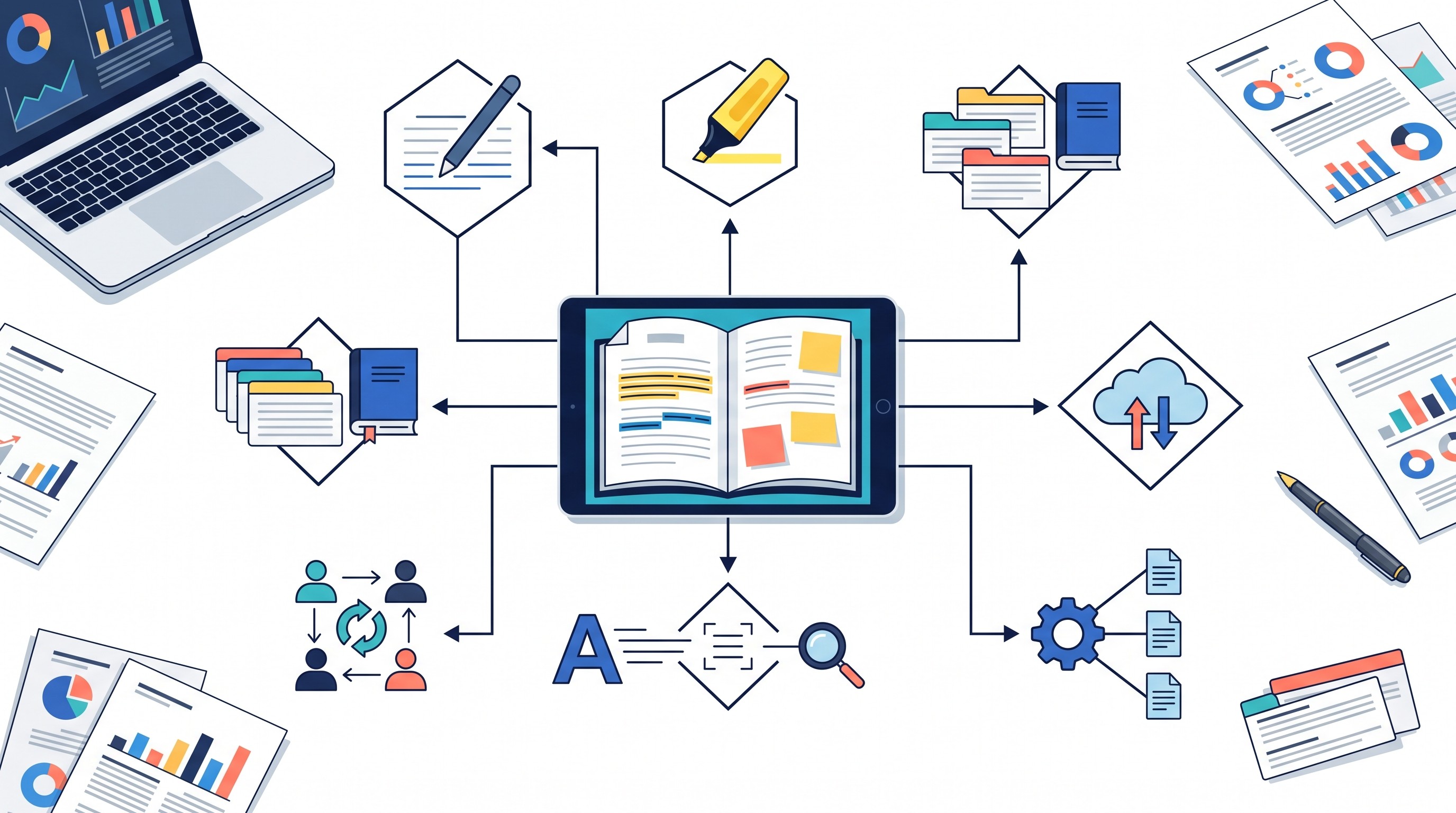
The baseline tools are highlights, underlines, strikethroughs, comments, freehand drawing, shapes, stamps, bookmarks, signatures, page thumbnails, search, and page reordering. For students, handwriting quality and tablet support often matter more than form editing. For researchers, searchable annotations, export behavior, full-text search, and citation links matter more.
The most important test: export one annotated PDF and reopen it in another app. If the notes remain editable and searchable, the app likely uses standard PDF annotations. If the notes become a flat image layer, screenshots, or proprietary workspace objects, that may be fine for studying but risky for collaboration and archiving.
For research workflows, also check:
OCR for scanned articles, book chapters, and archival PDFs.
Metadata handling for title, authors, year, DOI, journal, and publication details.
Library organization through folders, tags, collections, spaces, or projects.
Full-text search across PDFs and notes.
Citation export to Word, Google Docs, BibTeX, RIS, Zotero, Mendeley, or EndNote.
Offline behavior, especially before travel, exams, fieldwork, or clinical rotations.
Privacy and sync, particularly for unpublished papers, patient-adjacent materials, legal documents, or proprietary research.
Plan gates, since OCR, editing, collaboration, AI features, and cloud storage are often paid.
A useful buying rule: test one born-digital article, one scanned PDF, and one collaborative export before moving a full library.
1. Adobe Acrobat — best for dependable cross-platform PDF markup
Adobe Acrobat is the safest default when annotated PDFs need to work for instructors, administrators, coauthors, publishers, or people using unknown PDF software. It is not the most elegant reading environment, but it is hard to beat for broad PDF compatibility.
For researchers, Acrobat covers the usual markup stack: highlights, comments, drawing, forms, search, signatures, sharing, page organization, export, and document protection. A 2026 ProofHub review describes Acrobat as a broad PDF suite for creating, editing, signing, converting, organizing, and securing PDFs, which is exactly why it often feels like more tool than a student reader needs (ProofHub).
Choose Acrobat when document exchange matters more than a focused reading experience. Skip it if the real job is building a literature-review database or handwriting notes on lecture slides all semester.
2. PDF Expert — best for polished reading on Apple devices
PDF Expert is strongest for Mac and iPad users who want a clean reading surface, fast markup, page navigation, and Apple-friendly file handling. It fits students who live in iCloud Drive, Finder, Files, and iPad split view.
Its best use case is polished PDF reading with highlights, typed comments, handwritten notes, signatures, and page-level organization. Before committing, export a marked-up PDF and open it in Preview, Acrobat, or Zotero to confirm the annotations behave as expected.
The main limitation is platform fit. Windows and Android users should not choose PDF Expert unless their workflow is actually centered on Apple devices.
3. Xodo — best for flexible PDF annotation across devices
Xodo is a good pick when the same PDF moves between browser, desktop, tablet, and phone. It is less academically specialized than Zotero or LiquidText, but more flexible than device-specific note apps.
Use it for common markup, form filling, cloud-file access, reading, and sharing. It is especially useful when a student reads on a laptop during the day and annotates on a tablet later.
The tradeoff is depth. Cross-platform PDF annotation is not the same as citation management, evidence mapping, or long-term library organization.
4. LiquidText — best for connecting excerpts and arguments
LiquidText is for readers who do not just highlight papers; they build arguments from them. Its workspace lets researchers pull excerpts, comments, and relationships out of long PDFs and place them into a connected evidence map.
That makes it useful for literature reviews, legal analysis, close reading, policy research, and comparing claims across long documents. It is particularly strong when the question is “How do these passages relate?” rather than “What did I highlight?”
The tradeoff is portability. A connected LiquidText workspace can be more useful than the original PDF during analysis, but less reusable if collaborators do not use the same tool. Export before relying on it for a thesis, memo, or article project.
5. MarginNote — best for intensive academic reading and synthesis
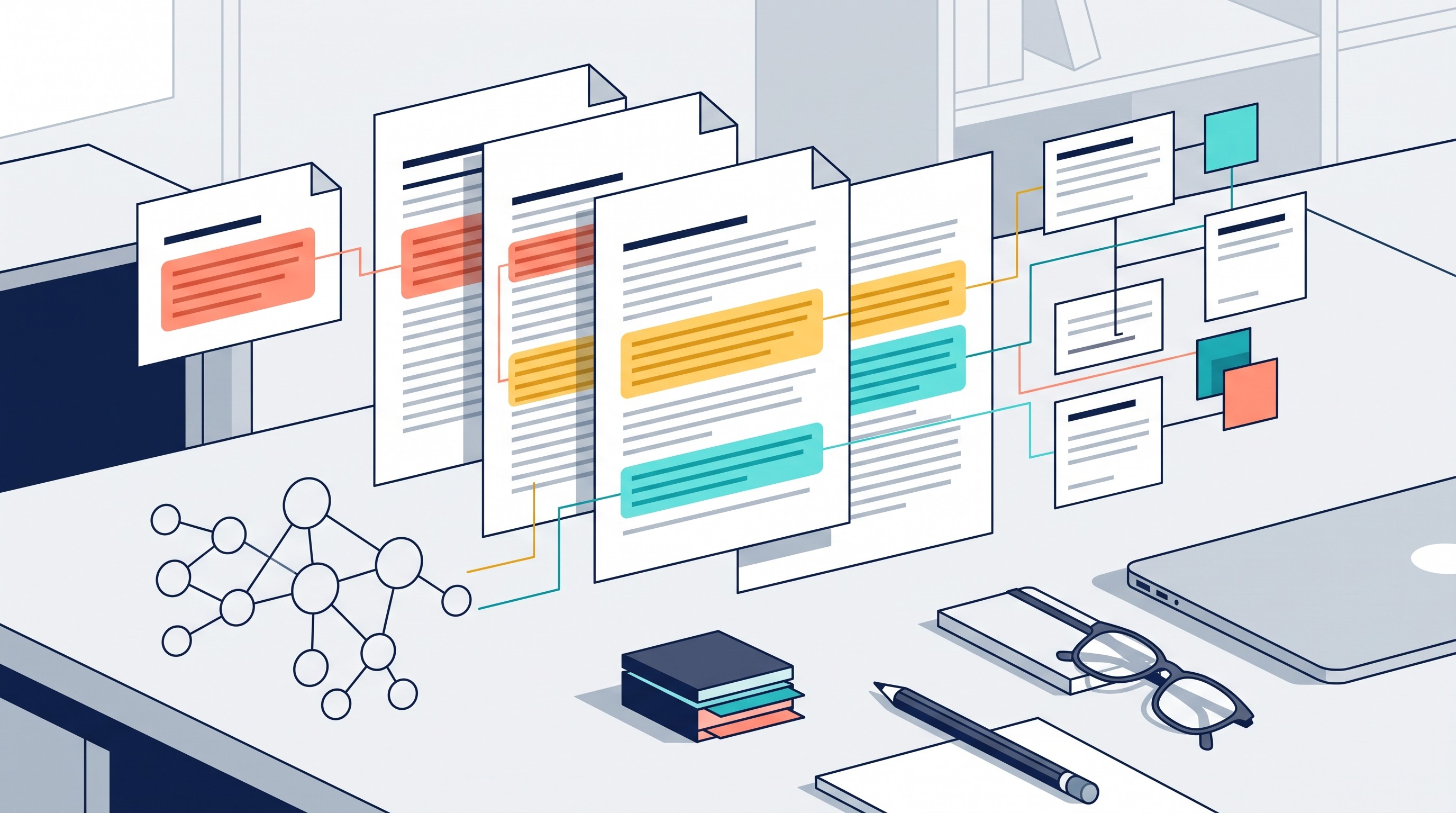
MarginNote sits between a PDF reader, an outliner, and a visual study system. It is built for readers who turn highlights into structured notes, mind maps, flashcard-like study material, and outlines.
It works best for dense textbooks, theory-heavy papers, legal cases, and exam preparation where the output is not just annotated pages but a study structure. If a highlight should become a concept, claim, or section in an outline, MarginNote makes sense.
The risk is system lock-in. The more elaborate the map, the more important it is to test exports and decide where the final notes will live.
6. Zotero — best for citation-centered PDF annotation
Zotero is the best free starting point for researchers who need PDF reading tied to bibliographic metadata. It stores references, attaches PDFs, supports collections and tags, and connects notes to sources.
A Carleton College research guide describes Zotero-style bibliographic management as importing citations, embedding PDFs, searching and sorting, exporting bibliographies in many citation styles, and managing long papers with Cite While You Write (Carleton College). That is the key distinction: Zotero is not just a PDF annotator; it is a source-management system.
A basic Zotero workflow:
Import the paper from DOI, browser connector, database export, or file.
Check title, authors, year, journal, volume, issue, pages, and DOI.
Attach or retrieve the PDF.
Highlight and annotate in Zotero’s PDF reader.
Extract or convert annotations into notes.
Cite the source in Word, Google Docs, or LibreOffice.
Verify every imported reference before submission.
Zotero may still need a companion app for stylus-heavy markup, page editing, or advanced PDF editing. For extensions and import workflows, see our guide to Zotero add-ons and reference import tools.
7. ReadCube Papers — best for managing a large research-paper library
ReadCube Papers is for researchers whose problem is not one PDF, but hundreds or thousands of papers. Its value is library organization, discovery, PDF reading, annotations, collections, syncing, and reference-manager-style workflows.
It differs from a standalone PDF viewer because the paper library is the center of the product. That matters for labs, graduate students, and industry researchers who repeatedly return to the same sources.
The decision point is interoperability. Before migrating, check export options, citation formats, storage policies, collaboration features, and what happens if you later move back to Zotero, EndNote, Mendeley, or another reference manager.
8. Mendeley Reference Manager — best for citation-managed PDF collections
Mendeley Reference Manager fits students and researchers who want PDF storage, bibliographic records, highlights, notes, and citation output in one Elsevier-owned ecosystem.
It is useful for folders or collections, syncing, duplicate cleanup, metadata correction, and word-processor citation workflows. Like Zotero, its strength is not fancy visual annotation; it is managing sources while writing.
Check storage limits, supported platforms, institutional access, export options, and annotation depth before building a large library. Also verify imported metadata, especially when PDFs come from course sites, preprint servers, or scanned book chapters.
9. Goodnotes — best for handwritten PDF study notes
Goodnotes is a strong choice for students who treat PDFs like paper: lecture slides, textbook chapters, problem sets, lab handouts, and reading packets. Its center of gravity is handwriting.
Use it when a stylus is the main input. Goodnotes handles handwriting, highlighting, notebooks, page templates, search, organization, and sharing in a study-friendly interface.
It is weaker as a formal research library. If the job is DOI metadata, bibliography generation, source verification, or standards-compliant annotation exchange with coauthors, pair it with Zotero, Mendeley, or another reference manager.
10. Notability — best for combining marked-up PDFs with class notes
Notability works well when annotated PDFs are part of a broader class notebook. Import slides or readings, write beside them, and keep course notes connected to the document.
That makes it useful for lectures, seminars, exam review, clinical teaching, and discussion-based courses. The PDF is not isolated; it lives inside a notebook workflow.
Before choosing it for research, check export formats, subscription terms, platform support, and how easily notes move out of Notability. Course organization and research-library organization are different jobs.
11. Flexcil — best for tablet-based reading and note extraction
Flexcil is built for tablet readers who want to move selected passages from PDFs into a separate notes area. Its appeal is split-screen reading, handwriting, excerpt extraction, and linking source material to notes.
It is a good fit for textbooks, lecture materials, and papers where readers need to collect selected passages while studying. It competes more with Goodnotes, Notability, LiquidText, and MarginNote than with Acrobat.
Use it if the tablet is the primary reading device. Look elsewhere if citation management, desktop-first library organization, or multi-author workflows are the priority.
12. Foxit PDF Editor — best for a full-featured Acrobat alternative
Foxit PDF Editor is the Acrobat alternative to evaluate when annotation is only one part of a broader PDF workload. It can suit researchers who also need editing, OCR, forms, signing, security, and document review tools.
That makes it more appropriate for labs, administrators, consultants, legal teams, and researchers handling formal documents, not just students highlighting articles.
The important check is plan gating. OCR, advanced editing, redaction, e-signature, collaboration, and enterprise security features may vary by plan, platform, or region.
13. UPDF — best for affordable PDF editing and annotation
UPDF is worth considering if the goal is a budget-friendly PDF editor with annotation, page management, editing, OCR, conversion, and cross-device use.
It makes sense when lightweight readers are too limited but Acrobat or Foxit feels excessive. For example: marking articles, rearranging pages, editing a syllabus PDF, converting files, and commenting on drafts.
Before buying, verify device limits, OCR support, export behavior, and whether annotations remain editable in other PDF apps. Cheap is only cheap if the marked-up files remain usable.
14. Drawboard PDF — best for Windows pen and touchscreen workflows
Drawboard PDF is strongest for Windows users who annotate with a pen: technical papers, diagrams, engineering drawings, lecture slides, worksheets, and design documents.
Its advantage is pen-first markup rather than citation management. Drawboard’s own 2026 PDF annotation roundup emphasizes structured annotation features such as typed notes, hyperlinks, audio pins, and measurement tools for technical markups (Drawboard).
Choose Drawboard if inking and Windows tablet hardware drive the workflow. Pair it with a reference manager if the same documents need citations, bibliographies, or long-term academic organization.
15. Kami — best for collaborative PDF assignments and classrooms
Kami is best understood as a classroom annotation and assignment workspace. It fits teachers and students working on shared PDFs, worksheets, readings, and submitted assignments.
Its strengths are browser-based annotation, commenting, distribution, collaboration, and education workflows. Kami describes itself as starting as a PDF annotation tool and growing into a collaborative workspace used by teachers (Kami).
It is less compelling as a private literature-review library. Check account requirements, school permissions, LMS fit, export behavior, and the difference between free and education plans.
16. Hypothes.is — best for web-based and social PDF annotation
Hypothes.is is for public, private, or group annotation on the web. It is especially useful for teaching, peer discussion, collaborative close reading, and open scholarship.
The key difference is social context. Instead of keeping notes inside a private PDF library, readers can highlight and discuss web pages or supported PDFs with a class or group.
Use private groups when annotations should not be public. Also plan a separate system for PDF storage, citation metadata, and final research notes.
17. Skim — best for lightweight academic PDF reading on Mac
Skim is a focused Mac PDF reader popular with academics who want a lightweight desktop tool for reading, highlighting, notes, bookmarks, and navigation.
It is good for quick article reading, local folders, and low-friction markup. It does not try to be a full research platform.
That restraint is the advantage and the limitation. Skim may not fit readers who need mobile sync, collaboration, citation management, OCR, or AI-assisted summarization.
18. Okular — best for open-source PDF annotation on desktop
Okular is a strong option for researchers who prefer open-source desktop software and local-file workflows. It supports common document reading and annotation needs across desktop environments.
Its appeal is control. Privacy-conscious researchers, Linux users, and people who avoid cloud-first apps may prefer keeping documents local.
The tradeoff is ecosystem depth. Okular is not a citation manager, a cloud collaboration layer, or a tablet-first study notebook. Add Zotero or another reference manager when source organization matters.
19. Otio — best for AI-assisted PDF research workflows
Otio is best when annotation is part of a larger document-understanding workflow. Researchers can keep PDFs in a unified library, open them in a reader with page navigation, zoom, search, and highlights, select passages, then use Ask Otio, Copy, or Quote in chat to turn reading into reusable notes.
The useful distinction is that Otio is not trying to be Acrobat. It is for the moment after highlighting, when the reader asks: What does this paper claim? Where is the evidence? How does it compare with the other papers in this folder?
Relevant Otio features include:
A unified library for PDFs, DOCX, EPUB, TXT, Markdown, PPTX, CSV, audio, video, web links, YouTube videos, tweets, notes, and folders.
A PDF reader with page navigation, zoom, search, and highlights.
An AI-generated summary overlay for reader items.
A text-selection toolbar with Ask Otio, Copy, and Quote in chat.
Chat answers with inline citations.
Multiple model choices across GPT, Claude, Gemini, Grok, Llama, DeepSeek, Moonshot, and Otio Auto through multiple AI models.
Folders and Spaces for project organization.
A Zotero integration for pulling research papers into the workspace.
The tradeoff is clear: choose Otio if the PDF is an input to synthesis, questioning, summarization, or drafting research notes. Choose Goodnotes, Drawboard, PDF Expert, or Acrobat if the main job is freehand markup, signing, or traditional PDF editing.
20. Preview — best for free basic PDF markup on Mac
Preview is the easiest answer for Mac users who need quick PDF markup without installing anything. It handles highlights, notes, signatures, shapes, basic page organization, and simple review tasks.
It works well for occasional course readings, administrative documents, application forms, syllabi, and simple article review. It is free, local, and already on the machine.
Its limits appear quickly in research workflows: no serious citation metadata, no large academic library management, limited team collaboration, and less sophisticated cross-device organization than dedicated tools.
A practical PDF annotation workflow for papers and course readings
The best workflow separates three layers:
Mark the source PDF with restrained highlights and comments.
Write an interpretation note in your own words.
Store verified citation metadata in a reference manager.
That separation prevents a common failure: mistaking highlighted text for understanding. A highlight says “this might matter.” A research note says why it matters.
Use this sequence for papers and course readings:
Import and rename the PDF. Use a consistent pattern such as author-year-short-title.
Verify metadata. Check authors, year, title, journal or book, DOI, pages, and version.
Skim before marking. Read abstract, headings, figures, conclusion, and methods before highlighting heavily.
Highlight sparingly. Mark claims, methods, definitions, limitations, and results—not whole paragraphs.
Label evidence by purpose. For example: background, method, statistic, quote, objection, theory, limitation.
Extract quotations with page numbers. Never store a quote without the page or location.
Write a synthesis note. Capture the paper’s contribution, evidence quality, relationship to other sources, and what you still need to verify.
Back up or export annotations. Confirm they reopen correctly outside the original app.
For scanned PDFs, run OCR where available, but do not trust OCR text blindly. Verify every extracted quotation against the page image, especially with older scans, tables, equations, footnotes, hyphenated line breaks, and non-English text.
An AI research workspace can help after the basics are in place. In Otio, for example, a reader can summarize a PDF, ask targeted questions about selected passages, quote passages into chat, and keep notes alongside the source. That does not replace citation verification; it reduces the friction between reading, questioning, and synthesis.

For broader tool stacks beyond PDF annotation, see our guides to research tools for students, tools for researchers and students, and note-taking apps for PhD students and researchers.
[[OTIO_INLINE_PROMO:%7B%22title%22%3A%22How%20will%20you%20turn%20highlights%20into%20synthesis%20notes%3F%22%2C%22description%22%3A%22Add%20your%20papers%20to%20Otio%2C%20ask%20questions%20about%20selected%20passages%2C%20quote%20evidence%20into%20chat%2C%20and%20save%20the%20resulting%20interpretation%20beside%20the%20source.%22%7D]]
Which PDF annotation tool should you choose?
Use the reader type, not the feature list, as the final decision rule.
Occasional student reader: Preview on Mac, Xodo across devices, or Adobe Acrobat if files must be shared widely.
Stylus-heavy tablet user: Goodnotes, Notability, Flexcil, PDF Expert, or Drawboard depending on device.
Literature-review researcher: Zotero for references, plus LiquidText, MarginNote, ReadCube Papers, or Otio for synthesis.
Citation-focused writer: Zotero or Mendeley first; add a markup app only if the built-in reader is not enough.
Collaborative class: Kami for assignments, Hypothes.is for shared reading and discussion.
Privacy-conscious desktop user: Okular, Skim, Preview, or a local Zotero library.
AI-assisted document researcher: Otio when the goal is to ask questions across PDFs, summarize sources, and turn passages into notes.
Before paying or migrating a library, test four things: one normal paper, one scanned document, one export to another app, and one citation workflow. Also verify current pricing, supported platforms, privacy terms, OCR availability, offline behavior, storage limits, and export compatibility on each vendor’s official site.
If the work is mostly PDF markup, choose a PDF editor. If the work is source-based writing, choose a citation manager. If the work is understanding and synthesizing many documents, use a research workspace built for that layer.
[[OTIO_FOOTER_PROMO:%7B%22title%22%3A%22Apply%20this%20workflow%20to%20your%20own%20reading%20list%22%2C%22description%22%3A%22Bring%20your%20PDFs%2C%20course%20readings%2C%20and%20web%20sources%20into%20Otio%20to%20summarize%20them%2C%20compare%20evidence%2C%20and%20keep%20source-based%20notes%20in%20one%20library.%22%7D]]