
Citation Management
20 Best Zotero Add-Ons and Reference Import Tools for Graduate Students
Build a cleaner Zotero workflow with 20 add-ons and import tools for browser capture, metadata repair, PDF organization, deduplication, citation export, and interoperability.

The right Zotero setup is not “install every add-on.” Start with Zotero Connector, a metadata cleanup routine, a PDF attachment workflow, and Better BibTeX only if you write in LaTeX, Markdown, or another citation-key-based system.
Everything else should earn its place. Add-ons change how Zotero behaves; import tools bring records, PDFs, or metadata into your library. For a graduate student, the risk is not missing one clever extension. It is letting bad metadata, duplicate records, broken file paths, and unstable citation keys spread through a thesis-length project.
The best Zotero tool depends on the job you need to solve
Before choosing tools, separate two categories:
Zotero add-ons extend Zotero itself. They can rename files, generate citation keys, improve notes, translate text, manage attachments, or connect Zotero with another app.
Reference import tools bring records into Zotero from browsers, identifiers, databases, APIs, exports, or PDFs.
That distinction matters because add-ons can modify your library, while import tools mostly affect what enters it. The safer workflow is capture first, verify second, organize third, cite last.
A strong graduate-student stack usually looks like this:
Job | Start with | Add only if needed |
|---|---|---|
Web capture | Zotero Connector | Database exports for bulk imports |
Identifier import | DOI / ISBN / PMID lookup | Crossref, PubMed, OpenAlex, Semantic Scholar exports |
Metadata repair | Manual review + duplicate merge | DOI Manager, Better BibTeX metadata tools |
PDF organization | Zotero attachment settings | Attanger, Storage Scanner, OCR tools |
Notes and synthesis | Zotero notes | Better Notes, Mdnotes, Notero, AI add-ons |
Writing output | Word / LibreOffice plugin | Better BibTeX for LaTeX or stable citation keys |
Check seven things before installing or relying on any tool:
Operating system support: Windows, macOS, Linux, or browser-only.
Zotero version compatibility: especially after major Zotero upgrades.
Input source: browser page, DOI, RIS, BibTeX, PubMed, PDF, folder, or API.
Metadata behavior: whether it creates, edits, overwrites, or merges fields.
Privacy: whether files, abstracts, notes, or selected text leave your machine.
Maintenance status: recent releases, issue responses, documentation.
Data risk: whether it changes existing items, duplicates records, renames files, or alters file paths.

Capture and import references from the web
1. Zotero Connector: best first install for web capture
Zotero Connector is the first tool most graduate students should install. It captures citation records from supported webpages, library catalogs, journal pages, databases, and some PDFs directly into Zotero.
Its strength is speed. If a publisher page, database record, or catalog entry exposes clean metadata, Connector can save the title, authors, publication, date, DOI, URL, and sometimes the PDF in one click.
Its weakness is also metadata. Connector can only work with what the page provides or what Zotero’s translators can interpret. A journal page may omit issue numbers; a repository page may import the thesis title but not the degree institution; a news page may treat the website name as the publication title.
Use Connector as capture, not verification. After import, inspect:
Item type
Title capitalization
Author order and spelling
Journal or book title
Date
DOI, ISBN, PMID, or URL
PDF attachment
Access date for web sources if your style requires it
2. Zotero’s DOI, ISBN, and PMID lookup: fastest for known identifiers
Zotero’s built-in identifier lookup is often cleaner than manual entry. If you have a DOI for a journal article, an ISBN for a book, or a PMID for a biomedical paper, use “Add Item(s) by Identifier” and let Zotero retrieve the record.
This is best when you already trust the identifier. It avoids typing long titles, author lists, page ranges, and publication data by hand.
The failure mode is false confidence. A mistyped DOI can retrieve nothing, and an identifier copied from a reference list can point to a related correction, preprint, chapter, or older edition. Always compare the returned record with the PDF or source page before citing it.
3. PubMed export and citation import: best for biomedical literature
For biomedical graduate students, PubMed is often the better starting point than a general web search. You can use Zotero’s PMID lookup for individual papers or export records from a PubMed search when screening a batch.
Use PMID lookup when:
You have a short list of known papers.
You need one accurate record at a time.
You are adding sources while reading.
Use PubMed export/import when:
You have a search strategy and want to capture many results.
You are building a screening library for a review.
You need consistent biomedical metadata before deduplication.
Still check publication type, journal abbreviation, author lists, and whether the imported item represents the final article rather than an ahead-of-print record.
4. Crossref metadata lookup: useful for DOI-based scholarly records
Crossref is most useful when the DOI is the stable handle for a scholarly work. If a publisher page is messy, DOI-based metadata can give Zotero a cleaner title, author list, publication title, and date.
The limitation is that Crossref metadata depends on what publishers deposit. Page ranges, issue numbers, author name formatting, subtitles, and references can be incomplete or inconsistent. Crossref can identify the work, but it does not guarantee citation-ready metadata.
Treat Crossref as a repair source, not an authority that overrules the PDF.
5. OpenAlex or Semantic Scholar exports: best for broad discovery imports
OpenAlex and Semantic Scholar are useful when discovery is the job. They help surface related papers, citation networks, authors, venues, and topics across broad scholarly literature.
They are less ideal as final citation sources. Records may be aggregated from multiple sources, merged across versions, or missing details that a field-specific database would preserve. For systematic searches, a discipline-specific database may give better controlled vocabulary, indexing, and export consistency.
Use these tools to find papers, then verify the imported Zotero records against the publisher page, database record, or PDF.
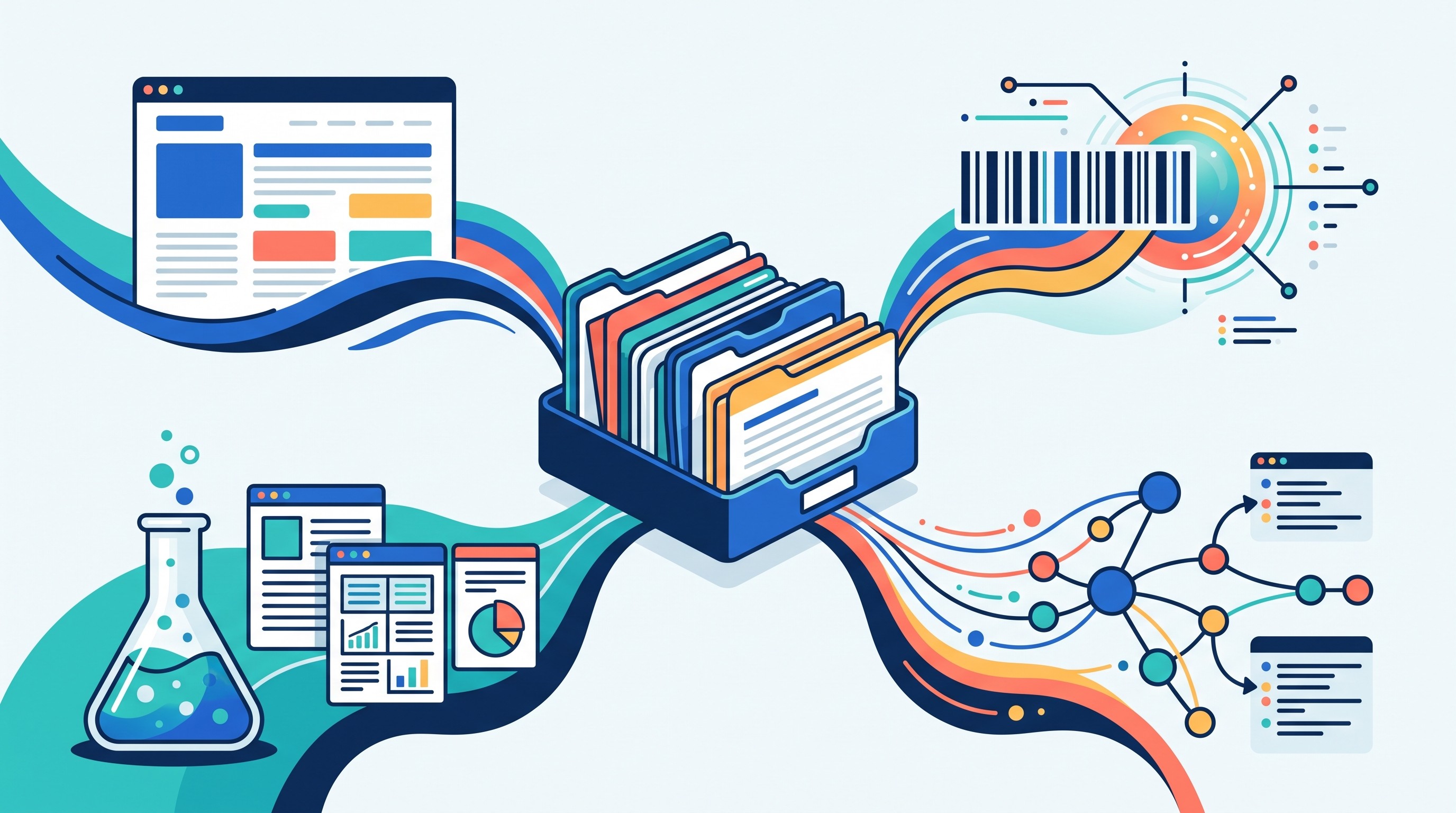
Repair metadata before it spreads into your thesis
6. Zotero DOI Manager: best for missing or questionable DOIs
Zotero DOI Manager helps find and update DOI fields for items that lack identifiers or have questionable ones. This is useful after importing old PDFs, incomplete database records, or references from BibTeX and RIS files.
Use it on a small collection first. DOI repair can save hours, but bulk changes deserve caution. If a tool matches a title to the wrong version, the error can quietly corrupt your citation record.
Before applying changes broadly, review a sample for:
Exact title match
Author overlap
Publication year
Journal or proceedings title
Article type
Version differences, such as preprint versus final publication
7. Zotero Better BibTeX metadata tools: best for citation-key discipline
Better BibTeX is often discussed as a LaTeX export tool, but its metadata utilities are also important. It can generate citation keys, keep keys pinned, and support more consistent BibTeX or BibLaTeX output.
Do not confuse citation-key consistency with bibliographic accuracy. A stable key like smith2021migration helps prevent broken LaTeX references, but it says nothing about whether the journal title, page range, author list, or edition field is correct.
Use Better BibTeX when your writing system depends on keys. Do not install it merely because other graduate students have it.
8. Zotero’s built-in duplicate detection and merge function: best for library hygiene
Duplicate records are inevitable in graduate research. The same paper might enter Zotero through Google Scholar, PubMed, a publisher page, a database export, and a collaborator’s BibTeX file.
Use Zotero’s duplicate detection before a major writing deadline and after any bulk import. Do not delete one duplicate blindly. Compare the records and merge the best fields.
Check:
Creator names and order
Title and subtitle
Date and publication status
DOI, ISBN, PMID, arXiv ID, or URL
Journal, volume, issue, and pages
PDF attachments
Notes and annotations
Tags and collections
The safest merge keeps the best metadata and preserves attachments and notes. Deleting a duplicate without checking can remove the only annotated PDF or the only complete citation record.
9. Zotero field and creator-name cleanup workflows: best manual quality control
No add-on can safely fix every metadata issue. Some cleanup remains manual because citation styles depend on field meaning, not just text formatting.
The recurring checks are predictable:
Capitalization: sentence case versus title case, especially for APA and Chicago workflows.
Author-name order: family name and given name split correctly.
Corporate authors: entered as organizations, not inverted personal names.
Journal titles: full title versus abbreviation, depending on style and field.
Edition fields: especially for textbooks, handbooks, and translated works.
Dates: publication date, online-first date, access date, and archival date are not interchangeable.
Item type: article, book chapter, preprint, thesis, report, webpage, and conference paper produce different citations.
Build a “metadata review” collection in Zotero. Every imported item goes there first. Move it into your thesis collections only after the record is citation-ready.
Organize PDFs, attachments, and research files
10. Zotero Attanger: best for custom PDF renaming and file movement
Zotero Attanger is useful when Zotero’s default attachment behavior does not match your file organization system. It can help rename and move attachments according to patterns, which matters if you keep PDFs in a synced folder, project directory, or external file structure.
This is a high-impact tool because it touches files, not just citation fields. Test it on a backup or small library before applying rules to hundreds of PDFs.
Be especially careful if:
You use linked files rather than stored Zotero files.
Your PDFs live in Dropbox, Google Drive, OneDrive, or an institutional folder.
You work across multiple computers.
You have existing paths referenced by notes, scripts, or external tools.
A broken citation record is annoying. A broken attachment path across a dissertation library is worse.
11. Zotero Storage Scanner: best for periodic attachment maintenance
Zotero Storage Scanner is a maintenance tool, not a daily capture tool. Its job is to help identify storage or attachment problems, especially in libraries with many PDFs and synced files.
Run it periodically when:
PDFs appear missing.
Sync behavior seems inconsistent.
Attachment links break after moving folders.
A library has been migrated between machines.
You have changed from stored files to linked files, or the reverse.
Do not treat storage scanning as a substitute for backups. Before changing attachment strategy, export a backup of your Zotero data and confirm that files are recoverable outside Zotero.
12. Zotero PDF Translate: best for reading selected text across languages
Zotero PDF Translate is useful when reading sources in a language you do not work in fluently. The best use case is selected text: translate an abstract, paragraph, table note, or passage while keeping the original PDF intact.
Do not overwrite the source with translated text. Keep translation output in a note, clearly marked as a translation, and cite the original source rather than the machine output.
For academic writing, translation helps with comprehension. It does not replace checking technical terms, disciplinary vocabulary, legal wording, quotations, or culturally specific phrasing. If multilingual research is a core part of your work, compare this workflow with broader AI translation tools for academic writing and bilingual notes.
13. Zotero OCR and PDF-text workflows: best for scanned documents
Zotero search works far better when PDFs contain selectable text. Born-digital PDFs usually include text already. Scanned documents often do not.
For scanned articles, archival material, book chapters, and photocopied readings, you need OCR: optical character recognition, which converts page images into searchable text. OCR can be handled before import, through a PDF tool, or through Zotero-adjacent workflows.
The payoff is practical:
Full-text search works across the library.
PDF annotations are easier to make.
Quoted passages are easier to verify.
AI and summarization tools can parse the document more reliably.
Notes can point back to actual page locations.
OCR is not perfect. It struggles with old scans, marginalia, two-column layouts, footnotes, tables, mathematical notation, and non-Latin scripts. For scanned-heavy projects, compare dedicated options in this guide to OCR tools for scanned PDFs and research documents.

Add notes, summaries, and structured research data
14. Zotero Better Notes: best for structured literature-review notes
Better Notes is useful when Zotero’s native notes feel too flat for a literature review. It supports more structured note workflows, templates, annotation handling, and note linking.
The best use case is a repeatable reading template. For example:
Citation
Research question
Method
Data or corpus
Main finding
Evidence location
Limitation
How it affects your thesis
Follow-up sources
The tradeoff is setup. A rich note system can become its own project. If you spend more time tuning templates than reading papers, simplify.
15. Mdnotes: best for Markdown and plain-text portability
Mdnotes is useful when Zotero notes need to move into a Markdown-based writing system. That might mean Obsidian, a static-site workflow, a Git repository, or a plain-text literature review archive.
Markdown’s advantage is portability. Plain-text files are easier to search, version, diff, and move between tools than proprietary note formats.
The risk is conversion loss. Links, highlights, embedded images, citation references, and formatting may not transfer exactly. Test your export with real notes before committing your entire review workflow to it.
16. Notero: best for sending Zotero material into Notion-style notes
Notero is commonly used to connect Zotero items with Notion workflows. It fits students who manage projects, reading queues, or literature matrices outside Zotero but still want Zotero as the citation manager.
Before using it, check whether the current version supports your Zotero version and whether the sync behavior matches your expectations. Some workflows are one-way; others may update selected fields. A one-way export is simpler but can create stale records if Zotero metadata changes later.
Use Notero when Notion is genuinely your project dashboard. Do not duplicate your entire library into another system just because it looks cleaner.
17. Zotero-GPT or comparable AI add-ons: best for assisted questioning, not authority
AI add-ons can help ask questions about a document, summarize sections, generate provisional notes, or turn annotations into a draft synthesis. They are most useful when treated as assistants attached to source text.
The risks are familiar but serious in graduate work:
A summary may omit the caveat that matters.
A generated note may blend the paper’s claim with the model’s inference.
A passage answer may not cover the whole document.
Sensitive PDFs or unpublished materials may be sent to an external model.
Generated text can sound more certain than the source.
Use a strict rule: AI notes must stay visibly separate from your own interpretation until verified. Require page references, quoted passages, or source-linked evidence before moving any generated claim into a literature review.
If you use a separate research workspace, tools such as Otio’s AI PDF reader can support document questioning and source-linked reading outside Zotero, while Zotero remains the citation database.
[[OTIO_INLINE_PROMO:%7B%22title%22%3A%22Need%20to%20compare%20notes%20across%20your%20research%20PDFs%3F%22%2C%22description%22%3A%22Add%20verified%20PDFs%2C%20web%20sources%2C%20and%20notes%20to%20Otio%20to%20ask%20focused%20questions%20and%20keep%20AI-generated%20summaries%20separate%20from%20your%20source-backed%20notes.%22%7D]]
Improve citation, bibliography, and writing interoperability
18. Better BibTeX: best for LaTeX, BibLaTeX, and stable citation keys
Better BibTeX is the strongest Zotero add-on for LaTeX and BibLaTeX workflows. If your thesis, article, or lab template uses .bib files, citation keys become infrastructure.
Its value is not only export. It helps keep keys stable across drafts, collaborators, and version control. That matters when changing a key from nguyen2020networks to nguyenNetworks2020 can break citations across multiple chapters.
The failure mode is key churn after metadata edits. If keys are automatically generated from author, title, and year, fixing metadata can change keys unless they are pinned or managed carefully.
Use Better BibTeX if:
You write in LaTeX.
You use Pandoc, Quarto, R Markdown, or Markdown citations.
You need automatic
.bibexport.You collaborate through Git or Overleaf.
You care about stable citation keys.
Skip it if you only write in Word or LibreOffice with Zotero’s standard plugin.
19. Zotero Word and LibreOffice integrations: best for formatted citations and bibliographies
Zotero’s Word and LibreOffice integrations are still the safest route for most graduate writing. They insert citations, update bibliographies, and switch citation styles without forcing manual bibliography edits.
The main rule: keep the master data clean in Zotero. Do not manually “fix” the generated bibliography in Word unless it is the final submitted copy and you know citations will no longer update.
A better workflow:
Fix the Zotero record.
Refresh citations in the document.
Check the bibliography output.
Change styles only after confirming item types and fields are correct.
Before submission, save a final copy of the document.
This is especially important for theses because style changes can happen late. If a department switches from APA to Chicago, or a journal asks for Vancouver, clean Zotero metadata saves days.
20. Otio’s Zotero integration: best as an adjacent research-analysis workspace
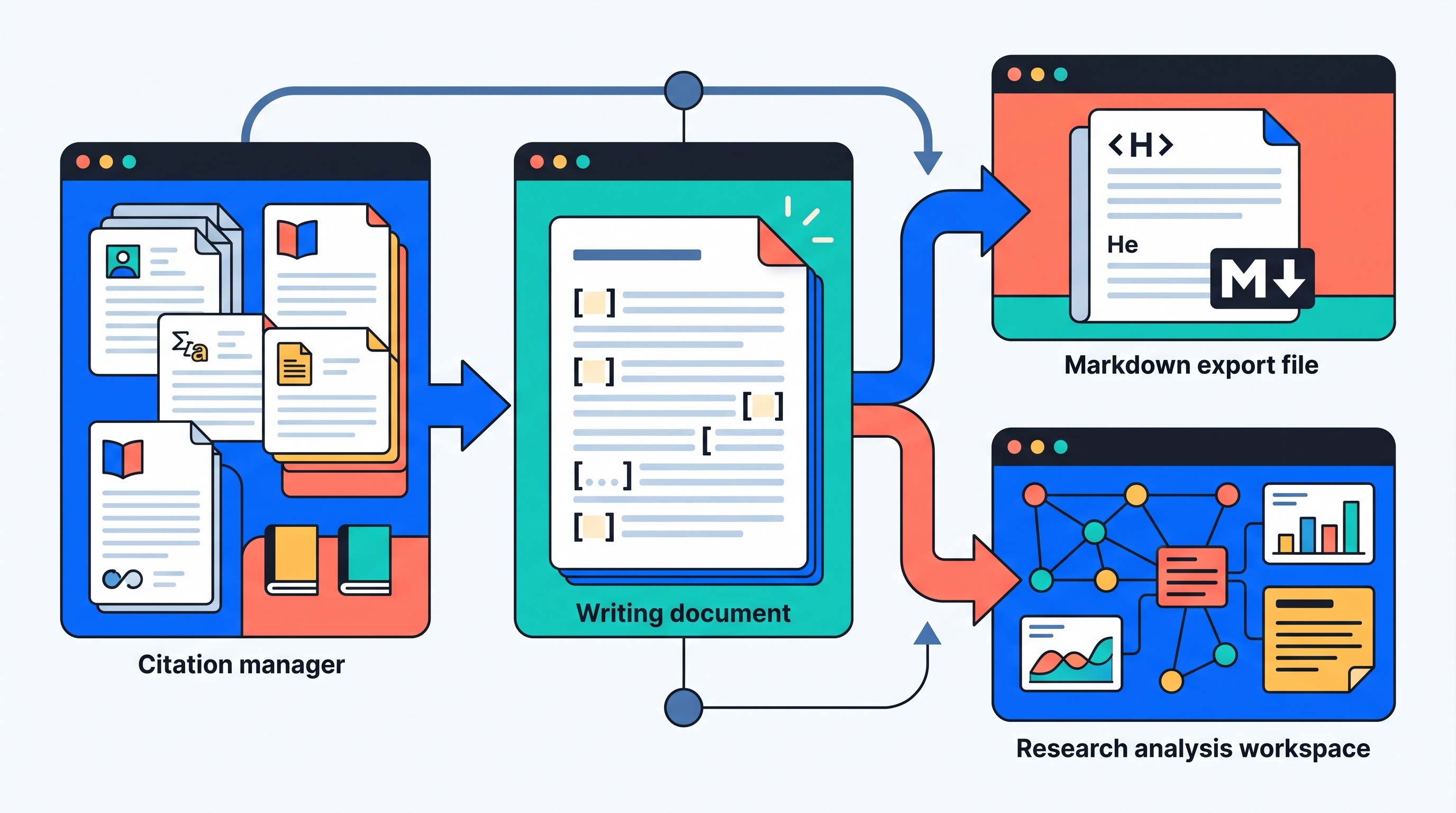
Otio’s Zotero integration is not a replacement for Zotero’s citation-style system. It is better understood as an adjacent research-analysis workspace: bring Zotero materials into a searchable library, ask questions across documents, and organize notes alongside PDFs, links, and other research files.
That distinction matters. Zotero should remain the source of truth for citations, item metadata, bibliographies, and word-processor integration. Otio fits the stage where you are reading across sources, comparing claims, building notes, and trying to find a passage across a stack of papers.
A practical split:
Workflow stage | Better tool |
|---|---|
Citation metadata | Zotero |
Bibliography generation | Zotero Word / LibreOffice plugin or Better BibTeX |
PDF library and reference records | Zotero |
Asking questions across multiple documents | Otio |
Structured research notes and synthesis | Zotero notes, Better Notes, Otio, or a Markdown system |
Final citation style compliance | Zotero |
This is also where broader tool choice matters. If Zotero is only one part of the stack, compare it with other research tools for students and note-taking apps for PhD students and researchers.
A safe setup sequence for a graduate-student Zotero library
Do not build the full system on day one. Build it in the order that reduces irreversible mistakes.
Install and test one capture tool first. Start with Zotero Connector and import 10–20 sources from the databases you actually use: library catalog, Google Scholar, PubMed, JSTOR, IEEE Xplore, Scopus, Web of Science, arXiv, SSRN, or field-specific repositories.
Create a backup before installing add-ons that change data. This includes tools that rename files, move attachments, modify metadata, merge records, export notes, or create external linked files.
Create a review queue. Every new source should pass through the same checklist: title, authors, date, publication, DOI or other identifier, item type, attachment, notes, and tags.
Install only tools that solve recurring bottlenecks. A graduate student who writes in Word may not need Better BibTeX. A student working only with born-digital PDFs may not need OCR. A student using Zotero’s native notes may not need Better Notes, Mdnotes, or Notero.
Test citations in the actual writing environment. Do not wait until the week before submission to discover that your citation keys changed, your Word bibliography is built from dirty metadata, or your linked PDFs do not open on your laptop.
Run duplicate checks after bulk imports. Bulk imports from multiple databases almost always create duplicates. Clean them before annotating, not after.
Keep generated notes separate from verified notes. If you use AI summaries or document-questioning tools, mark them clearly until checked against source text.
Freeze the workflow before the deadline. The final month of thesis writing is not the time to reorganize your file system, change citation managers, migrate note apps, or install a metadata-modifying add-on.
A good Zotero library is boring in the best way: predictable imports, verified records, findable PDFs, stable citation output, and notes that still make sense six months later.
FAQ
Q: Are Zotero add-ons safe to install?
A: Many are useful, but safety depends on compatibility, maintenance, permissions, and what the add-on changes. Back up your Zotero data and test metadata or file-management add-ons on a small library first.
Q: Should I import references by DOI or use Zotero Connector?
A: Use DOI, PMID, or ISBN lookup when you have a verified identifier and want a focused import. Use Zotero Connector when capturing from a supported webpage, then review the imported metadata.
Q: Can Zotero add-ons replace a citation manager or word-processor plugin?
A: No. Add-ons extend Zotero for tasks such as metadata cleanup, notes, files, translation, or BibTeX export, while Zotero’s word-processor integrations handle citation insertion and bibliography generation.
Q: How many Zotero add-ons should a graduate student install?
A: Install the smallest set that supports your actual workflow: usually capture, cleanup, PDF organization if needed, and one writing or export integration. Add more only after testing backups, compatibility, and data changes.
[[OTIO_FOOTER_PROMO:%7B%22title%22%3A%22Ready%20to%20test%20this%20workflow%20on%20your%20sources%3F%22%2C%22description%22%3A%22Bring%20a%20small%20set%20of%20your%20Zotero%20PDFs%2C%20web%20sources%2C%20and%20notes%20into%20Otio%20to%20compare%20records%2C%20check%20passages%2C%20and%20build%20a%20clearer%20research%20synthesis.%22%7D]]