Video and Audio Research
Google Drive Video Summarizer: How to Turn Lectures and Recordings Into Research Notes
Turn private Google Drive lectures, interviews, and recordings into searchable research notes with a practical workflow for importing, summarizing, organizing, and checking transcripts.

A Google Drive video summarizer is useful only if it does four jobs: imports the private Drive file, transcribes the speech, turns the transcript into structured notes, and keeps those notes searchable next to the source. A short recap is not enough for research work.
The better workflow is: connect Drive, import the recording into a research workspace, generate a transcript-backed first pass, save the useful parts as a note, then verify names, numbers, quotes, and technical claims against playback. Tools like Otio’s AI summarizer fit this workflow because Drive files, video/audio items, notes, and AI chat can live in the same library.
That last step matters. AI summaries are fast triage, not evidence. Treat them as a map back to the recording, not as a replacement for listening to the source.
What is the best Google Drive video summarizer for research notes?
The best Google Drive video summarizer for research notes is not just a “summarize this video” button. It should support the full chain:
Access the private file from Google Drive without forcing a messy download/re-upload loop.
Process the video or audio into a usable transcript or transcript-like text layer.
Generate structured notes that match the research question, not a generic paragraph summary.
Preserve the original recording beside the transcript, notes, and related sources.
Let you search and ask follow-up questions later across the project.
That is different from summarizing a public YouTube video. With YouTube, the tool often starts from a public URL or existing captions. With Drive recordings, the file may be private, stored in a shared drive, governed by institutional rules, or tied to interview consent. Access and retention matter as much as speed.
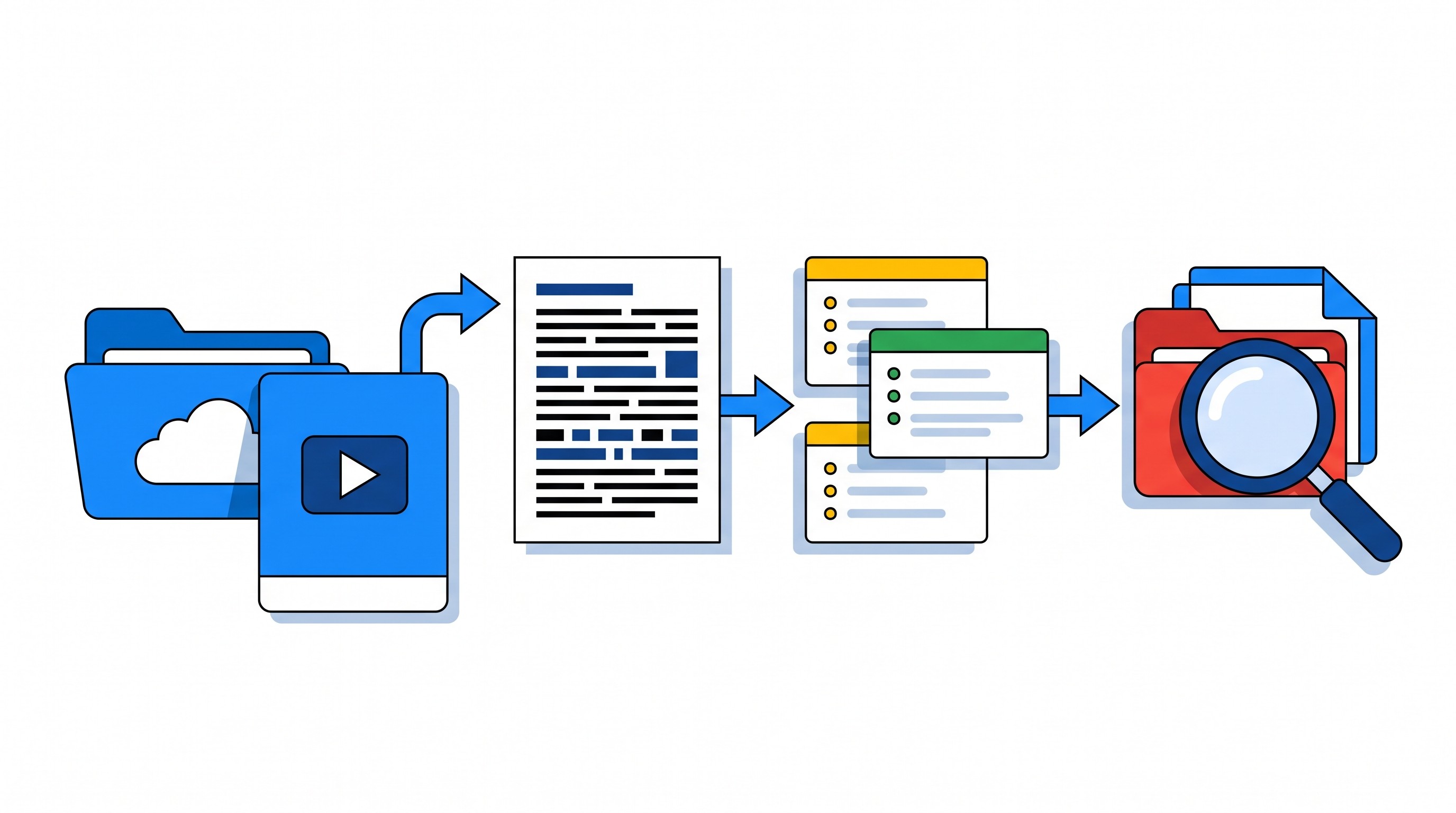
For a research workflow, Otio is a useful example because its library can hold PDFs, DOCX files, MP4/WebM videos, audio files, notes, folders, web links, and imported cloud files in one place. Its Google Drive connector uses a native picker to bring Drive files into the library, and its AI chat can work with imported library items rather than leaving the summary stranded in a separate tab.
The point is not that every recording deserves AI treatment. A ten-minute administrative meeting may need only an action list. A two-hour seminar, oral-history interview, lab meeting, or recorded lecture needs something more durable: a corrected note that can be retrieved, compared, cited, and revisited.
A good output should look less like this:
“The lecture discussed climate policy and economics.”
And more like this:
Source: ECON 604 lecture, Sept. 10, 2026
Research question: How does the lecturer distinguish carbon pricing from command-and-control regulation?
Thesis: The speaker argues that market-based mechanisms reduce compliance costs when emissions can be measured reliably.
Key distinction: Tax certainty versus quantity certainty.
Examples used: Power-sector emissions trading; fuel excise taxes.
Claims to verify: Stated cost comparison between cap-and-trade and direct regulation.
Open question: Did the speaker address distributional effects or only efficiency?
That is the difference between a summary you read once and a research note you can use later.
How to summarize a Google Drive video step by step
Start with the file itself. Make sure the Google account, shared drive, or link permission allows the recording to be opened and imported by the summarization workspace. If the file belongs to a university, employer, client, or interview participant, check the relevant policy before moving it into another tool.
Then use a connector or Drive picker when possible. Downloading a large MP4, uploading it again, renaming it, and losing the original folder context creates avoidable duplication. A direct import keeps the workflow cleaner, especially when the same project already contains lecture slides, PDFs, field notes, or interview guides.
A practical workflow looks like this:
Open the Drive file or folder
- Confirm the video plays.
- Check that the correct account is signed in.
- Rename the file before import if it has a vague name like Recording 3.mp4.
Import the file into your research workspace
- Use a Google Drive connector or picker where available.
- Put the item in the correct project folder or Space immediately.
- Keep the original recording, not just the summary.
Wait for processing
- Video and audio files usually need time to parse.
- Open the viewer, transcript surface, or processed item once ready.
- If processing fails, retry parsing or use a smaller/exported version if the tool supports it.
Generate a structured first pass
- Ask for the thesis.
- Ask for the main arguments in order.
- Ask for definitions, examples, evidence, and open questions.
- Ask the model to mark uncertainty rather than smooth it over.
Save the usable response as a note
- Keep the note beside the recording.
- Add the research question and source details.
- Correct high-value errors before relying on it.
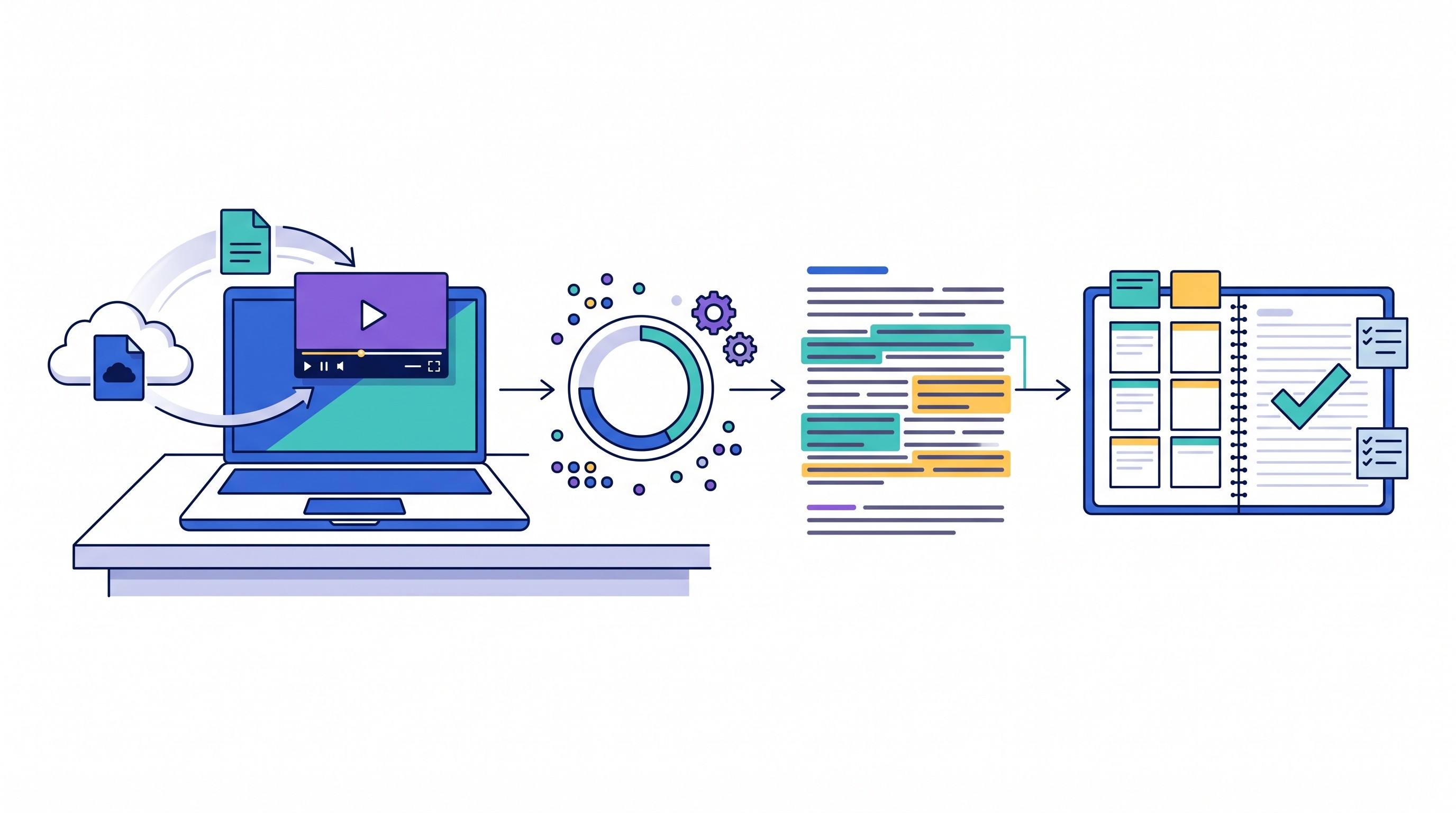
If using Otio, the clean version is: import the Drive file through the connector, let it appear in the unified library, open the dedicated video or audio viewer, then use AI chat to ask targeted questions about the imported item. Save useful selections or answers into a note so the source and analysis stay connected.
Do not ask only, “Summarize this video.” That prompt invites a bland recap and hides the parts that matter most: definitions, methods, disagreements, caveats, and claims that require verification.
Use task-specific prompts:
“List the main arguments in chronological order.”
“Extract all definitions and explain how the speaker distinguishes them.”
“Identify examples, studies, datasets, or cases mentioned.”
“Flag unclear, inaudible, or unsupported claims.”
“Separate what the speaker says from your interpretation of its relevance.”
“Create section-by-section notes for a graduate research memo.”
For long recordings, summarize in sections. A full-recording summary can flatten the middle of a lecture, where the useful example often sits. If the transcript or viewer supports navigation, work through the recording in chunks: introduction, concept explanation, evidence, discussion, Q&A, and closing.
Use a prompt that produces research notes instead of a generic summary
The prompt should tell the summarizer what kind of note you need. A lecture summary for exam prep is different from an interview memo for qualitative research. A policy seminar needs claims, mechanisms, and evidence. A usability interview needs themes, contradictions, and follow-up questions.
Use this template as a starting point:
Research-note prompt
Source type: lecture, seminar, interview, lab meeting, oral-history recording, methods demo, or conference talk.
Research question: What question should these notes help answer?
Audience: yourself, supervisor, study group, research team, class, client, or report reader.
Required output length: short memo, detailed outline, section-by-section notes, or extraction table.
Main task: extract factual content first; interpret relevance second.
Required sections:
- Source details and context
- Speaker’s central thesis or purpose
- Main points in order
- Key terms and definitions
- Examples, cases, studies, datasets, or evidence mentioned
- Methods, mechanisms, or causal claims
- Competing views or objections
- Unclear or inaudible passages
- Claims that need verification
- Open questions and follow-up tasks
Citation support: include timestamps, transcript excerpts, or source references when available.
Uncertainty rule: do not guess speaker names, identities, numbers, acronyms, or missing words. Mark them as uncertain.
For a lecture, add:
“Identify concepts likely to be exam-relevant.”
“Create a short glossary.”
“Separate definitions from examples.”
“Explain the mechanism behind each major concept.”
“List distinctions the lecturer emphasizes.”
For an interview, add:
“Extract recurring themes.”
“Identify representative statements.”
“Flag contradictions or changes in position.”
“List follow-up questions for a second interview.”
“Do not assign speaker identity unless the transcript supports it.”
For multi-speaker recordings, be explicit. Ask the model to distinguish speakers only when the transcript supports it. If the transcript labels “Speaker 1” and “Speaker 2,” use those labels. If it does not, avoid invented names.
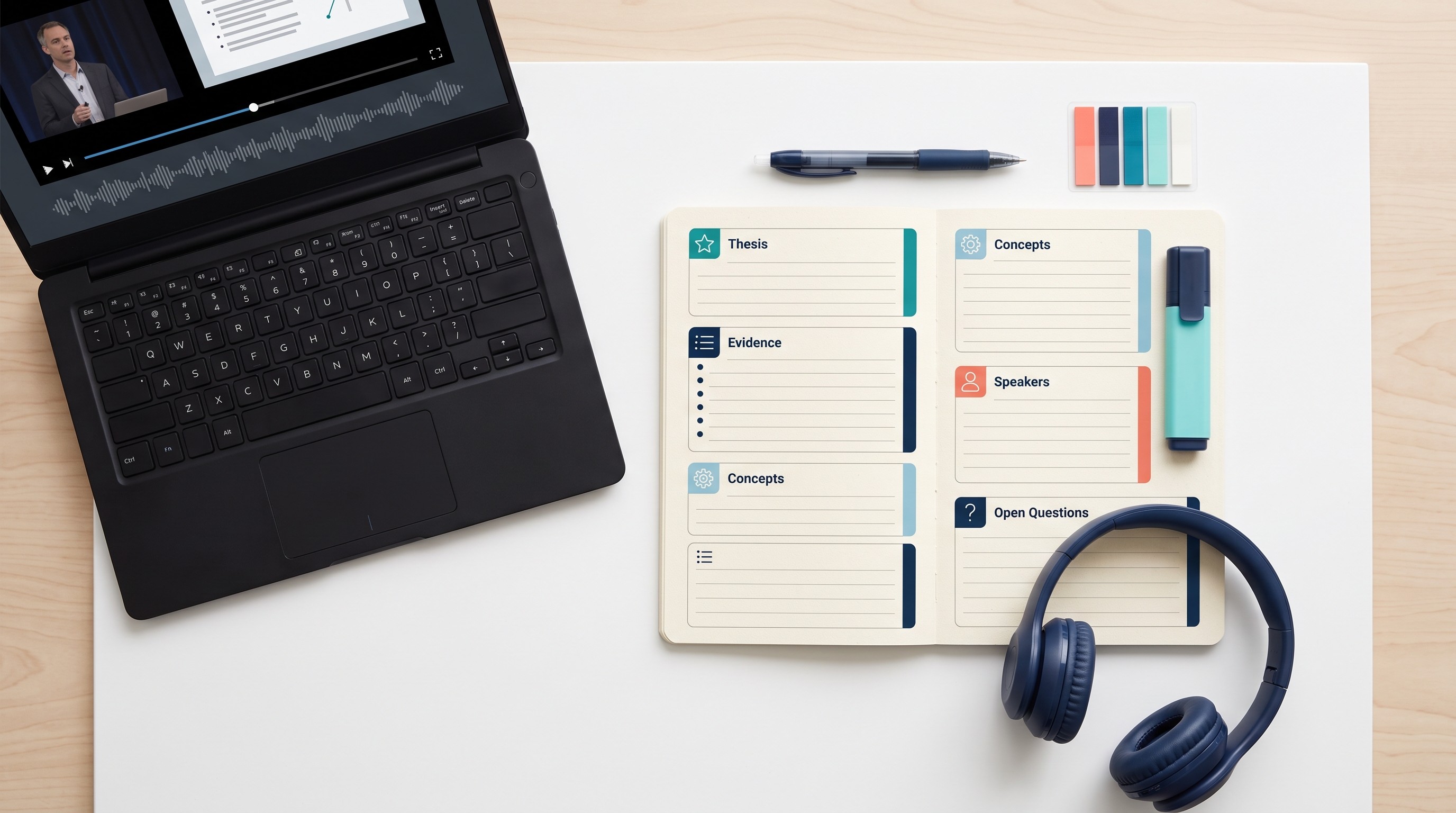
A strong prompt separates extraction from interpretation. This is the most common failure in AI research notes: the model blends what the speaker said with what the topic might imply. That makes the note sound better, but it weakens its value as evidence.
Use two sections:
What the speaker said
Claims made in the recording
Definitions used by the speaker
Examples and evidence mentioned
Qualifications and caveats
How it connects to the research question
Possible relevance
Tensions with other sources
Follow-up sources to check
Questions for later analysis
If the video is public and hosted on YouTube, the workflow changes. Public-video tools often work from YouTube URLs and captions rather than private Drive permissions. For that separate use case, see Otio’s guide to websites that summarize YouTube videos.
[[OTIO_INLINE_PROMO:%7B%22title%22%3A%22How%20will%20you%20structure%20the%20first%20pass%3F%22%2C%22description%22%3A%22Import%20a%20non-sensitive%20Drive%20recording%2C%20ask%20for%20section-by-section%20notes%2C%20and%20save%20the%20useful%20response%20beside%20the%20source.%22%7D]]
Turn one video summary into notes you can retrieve later
A video summary is only useful if it survives beyond the current session. The failure mode is familiar: you summarize a recording, copy a paragraph into a doc, and three weeks later cannot find which lecture it came from or whether the quote was exact.
Use a consistent note structure:
Source and date
- File name
- Speaker or course
- Recording date
- Import date
- Original location if needed
Research question
- The question this recording helps answer
- Related project, class, article, or chapter
Concise overview
- Three to five sentences
- No invented detail
- Enough context to decide whether to reopen the recording
Section-by-section notes
- Main points in order
- Definitions
- Examples
- Evidence or cases mentioned
- Q&A or discussion points
Quotations or transcript excerpts
- Exact wording where available
- Timestamp or transcript location when supported
- Speaker label only when reliable
Evidence to verify
- Names
- Numbers
- Study references
- Causal claims
- Claims contradicted by another source
Follow-up questions
- Questions for the next class
- Questions for a second interview
- Sources to search
- Comparisons to make across recordings
Naming matters more than it feels like it should. “Lecture summary” is nearly useless after the third file. Use filenames and tags that identify the course, project, speaker, topic, and date.
Better:
SOC701_interview_migration_policy_Participant04_2026-09-10BIOCHEM_metabolism_lecture_glycolysis_regulation_2026-09-10LabMeeting_CRISPR_delivery_methods_DrChen_2026-09-10
Worse:
RecordingSummary finalVideo notesInterview AI
If the workspace supports project folders or Spaces, put the recording, transcript, notes, slides, readings, and related papers together. Otio’s Spaces are designed for this kind of project grouping: a dissertation chapter, literature review, case file, course module, or research client can have its own library context.
That changes the next question from “What did this one video say?” to “How does this recording compare with the rest of my material?”
Useful follow-up prompts include:
“Compare this lecture with the prior lecture in the same folder. What concepts changed or became more specific?”
“Find where this interviewee discusses trust, risk, or institutional barriers.”
“Across these three recordings, list recurring themes and disagreements.”
“Which claims in this lecture need support from peer-reviewed papers?”
“Turn these notes into a draft memo outline with source-check reminders.”
When the next step is writing a report, do not jump straight from raw AI summary to prose. First clean the note, verify important claims, and organize the evidence. If you are at that stage, Otio has a separate guide to turning research notes into a report.
Check the transcript before trusting the summary
A polished summary can still be wrong. In research work, the dangerous errors are usually not absurd hallucinations. They are small distortions: a negation dropped, a number misheard, a speaker’s caveat removed, or a technical term replaced with a more common word.
Check these first:
Names
- People
- Organizations
- Case names
- Authors
- Places
Technical terms
- Medical terms
- Legal terms
- Statistical methods
- Acronyms
- Domain-specific jargon
Numbers
- Dates
- Percentages
- Sample sizes
- Costs
- Dosages
- Time periods
Quotations
- Anything you may quote later
- Strong claims
- Claims about motive, causality, or responsibility
Negations and qualifications
- “Not”
- “Except”
- “Only if”
- “In this sample”
- “Under these assumptions”
Overlapping speech
- Group discussions
- Seminar Q&A
- Interviews with interruptions
- Panels
Replay the source when a sentence matters. If a transcript says, “The intervention did improve outcomes,” but the speaker may have said, “did not improve outcomes,” the summary is not safe to use until checked. Record the corrected wording in the note.
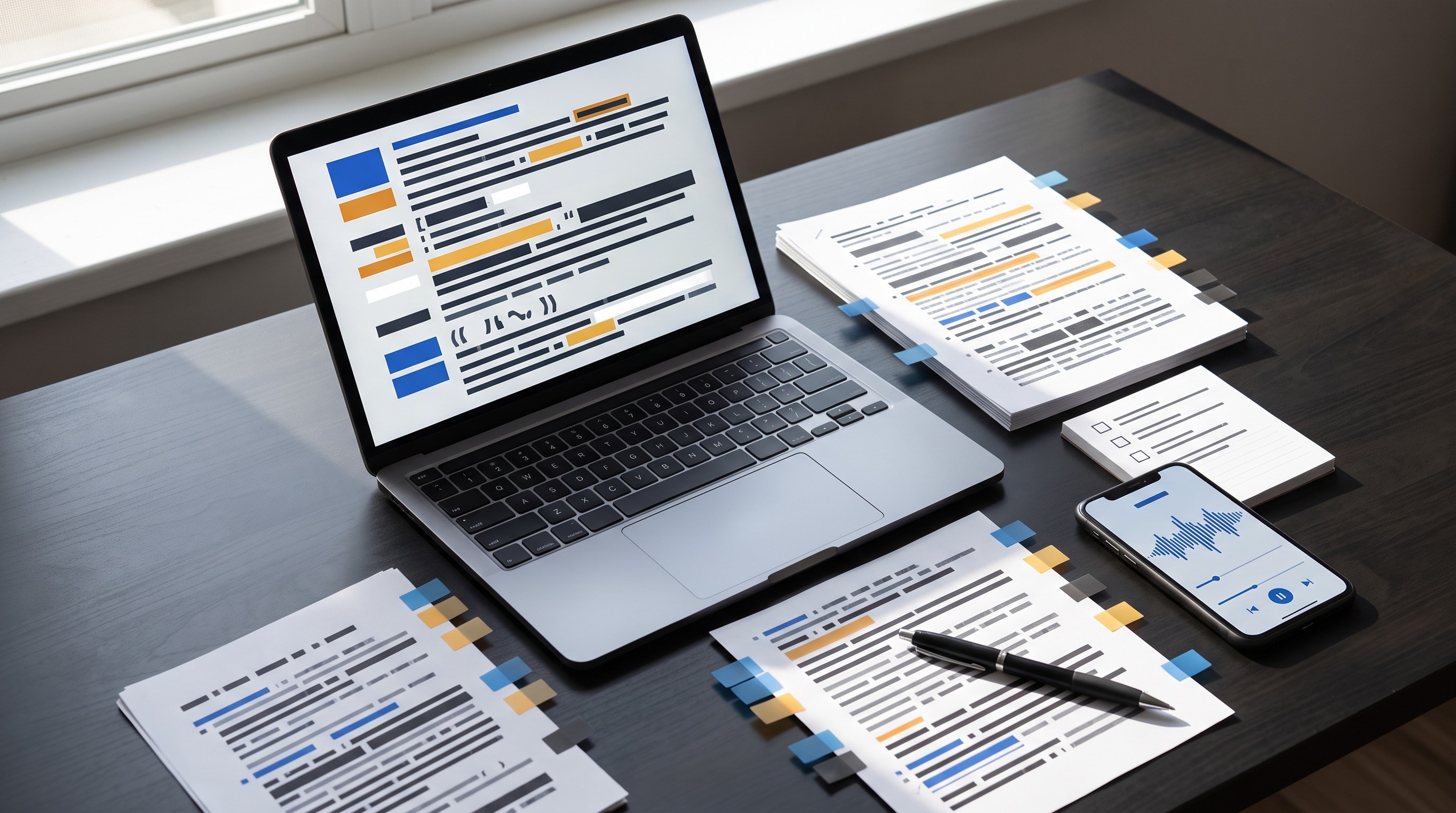
Do not treat the summary as proof that the speaker made a claim. The original recording, transcript excerpt, or timestamp is the evidence. The summary is an index.
Common failure cases include:
Poor microphone quality
Missing audio at the beginning or end
Strong background noise
Accents or code-switching
Multiple speakers without clear labels
Technical vocabulary absent from the model’s context
Slides containing information not spoken aloud
Demonstrations where the meaning is visual rather than verbal
Screen recordings with code, equations, or diagrams
Speakers correcting themselves later in the recording
The slide issue is easy to miss. A lecture recording may contain critical information on slides that is never spoken aloud: equations, figures, tables, citations, or definitions. A speech transcript cannot capture all of that. If the recording relies heavily on visuals, treat the transcript summary as incomplete unless the tool also analyzes images or you review the slides separately.
Confidentiality is a separate checkpoint. Before uploading sensitive interviews, unpublished research, client recordings, classroom discussions, patient-related material, or personal data, check institutional rules, participant consent, and the service provider’s data policies. Convenience does not override consent or confidentiality.
Google Drive video summarizer workflow: convenience versus control
There are three common ways to summarize Google Drive videos. The best choice depends on the sensitivity of the file and what you need to do with the output later.
Workflow | Setup effort | Duplicate-file risk | Searchability | Privacy/control | Best for |
|---|---|---|---|---|---|
Direct Drive import into a research workspace | Low after connector setup | Lower | Strong if notes and source stay together | Requires review of third-party access and retention | Lectures, seminars, recurring research recordings |
Download from Drive, then upload to a summarizer | Medium | Higher | Depends on where notes are saved | More manual control over what gets uploaded | One-off files, tool testing, limited sharing |
Manual transcription or local workflow | High | Low to medium | Depends on your system | Highest control when kept local | Sensitive interviews, restricted data, policy-bound work |
The non-obvious tradeoff is that the most convenient workflow creates another place where the recording exists. A connected workspace reduces friction and improves retrieval, but it also adds access permissions, retention settings, team sharing, and vendor review to the workflow.
Use direct import when:
The recording is non-sensitive or approved for the tool.
You will revisit it later.
You need to compare it with other lectures, interviews, papers, or notes.
You want source, transcript, and summary in one searchable project.
You expect to ask follow-up questions across multiple files.
Use a local or manual path when:
The recording contains confidential participant data.
Consent did not cover third-party AI tools.
Your institution restricts cloud processing.
The file contains unpublished research ideas or sensitive findings.
You need maximum control over storage and deletion.
Speed is not the only variable. A summary can save time compared with watching a full recording, but skipping directly to it can cost context. Tone, hesitation, disagreement, demonstrations, jokes, audience questions, and qualifications often carry meaning. In interviews, those details may be analytically important.
For audio-first material such as podcasts, the workflow is similar but not identical. Podcasts are often public, feed-based, and less tied to Drive permissions. If that is the use case, see the guide to podcast summarizers for students, researchers, and creators.
The practical decision rule is simple: import directly when retrieval and cross-source comparison matter; use a local or manual path when confidentiality or institutional policy outweighs convenience.
A repeatable next action for your next recording
Choose one non-sensitive lecture, meeting, or interview recording in Google Drive. Import it into your research workspace, generate a structured summary, and verify five important claims against the transcript or playback before saving the final note.
Use the same note template each time. The value compounds when summaries become comparable across lectures, interviews, and meetings. A consistent structure lets you scan across recordings by concept, speaker, date, evidence, and open question.
If the first pass is vague, do not ask for “more detail” alone. Improve the prompt:
Add the research question.
Specify the audience.
Require headings.
Ask for section-by-section notes.
Tell it to separate facts from interpretation.
Tell it to mark uncertainty instead of guessing.
Ask for transcript excerpts or timestamps where available.
A good Google Drive video summarizer does not merely shorten a recording. It turns private Drive-hosted media into source-linked research notes that can be checked, searched, and reused.
If that is the workflow you need, try importing one non-sensitive Drive recording into Otio, generate a structured note, and verify the important claims before using it in your project.
FAQ
Q: Can I summarize a private Google Drive video?
A: Yes, if the summarization workspace can access the file through a supported Google Drive connection or upload workflow. Confirm permissions, consent, and privacy requirements before importing confidential recordings.
Q: What should I do if the Google Drive video has no reliable transcript?
A: Process the video or audio through a transcription-capable tool, then check names, technical terms, numbers, and unclear passages against playback. If the recording quality is poor, treat the summary as incomplete.
Q: How do I summarize a lecture without losing useful details?
A: Request section-by-section notes containing concepts, definitions, examples, evidence, open questions, and transcript references. Review the source for slide content, qualifications, and details that may not appear in the spoken summary.
Q: Is a Google Drive video summarizer suitable for research evidence?
A: It is suitable for finding themes and creating a first-pass note, but the summary should not be treated as the original evidence. Preserve and verify the relevant recording passage or transcript before citing or relying on a claim.
[[OTIO_FOOTER_PROMO:%7B%22title%22%3A%22Apply%20this%20workflow%20to%20your%20own%20recordings%22%2C%22description%22%3A%22Bring%20one%20lecture%2C%20interview%2C%20or%20meeting%20into%20your%20research%20library%2C%20then%20verify%20five%20important%20claims%20against%20its%20transcript%20or%20playback.%22%7D]]