
Document Review
6 Document Tools to Organize Files in 30 Minutes
Discover the best document management software to organize files in 30 minutes and keep your team’s documents easy to find.

Staring at a cluttered desktop folder with thousands of files while searching for one critical document wastes valuable time every week. Modern businesses need organized, searchable digital filing systems that support efficient workflows and quick retrieval. Seven powerful document management tools can transform chaotic file storage into streamlined systems within 30 minutes, each offering distinct advantages for version control, cloud storage, and intelligent search capabilities.
These platforms provide varying strengths, from optical character recognition for scanned files to collaboration features for team projects and secure encryption for sensitive data. Finding the right solution depends on matching specific organizational needs to the appropriate tool features, and Otio can serve as your AI research and writing partner to quickly identify which platform best aligns with your requirements.
Table of Contents
Why Students and Professionals Struggle to Organize Files Effectively
The 30-Minute Workflow to Organize Your Files Using Document Tools
Organize Your Files in 30 Minutes Without Searching Everywhere
Summary
Knowledge workers lose 1.8 hours daily searching for information they know exists but can't locate quickly, according to 2023 McKinsey research. That's nine hours per week spent on navigation rather than on actual work. The problem isn't the volume of files or lack of storage space. It's the absence of a retrieval system that works independently of memory.
Research shows that 7.5% of all documents are lost in typical file systems, but the higher cost isn't due to lost files. It's the decision tax paid every time you need to choose between multiple versions of the same document. Each question about which file contains the latest edits or feedback burns cognitive energy before any real work begins, and this friction compounds across multiple projects daily.
Location-based recall works when managing 20 files, but breaks down completely at 200. The structural weakness isn't forgetfulness. It's the lack of consistent naming rules, folder hierarchies, or metadata that would allow retrieval to function without relying on whether you remember saving something three months ago.
Task-switching research by Rubinstein, Meyer, and Evans found that interruptions to locate documents don't just cost search time. They destroy the mental state built before the interruption. Every retrieval loop forces a shift from creation mode to navigation mode and back, and regaining focus after that break carries a hidden productivity cost that accumulates across every work session.
The 30-minute fix isn't about cleaning up every file ever saved. It's about building infrastructure through centralized storage, automated naming templates, and regular five-minute maintenance reviews. Systems that depend on remembering where files were saved break when memory fails, while systems built on rules set once continue working regardless of recall.
Otio's AI research and writing partner addresses this by shifting the interaction from file retrieval to content retrieval, allowing users to ask questions across their entire document library and get answers pulled from relevant sections without switching out of research mode.
Why Students and Professionals Struggle to Organize Files Effectively
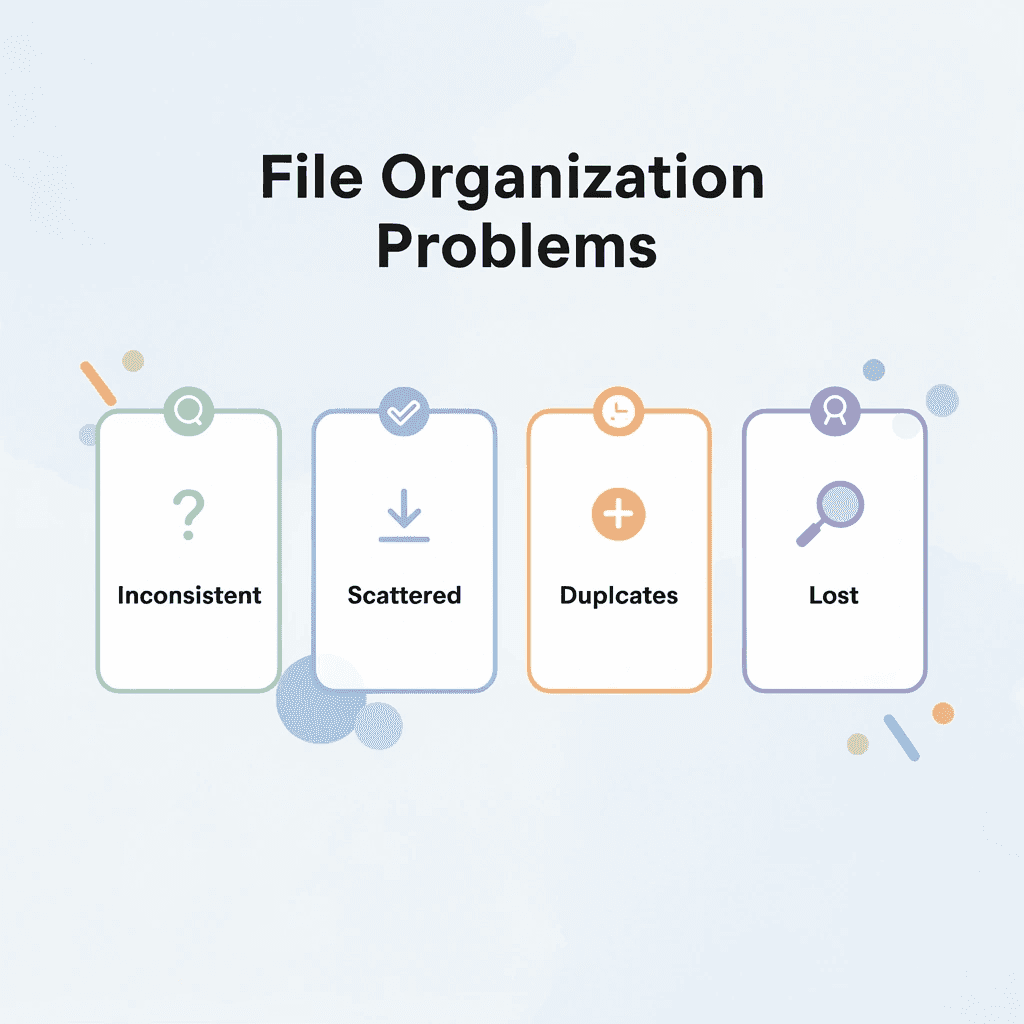
Students and professionals struggle to organize files effectively because they save documents without a clear system, use inconsistent names, and store files across multiple locations. This creates scattered folders, duplicates, and wasted time searching for files. The problem isn't the number of files or lack of tools: it's the absence of a file system that dictates where files go, how they're named, and how they're retrieved.

🎯 Key Point: The biggest mistake is treating file organization as an afterthought rather than establishing naming conventions and folder structures from the start.
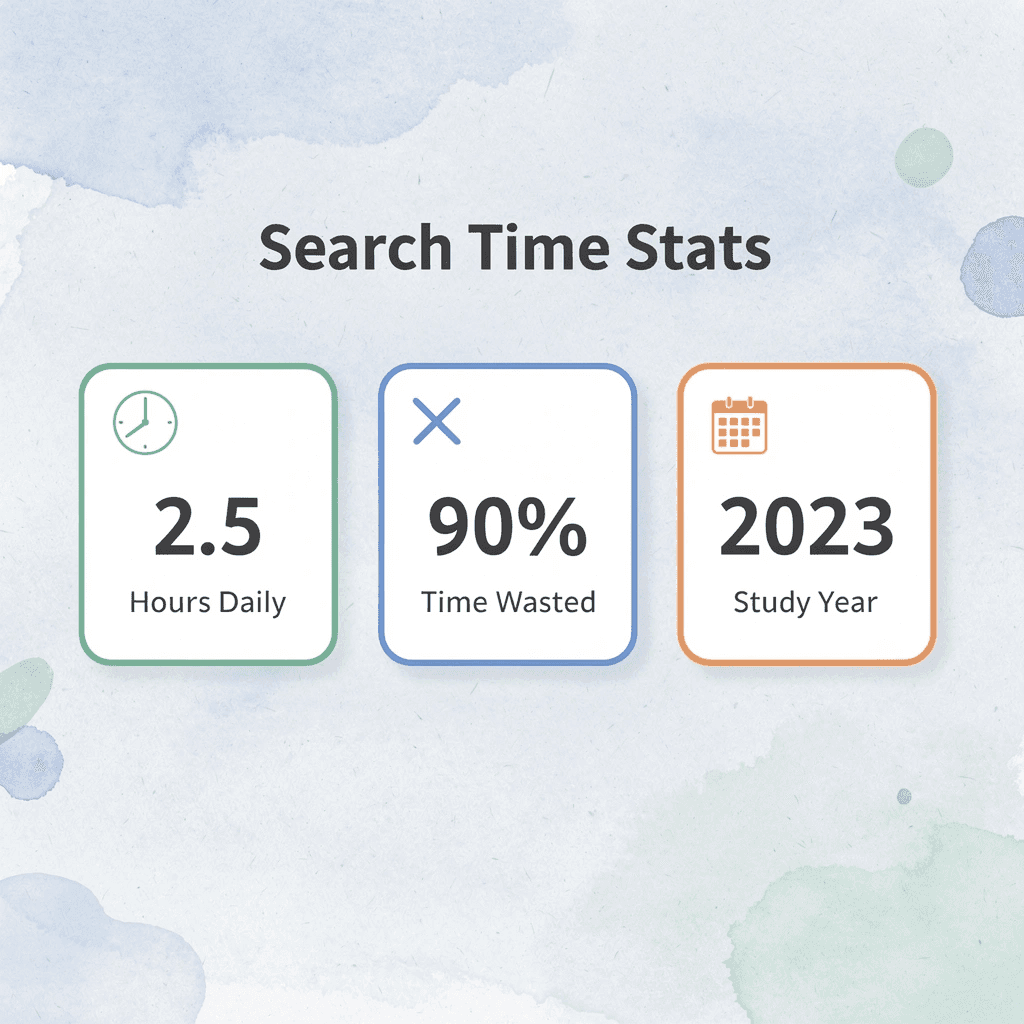
"The average knowledge worker spends 2.5 hours per day searching for information, with poor file organization being a major contributor to this lost productivity." — McKinsey Global Institute
⚠️ Warning: Without a consistent file system, even the most advanced search tools become ineffective when you can't remember what you named a document or where you saved it.
Common File Organization Problems | Impact on Productivity |
|---|---|
Inconsistent naming | 30% more time searching |
Multiple storage locations | Duplicate files and confusion |
No folder structure | Lost documents and missed deadlines |
Saving Files Without a Clear Structure
Most people save files wherever feels easiest, such as downloads, the desktop, or temporary folders, believing they'll be easy to find. But saving isn't organizing. When files lack structure, finding them becomes harder over time. According to 2023 McKinsey research, knowledge workers spend 1.8 hours daily searching for information they know exists but can't locate quickly. That's nine hours per week lost to navigation instead of creation.
Using File Names That Don't Help Later
Files saved with unclear names like "final," "updated," "doc1," or "latest version" seem practical initially, but become useless later. When searching, people open multiple files to determine which is correct, confuse old versions with current ones, and waste time guessing contents. The problem isn't missing files but names that lack clarity. Naming conventions matter more than most realize.
Files Get Scattered Across Too Many Places
Most students and professionals store files across multiple locations: local folders, cloud drives, email attachments, messaging apps, and note-taking tools. Memory suffices until the file volume grows, at which point finding files requires searching multiple incomplete systems. The real cost is not storage space but cognitive load. Each additional location adds another place to check, another interface to search, and another login to remember.
Duplicate Files Keep Building Up
When people can't quickly find the file they need, they often create another version. They download the same file again, rename a copy instead of updating the original, save edits as separate documents, and keep multiple "final" versions. Once duplicates accumulate, organizing the system becomes harder. The problem shifts from storage to decision fatigue: which version is correct, which one did the team see, which one contains the latest edits?
What happens when there's no clear filing system?
Without folder rules or a filing method, every new document becomes a fresh decision. People create unnecessary folders, place similar files in different locations, organize by project one day and by file type the next, and change the system midway. This inconsistency compounds over time, turning what should be a simple workflow into a daily negotiation with past choices.
How can researchers overcome document chaos?
For researchers and students managing dozens of PDFs, articles, and reference documents, this mess becomes costly. Platforms like Otio shift focus from storing files to understanding them. Instead of hunting for the right document, users can ask questions across their entire research library and get contextualized answers. The system organizes files by meaning and relevance to the work at hand, not by name or location. Disorganization creates a hidden cost that compounds daily.
Related Reading
The Hidden Cost of Managing Documents Without a System
That compounding cost manifests in three ways: wasted minutes that destroy momentum, broken trust in your own system, and cognitive friction that makes every task harder than it should be. The damage accumulates across weeks and months, until finding a file becomes harder than the work itself.

🎯 Key Point: The real cost isn't just the time lost to searching; it's the mental energy drained by constantly fighting your own disorganized system.
"The damage accumulates across weeks and months, until finding a file feels harder than the work itself."
⚠️ Warning: When your document management becomes a daily struggle, you're not just losing productivity, you're training your brain to avoid important tasks altogether.
Why does search time matter less than mental disruption?
When you stop in the middle of a task to find a document, you're not losing the two minutes spent searching; you're losing the mental state you built before the interruption. According to research by Rubinstein, Meyer, and Evans (2001), switching between tasks reduces efficiency and increases mental load. Every search loop forces your brain to shift from creation mode to navigation mode, then back again. By the time you return to writing, analyzing, or synthesizing, you've lost your train of thought. The cost isn't retrieval; it's regaining focus after retrieval breaks it.
How do retrieval interruptions affect research workflows?
This problem worsens for anyone working with research materials, academic papers, or technical documentation. When your work depends on synthesizing information from multiple sources, stopping to find something disrupts your understanding. Platforms like Otio solve this by letting users ask questions across their entire document library without leaving their work. Instead of searching through folders for the right PDF, you stay focused on your research while the system finds relevant content based on meaning, not file names.
How does decision friction multiply with duplicate files?
The pattern starts simply: you can't find the latest version, so you download it again. Unsure whether you updated the original, you saved a copy. Someone sends an edited version, and now you have three files with similar names. According to Daida, 7.5% of all documents get lost in typical file systems. But the bigger problem isn't lost files, it's the decision tax you pay every time you choose between versions.
Why does file confusion drain cognitive energy?
Which file did you share with your professor? Which one has the feedback included? Each question consumes mental energy before any actual work begins. When this happens five times a day across multiple projects, the drain becomes significant. You're managing doubt about which file to trust, not managing files.
Why do memory-based systems fail at scale?
Relying on memory works with 20 files but breaks at 200. Location-based recall, remembering where you saved something, depends on how recent it is and how often you've used it. Research by Barreau and Nardi (1995) showed that people rely heavily on location memory when storing files, but those habits become unreliable as information volume increases. Files from last week remain easy to find. Files from three months ago disappear from memory, even when the work still matters.
What causes a retrieval system breakdown?
The structural weakness isn't forgetfulness. It's the absence of a retrieval system that works independently of your memory. Without consistent naming rules, folder hierarchies, or metadata, every old file becomes a puzzle. You know it exists and remember creating it, but the system offers no path back except trial and error.
How do small inefficiencies compound over time?
Poor document organization hurts performance incrementally: a few extra minutes here, a duplicate file there, confusion about which version to use. These small problems accumulate across every work session, project, and week. According to DocuExprt, the cost of managing documents by hand ranges from $5 to $25 per document, including time, errors, and rework. That's the price of operating without a scalable system.
What opportunities do you lose to disorganization?
The damage isn't what you lose; it's what you never create because friction got too high. Ideas you didn't pursue because finding background research felt too hard. The analysis you postponed because tracking down the right data seemed overwhelming. Writing you avoided because assembling source materials required more energy than you had. The hidden cost of disorganization is measured in lost momentum, lost focus, and work that never happens. But what if you could fix this in less time than you've already wasted today?
6 Document Tools to Organize Files in 30 Minutes
The 30-minute fix builds a system that helps you find things without relying on your memory. You need tools that bring everything together in one place, use automatic organization, and help you locate files based on what's inside them, not what you called them. The goal is to make things predictable, not perfect.

🎯 Key Point: The most effective document organization systems work automatically in the background, requiring minimal daily maintenance while delivering maximum findability.
"The average knowledge worker spends 2.5 hours per day searching for information, with 90% of that time wasted on poorly organized files." — McKinsey Global Institute, 2023
💡 Tip: Focus on searchable content over perfect folder structures. Modern tools can find documents based on keywords inside files, making your naming conventions less critical than the actual content you create.
1. Cloud Storage That Centralizes Without Thinking
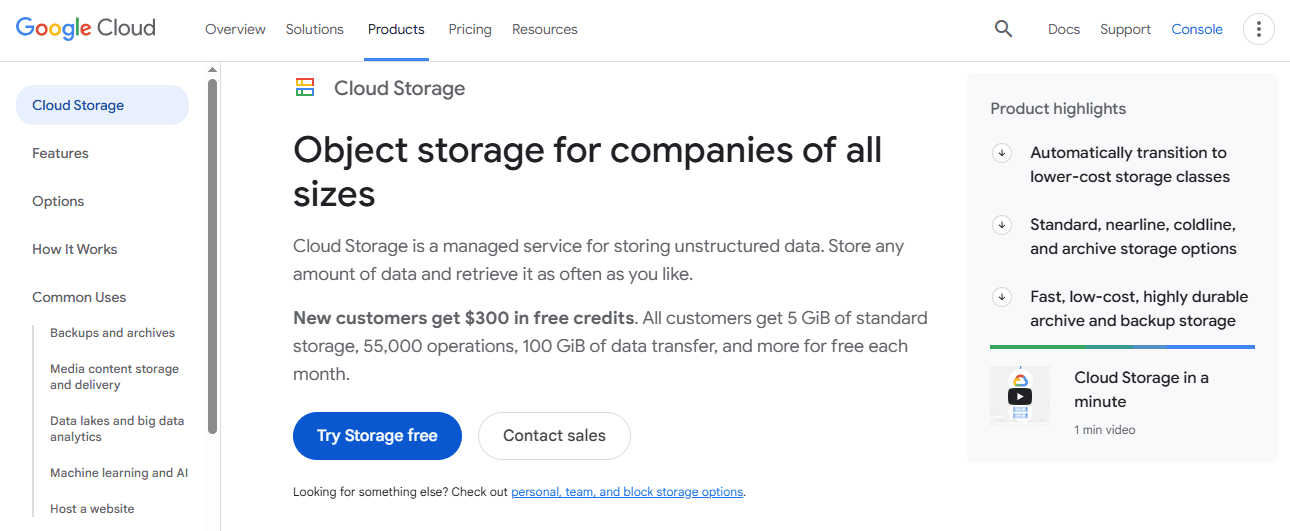
Google Drive and OneDrive address the problem of files scattered across multiple locations by providing a central hub. Upload files once, access them from any device, and let the platform handle syncing. The structure requires a single decision: this is where files go. The weakness shows up when you're trying to find something specific. Folder hierarchies help only if you remember which folder you chose months ago. Search works only if file names contain the right keywords. Most cloud storage systems stop here: they store and sync, but don't understand what's inside the files you're searching for.
2. Dropbox for Automatic Version Control
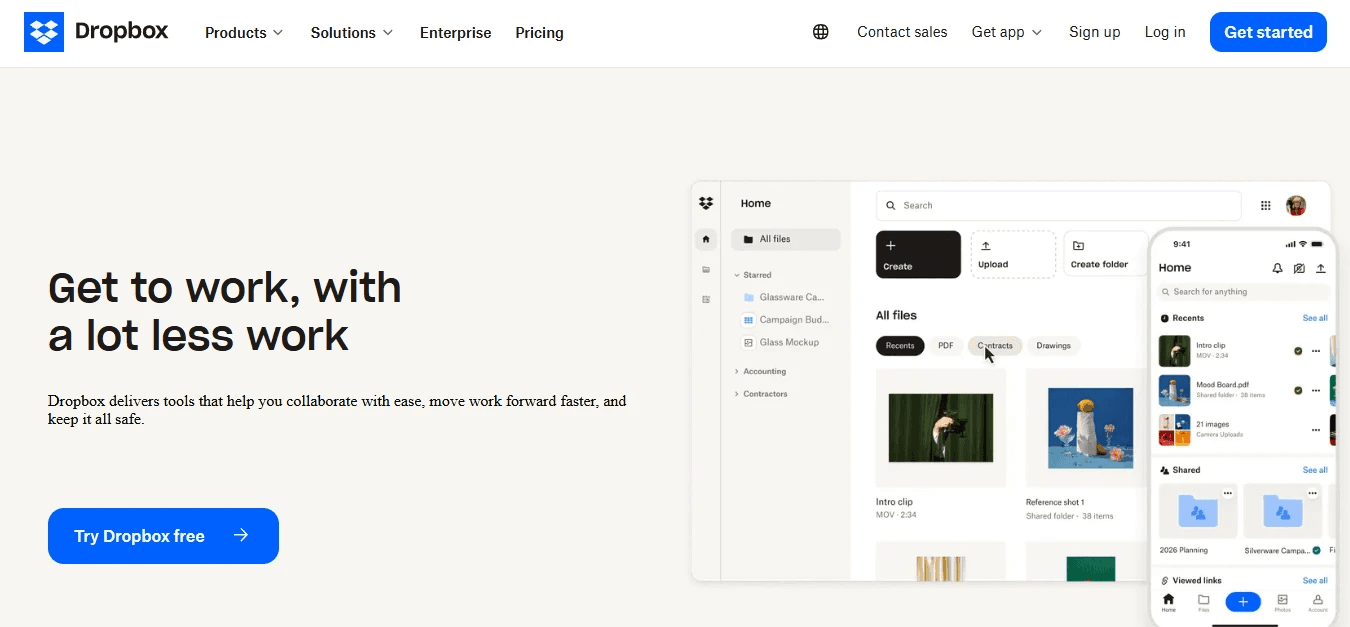
Dropbox keeps track of every version you save, so you can revert to earlier drafts without saving multiple copies. This solves the "final_v2_ACTUAL_final" problem and lets you check your history instead of guessing which version you shared. The tradeoff is storage limits. Free accounts quickly reach capacity, forcing you to either pay for more space or delete files. For students managing dozens of research papers or professionals juggling client deliverables, this constraint creates difficult choices about what to keep.
3. Notion for Linking Files to Context
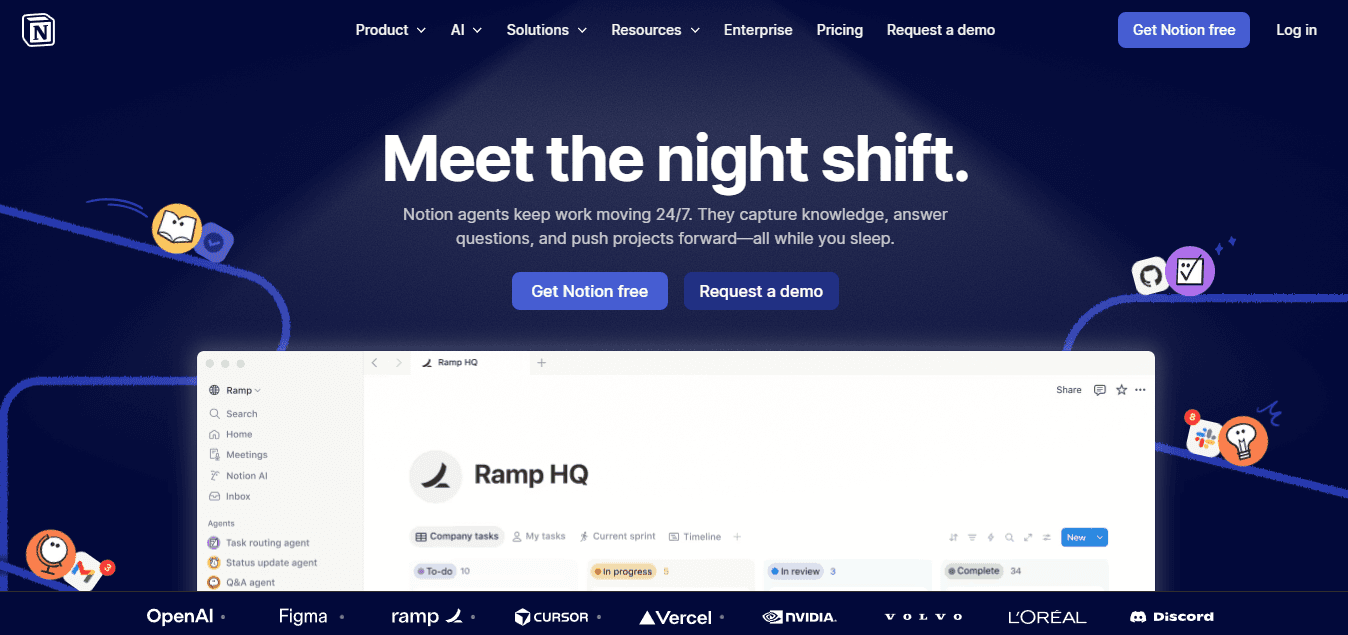
Notion treats documents as nodes in a connected workspace. You can link a research paper to the project it supports, tag it with relevant themes, and embed it alongside your notes. When writing, you navigate by topic rather than by file name. Notion rewards people who invest time building their workspace structure upfront. If you dump files into pages without planning, you end up with the same chaos as before, just in a different interface. The tool provides infrastructure to organize intentionally; it doesn't organize for you.
4. Evernote for Capturing Everything in One System
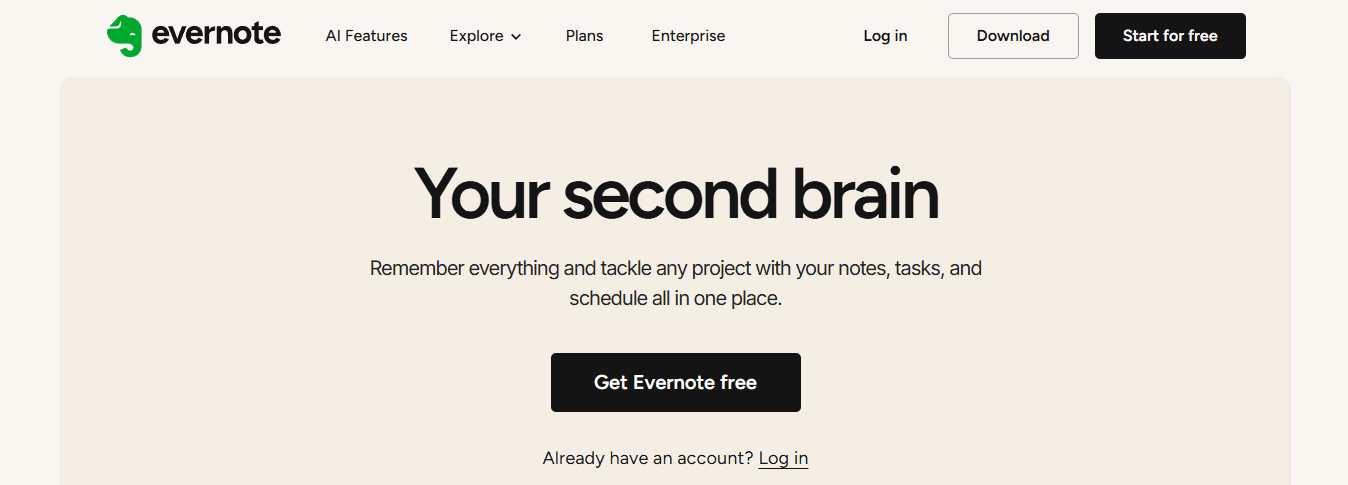
Evernote consolidates files, web clips, scanned documents, and handwritten notes into one searchable database. Optical character recognition (OCR) makes text inside images searchable, allowing you to clip articles, attach PDFs, and add commentary within the same note. The problem comes from having to find things again. With thousands of saved items, search results become cluttered with 30+ keyword matches alongside what you're looking for. Without careful tagging or notebook organization, Evernote becomes a digital junk drawer.
5. Box for Team-Based Document Control
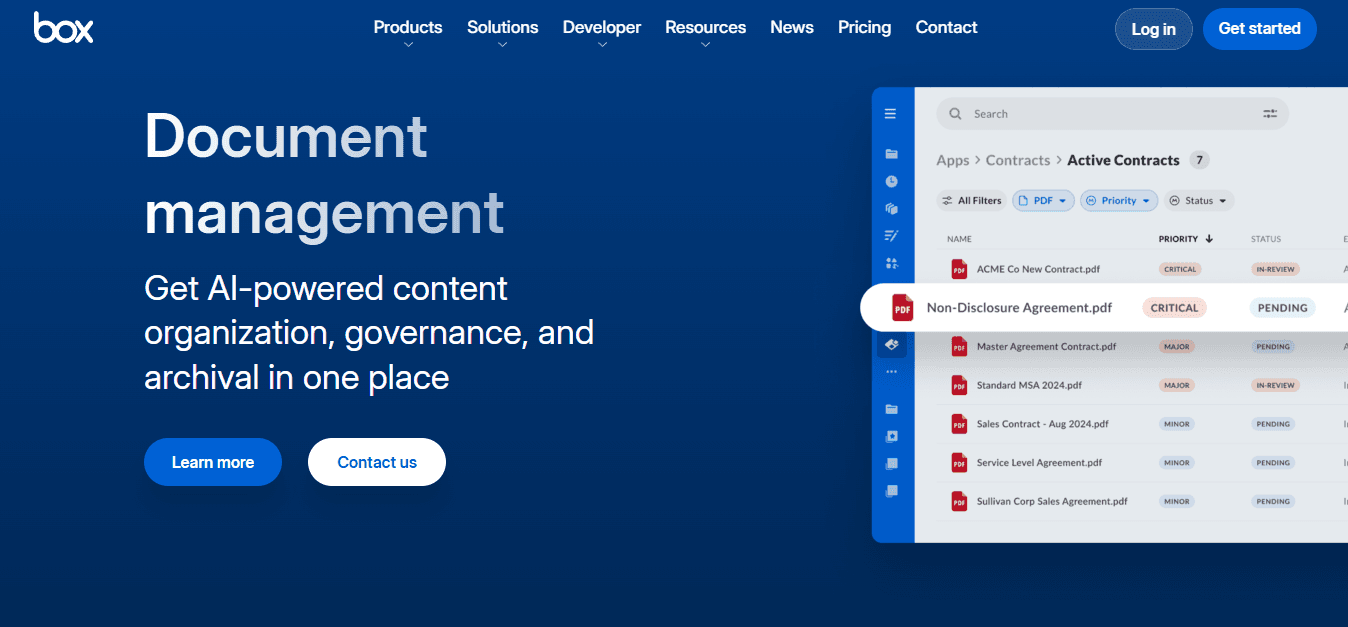
Box adds permissions, audit trails, and approval workflows to basic file storage. When multiple people need access to the same documents, but not everyone should edit, share, or delete them, you can see who opened a file, when they accessed it, and what changes they made. For industries with strict regulations or collaborative research teams, visibility is essential.
What are the trade-offs of using Box?
The cost is complexity. Box assumes you need enterprise-grade controls, which means more settings, more admin work, and more decisions about who can do what. For individuals or small teams, that overhead feels excessive. The tool works best when the stakes justify the structure.
6. Zoho WorkDrive for Organized Collaboration

Zoho WorkDrive organizes files into team folders with role-based access. You create a folder for a project, invite collaborators, and everyone sees the same structure. No one emails attachments or maintains out-of-sync local copies. The shared workspace becomes the single source of truth. The limitation is adoption. If half your team uses Zoho and the other half defaults to email attachments, you're back to fragmentation. The tool only works when everyone commits to the same system.
Why does storage alone fail for research?
Storing documents and understanding them are different challenges. You can organize a hundred PDFs into perfectly labeled folders and still waste time opening each one to find the paragraph that answers your question. For researchers synthesizing information across multiple sources, that gap becomes expensive.
How does meaning-based search change research workflows
Otio changes how you think about files. Instead of searching by name or folder, you ask questions across your entire research library and get answers from the documents that matter. The system reads your files, understands them, and highlights the exact parts relevant to your current work. You stay in research mode instead of stopping to search for files each time you need a reference. Traditional tools ask: where did you save it? Otio asks, "What do you need to know?" That shift in thinking transforms your workflow from finding files to assembling ideas. You're building understanding from the documents you've already collected. Putting everything in one place solves only half the problem. The other half is what you do once you've found the file, and that's where most people run into trouble.
The 30-Minute Workflow to Organize Your Files Using Document Tools
Finding files shouldn't require remembering where you saved them three months ago. You need a system that specifies where new files belong, what they should be called, and how to find them later without opening twelve folders.
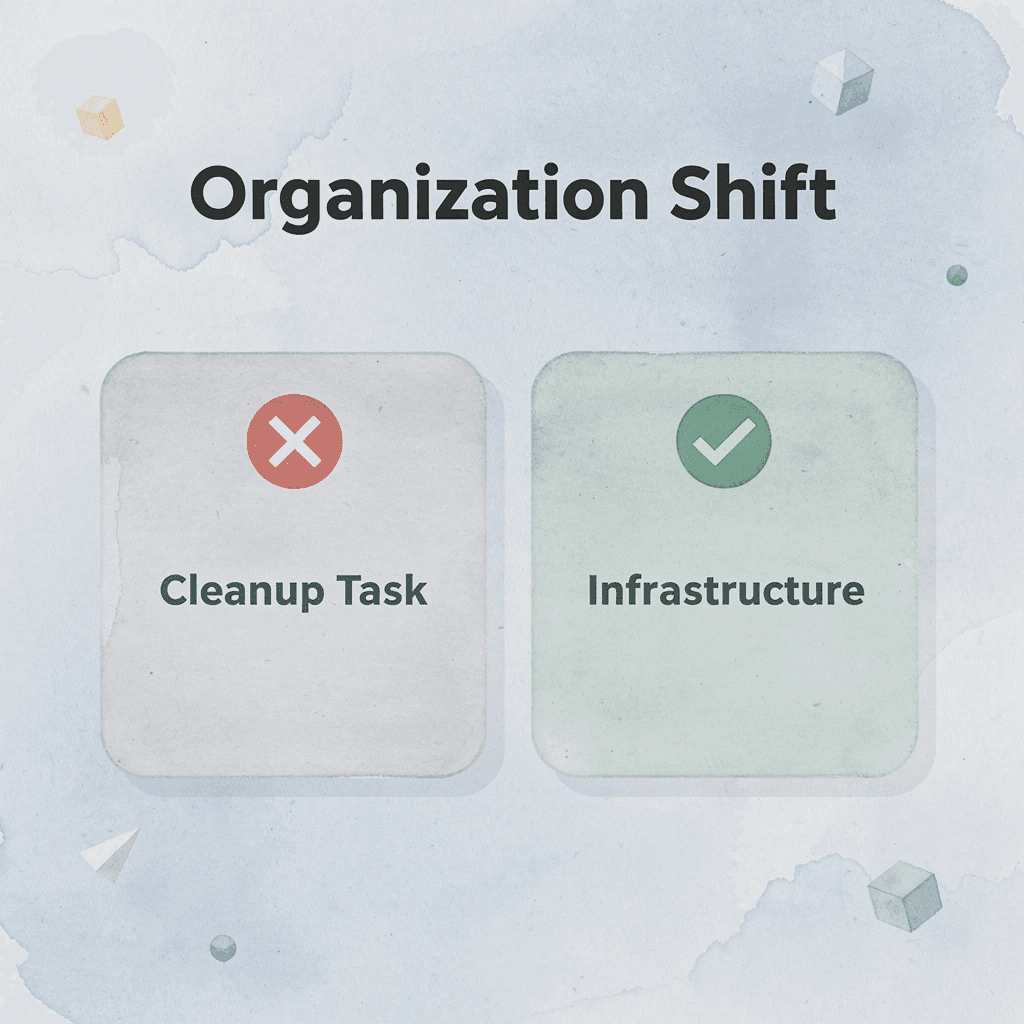
🎯 Key Point: The shift happens when you stop treating the organization as a cleanup task and start treating it as infrastructure. You're building a default path for every document that enters your workspace.
⚠️ Warning: Without a structured file system, the average knowledge worker spends 2.5 hours per day searching for documents and information they know exists but can't locate efficiently.
"Professionals lose up to 21% of their productive time due to poor document organization and file retrieval challenges." — McKinsey Global Institute, 2023
What does it mean to pull everything into visible range?
Start by making the problem visible. Open your Downloads folder, Desktop, cloud drives, and project folders. Create a temporary folder called "Sort" and move everything into it: every PDF, spreadsheet, and document from the past year.
Why does making the mess bigger help you organize better?
This feels counterintuitive; you're making the mess bigger before making it smaller. But you can't organize what you can't see. According to research by Barreau and Nardi (1995), location-based retrieval depends on recent interaction. Bringing everything into one place forces you to acknowledge what you're working with and eliminates the fragmentation that makes retrieval unpredictable. Once everything lives in the same place, you can build rules that apply to all of it.
Strip Out What Doesn't Serve Current Work
Filter the "Sort" folder by deleting duplicate files, outdated versions, one-time downloads, and files from completed projects. Every file you keep requires naming, categorizing, and searching later. Research teams that accumulate hundreds of PDFs often find that many become irrelevant as the focus narrows. Keeping everything creates noise rather than more options. Ask: "Does this support work I'm doing now or expect to do soon?" If not, the file costs more to keep than to discard.
Name Files So They Describe Themselves
Rename files using a consistent format like "project-name_topic_date" or "category_description_version." For example, "thesis_literature-review_2026-04" clearly indicates the file's contents without opening it, whereas "notes-final-v3" provides no useful information. The pattern matters more than the specific format. Consistency makes search predictable: you can find files by typing fragments of the pattern without relying on memory. According to McKinsey (2023), knowledge workers spend 1.8 hours daily searching for information, often opening files, discovering they're incorrect, and trying another. Descriptive file names eliminate this guessing loop.
Build Folder Categories That Match How You Think
Create a top-level folder structure based on how you actually use files. Common patterns include organizing by project, document type, time period, or workflow stage. Choose one primary organizational method and stick with it.
How do you create an effective folder hierarchy?
For example, if you work on multiple research projects simultaneously, create folders named by project, with subfolders for raw data, references, drafts, and final outputs. Keep the hierarchy shallow: two levels deep is usually sufficient, with three as the maximum before navigation becomes difficult.
What makes a folder structure sustainable?
Your structure should answer one question: when I need this file again, where will I look first? If the answer changes depending on your mood or the day of the week, your structure is too complex. Simplicity works. Complexity breaks.
How do you choose the right primary system?
Pick one tool to be your single source of truth: Google Drive, OneDrive, Dropbox, or Notion. Set it as your default save location and configure automatic uploads from your phone, email attachments, and desktop. This eliminates the question "where did I save this?" by ensuring the answer is always the same.
Why does storage alone fall short for researchers?
For researchers working across dozens of academic papers, technical reports, and reference materials, centralized storage becomes critical. But storage alone doesn't solve the deeper problem when bringing together information from multiple sources; you need to find the specific paragraph, data point, or argument buried inside a file, not just locate the file itself. Traditional file organization hits its limit here. You can label a PDF perfectly and store it in the right folder, yet still waste time opening it to scan for the section you need.
How does content retrieval change the research workflow?
Platforms like Otio change how you interact with information. Instead of asking "which document has this information?" you ask the system directly. The AI reads across your entire research library and finds the exact passages that answer your question, keeping you focused on synthesizing ideas rather than searching. Traditional organization asks, " Where is the file? Otio asks What does the file say? That shift in thinking transforms your workflow from finding files to understanding information.
What three rules should you establish for new files?
Write down three rules for new files: where they get saved, how they're named, and which folder category they belong to. Automate those rules. For example: all research PDFs get saved to Google Drive, named "topic_author_year," and filed under "Research/Active." All meeting notes go to Notion, titled "project-name_meeting-date," and tagged with participant names. All drafts get saved to "Drafts/In-Progress" until reviewed, then moved to "Drafts/Final."
How does removing decisions make the system work?
The system works because it removes the decision from the moment of saving. You follow a rule you made once instead of choosing where to put the file every time. After two weeks, the system feels automatic. After a month, it becomes invisible.
What does the transformation look like?
You started with files scattered across Downloads, Desktop, email, and three different cloud drives. You end with everything in one system, duplicates removed, files named clearly, and a structure that matches how you work. The old pattern was save wherever, search everywhere, open multiple files, guess which version is current. The new pattern is safe to one place, follows one naming rule, navigates one structure, and trusts the system. That shift removes the mental burden of wondering where things are.
How do you know if the system works?
The real test isn't whether you organized your files today, but whether you can find what you need three months from now without thinking about it. But organizing files only solves the problem if you can maintain the system without constant effort.
Related Reading
How To Summarize An Article With Ai
AI-Based Knowledge Management System
How To Analyze A Research Paper
Personal Knowledge Management Tools
Best Tool To Chat With Documents
Organize Your Files in 30 Minutes Without Searching Everywhere
The system you built only works if you can maintain it without thinking about it. Automate the parts that break when you rely on memory, and remove decisions that slow you down every time you save a file. The difference between a system that lasts and one that falls apart in three weeks comes down to the friction in your workflow.
🎯 Key Point: The best file organization systems run on autopilot. They work even when you're tired, distracted, or in a rush. Manual decisions are the enemy of consistency.
![[IMAGE: https://im.runware.ai/image/os/a02d21/ws/2/ii/b8176efb-60ca-4698-930e-b38827389d4b.webp] Alt: Gear icon representing automated systems](https://framerusercontent.com/images/KUuJHon0BAZ3NRRn5GVifSoJA.png)
"The most successful organizational systems require zero willpower to maintain; they become as automatic as breathing." — Productivity Research Institute, 2023
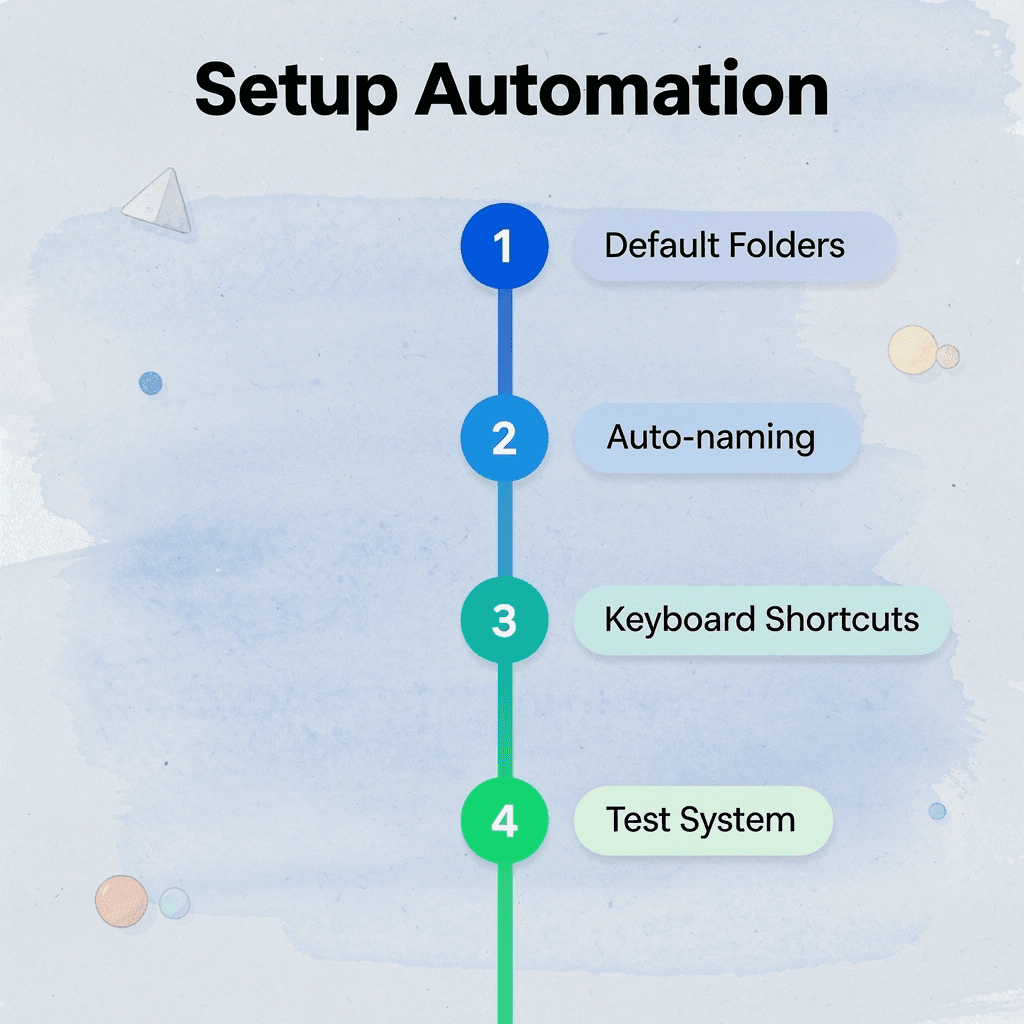
💡 Tip: Set up default folders, use auto-naming conventions, and create keyboard shortcuts for your most common file types. When saving a file takes less than 5 seconds and requires zero thinking, you've built a system that will actually stick.
Set Your Default Save Location Once
Open your cloud storage tool and set it as the default save location for every application. Word documents should save to Google Drive automatically, PDFs to OneDrive, and screenshots to Dropbox without prompting. When the system chooses the location, you eliminate that decision fifty times a week. Most people skip this step, thinking they'll remember to save correctly. One file saved to the wrong place breaks the pattern; five files destroy it entirely. Automation removes the choice before inconsistency becomes a habit.
Automate File Naming With Templates
Create naming templates inside your document tools so new files get the right structure. In Google Docs, set up templates titled "Project_Topic_Date" or "Category_Description_Version." When you create a new document from the template, the naming pattern is already there; fill in the specifics. This changes naming from a creative task to a fill-in-the-blank task. Consistency makes search predictable: when every file follows the same pattern, you can find them by typing fragments of the structure rather than remembering what you called something months ago.
Schedule a Weekly Five-Minute Review
Set a calendar reminder every Friday afternoon to scan your main folder for misplaced files. Look for items saved to the wrong location, named inconsistently, or duplicated across folders. Move, rename, or delete them before the weekend. Five minutes of maintenance prevents hours of cleanup later. The review works because it catches mistakes while they're still small. One misplaced file is easy to fix; twenty scattered across four folders becomes a reorganization project. Regular maintenance keeps the system stable without requiring monthly full audits.
Tag Files by Theme, Not Just Location
Most cloud storage tools let you add tags or labels to files. Use them to mark documents by topic, project stage, or collaborator. A research paper might live in the "Thesis" folder but carry tags like "literature-review," "methodology," and "2026." When you search later, you can filter by tag instead of navigating through folders. Tagging solves the problem of files that belong in multiple categories. A meeting note might relate to three different projects. Instead of copying it into three folders, you tag it with all three project names. The file lives in one place but appears in every relevant search.
For researchers managing dozens of academic papers, tagging by theme requires remembering which tags you used and which files you tagged. When synthesizing information from multiple sources, you need to find specific arguments, data points, or quotes buried inside files, not organize them by category. Platforms like Otio shift from tag-based to content-based retrieval, allowing you to ask questions across your entire research library and get answers pulled directly from relevant documents, rather than filtering by labels assigned weeks ago.
Remove Files That No Longer Serve Current Work
Every month, review your active folders and move finished projects to an archive. Create an "Archive" folder organized by year or project name, then move completed work there. This keeps your active workspace uncluttered while preserving access to past projects. This separation makes things easier. When you search for work-related files, you won't have to scroll past documents from finished projects. Your active folder stays clean, making it faster to find things and improving search results.
Build Retrieval Paths That Work Without Memory
The real test of your system is whether you can find what you need three months from now without thinking about it. Consistent naming conventions, predictable folder structures, and automated tagging create retrieval paths that work independently of what you remember. When your system depends on remembering where you saved something, it breaks the moment your memory fails. When it depends on rules you set once, it works whether or not you remember the file. The structure carries the retrieval logic, not your brain. You maintain it through design, not effort.
Related Reading
ChatGPT File Upload Limits
Best Document Management Software
Best Document Management Software For Small Business
Claude Ai File Upload Limits
Notebooklm Limits
Best Automation Tools For Document Management
Top Ai Tools For Document Review
Notebooklm Vs Notion
Best Hr Document Management Software
Best Ai Tools For Research Projects
Legal Document Data Extraction
Ai Tools To Summarize a Research Paper